
Navigation
Navigation patterns are wayfinding structures that show the user where they are now, where they can go next, and how they can get back.
Establishing consistent, expected locations for key pathways reduces the learning curve and helps the user move between pages and locate information.
Navigation Types
The main levels of navigation are:
- Global
- Application
- Page
Each navigation layer has a dedicated purpose and scope within the hierarchy. Together, they create a clear and predictable path for the user to navigate with confidence, switch contexts, and accomplish complex workflows.
Global
Global navigation provides persistent access to different applications within the CloudSuite, remaining consistent as the user moves between Infor OS Portal Workspaces and applications. It is implemented via the masthead component and the navigation menu component.
Masthead
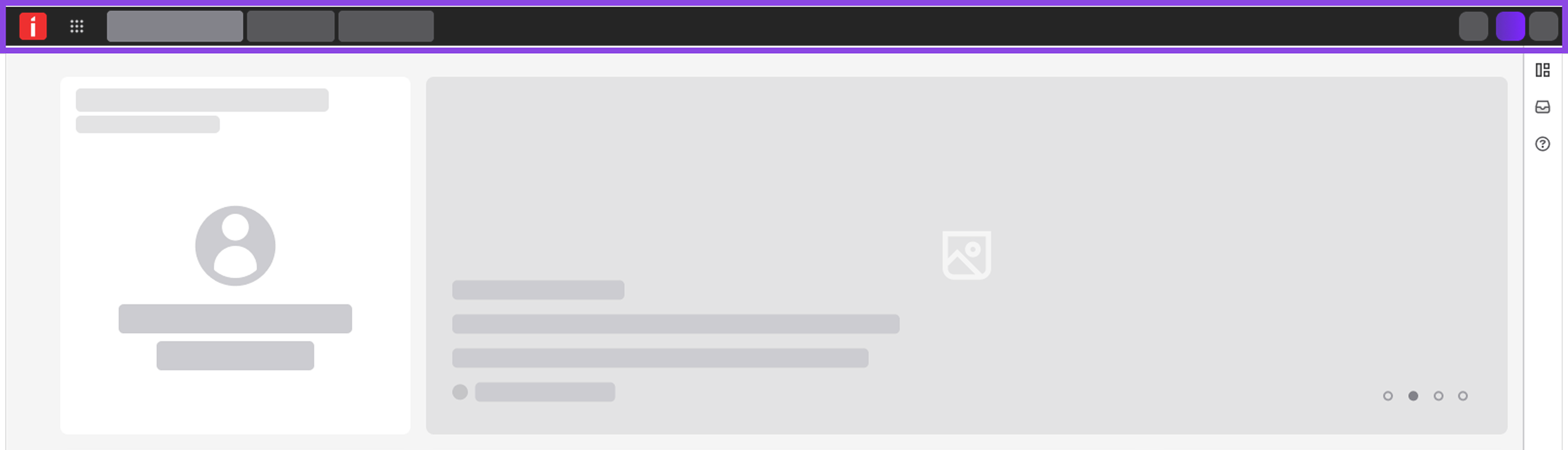
The masthead is a persistent top-level toolbar that provides a standard Infor experience and lets the user switch between Workspaces and applications.
Navigation Menu
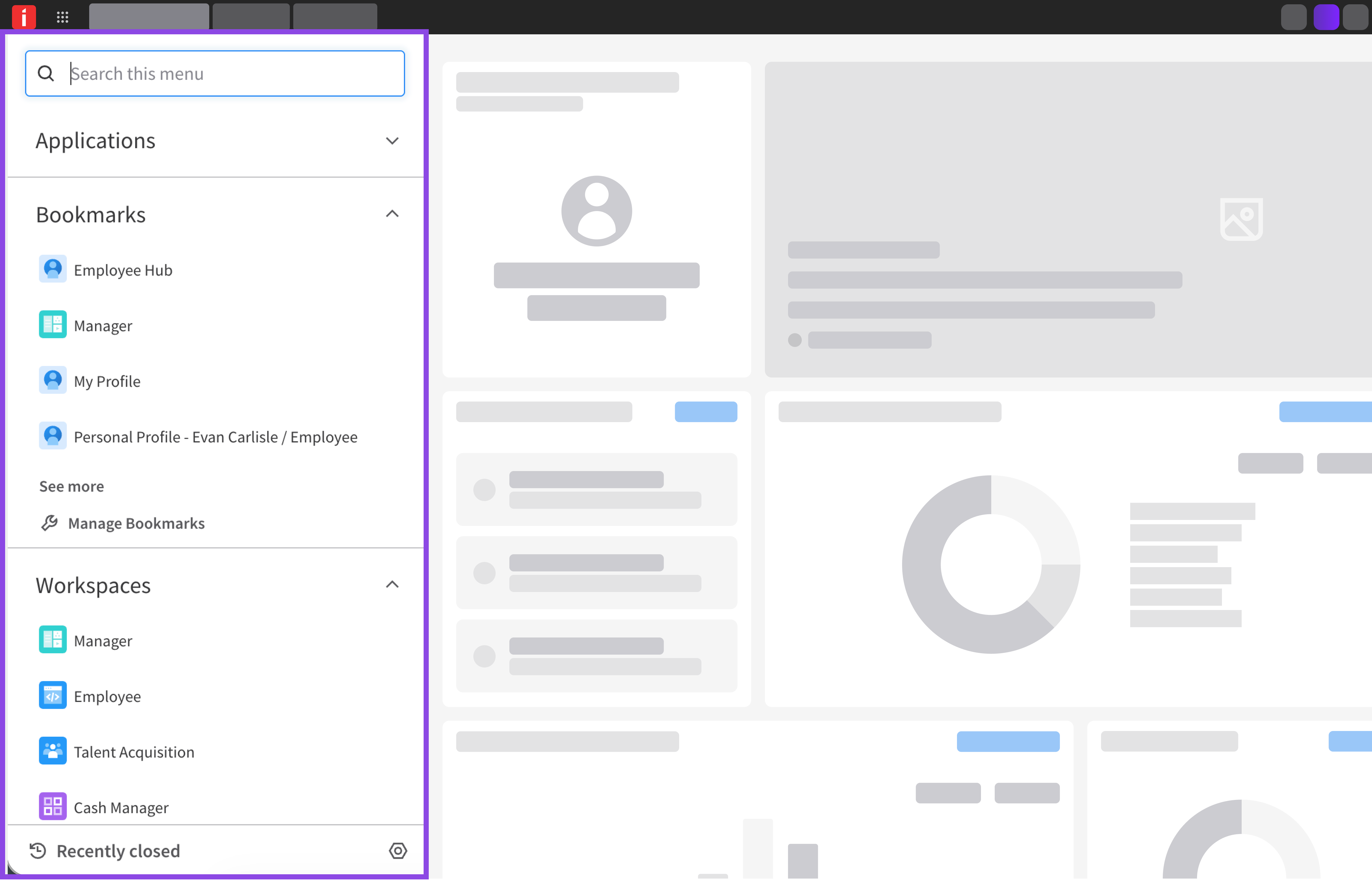
Opened from the masthead, the navigation menu allows the user to search by keyword to find and launch Workspaces, applications, and saved bookmarks across the CloudSuite.
Application
Application-level navigation helps the user move between modules, shortcuts, and views within an individual application.
Module Nav
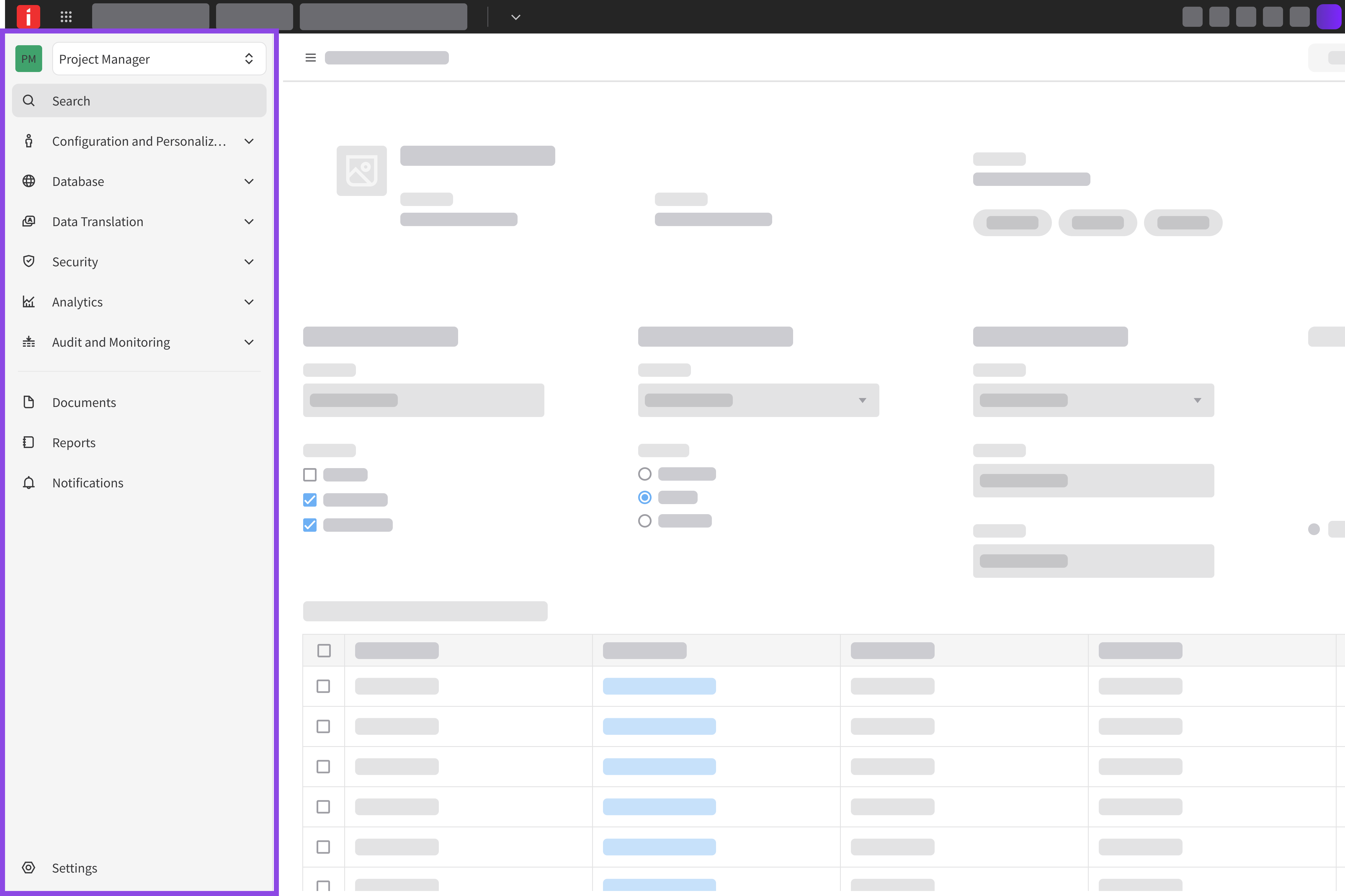
The module nav organizes and displays the available modules and pages in an application. It helps the user understand the application’s structure and move between functional areas.
Page
Page-level navigation organizes wayfinding within the current page, helping the user know where they are and switch between parallel views.
Page Identifiers
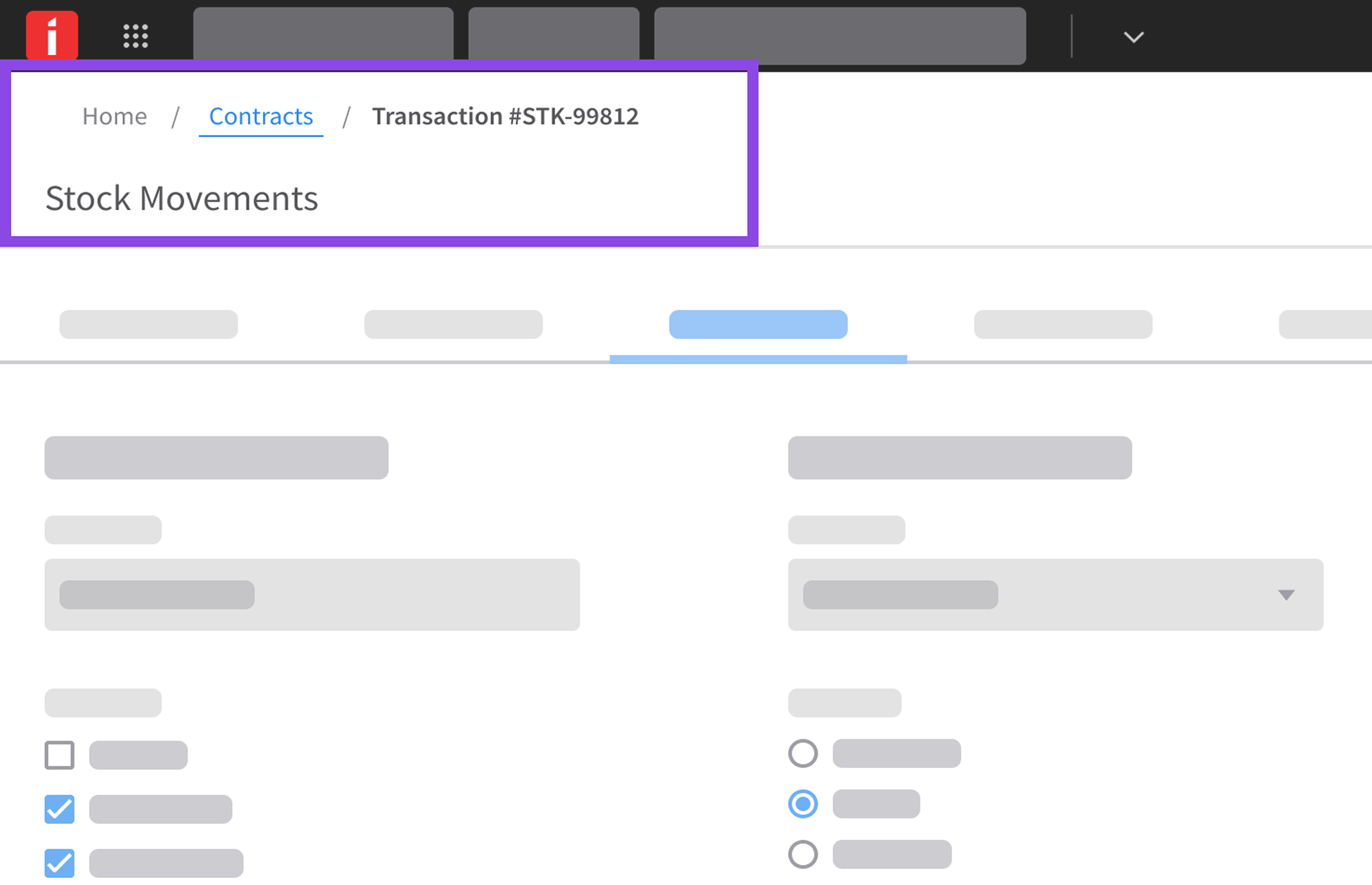
Header: Establishes the context of the page and provides access to page-level actions or utilities.
Breadcrumb: Shows the user’s location and gives them a way to return to higher-level destinations.
View Switching and Section Switching
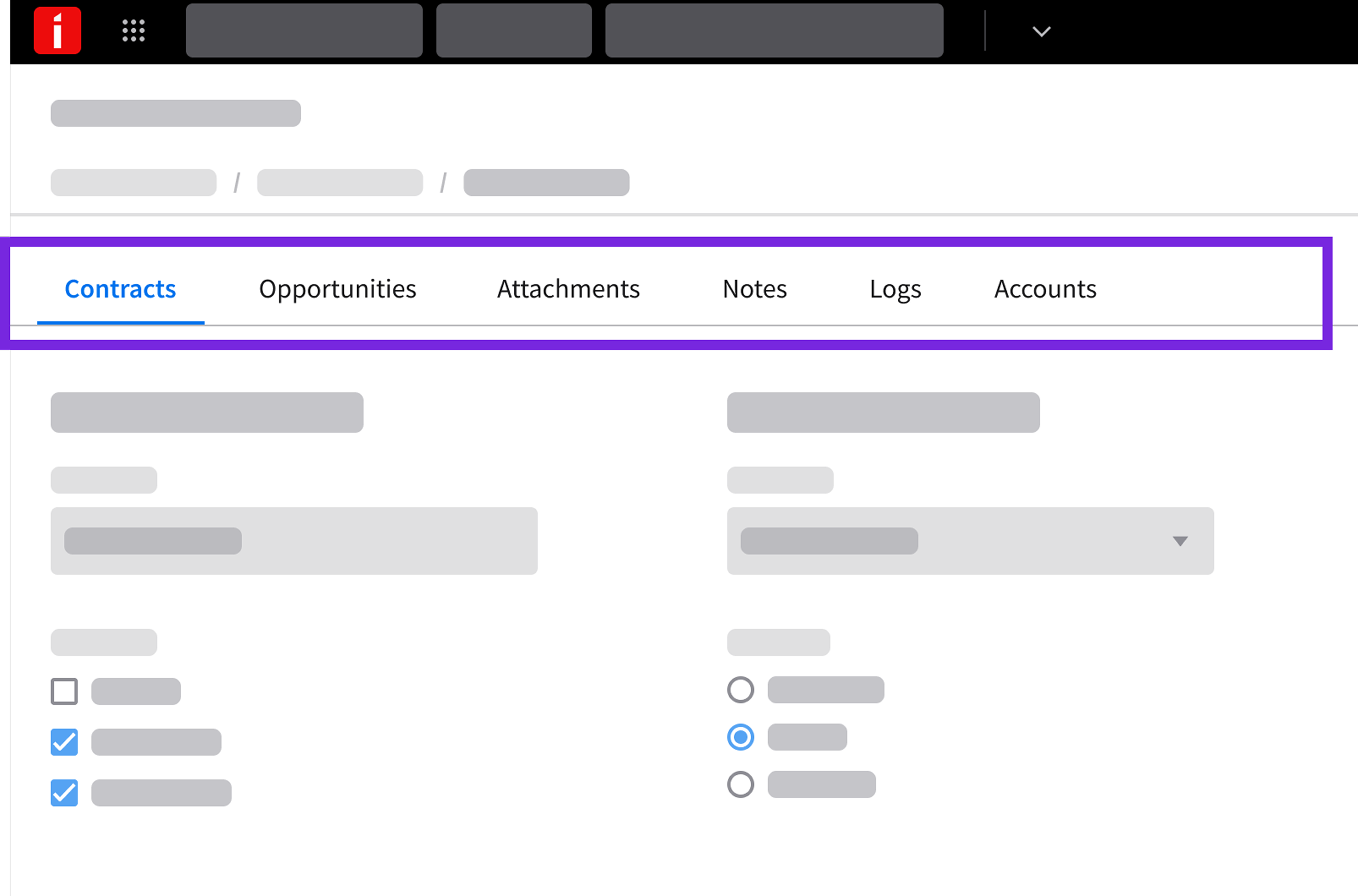
Tabs: Let the user navigate between different views or sections of content within the same interface, organizing information into categorized segments.
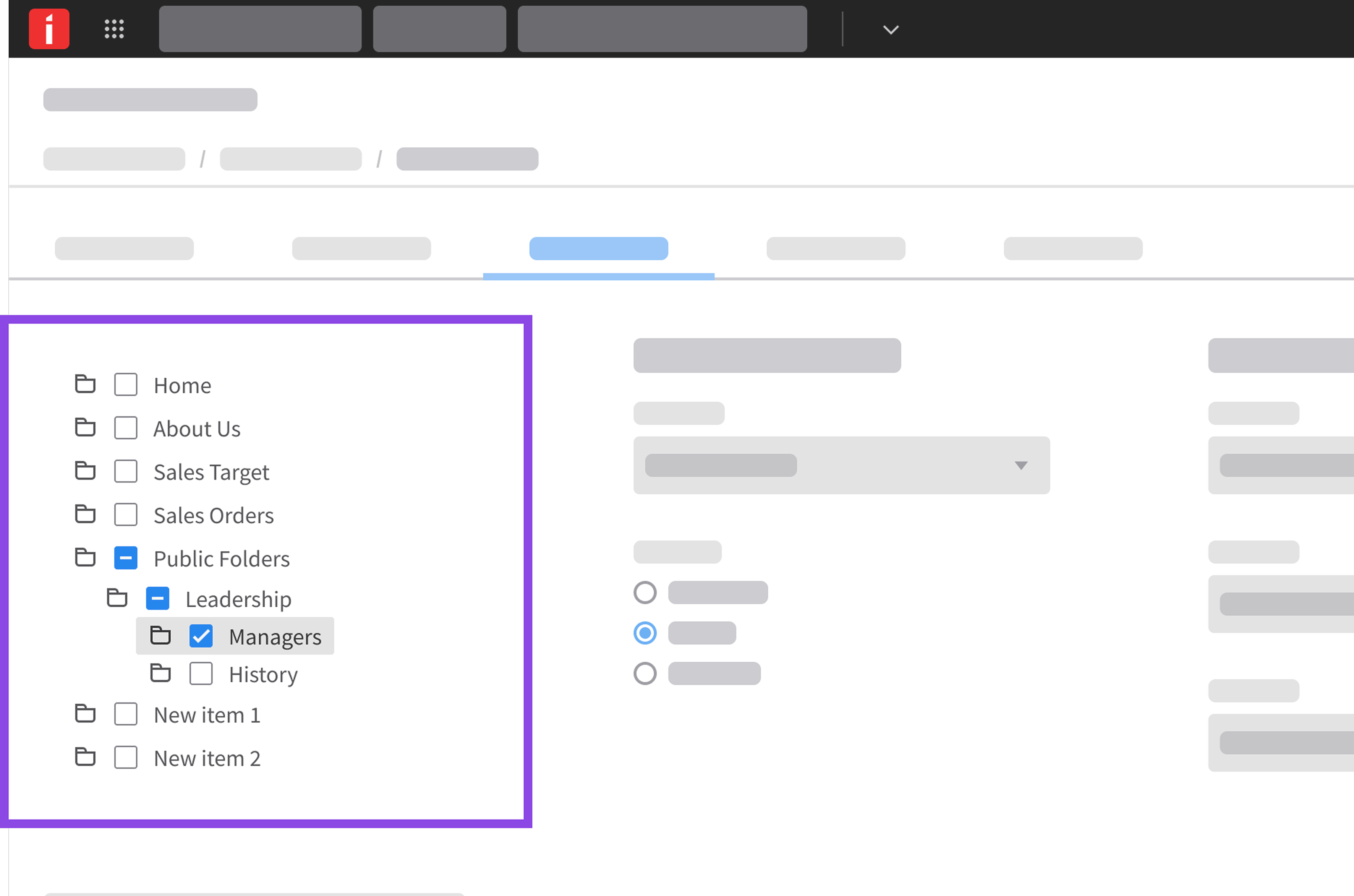
Tree: Displays hierarchical, nested structures that allow the user to expand branches and select specific records or views.
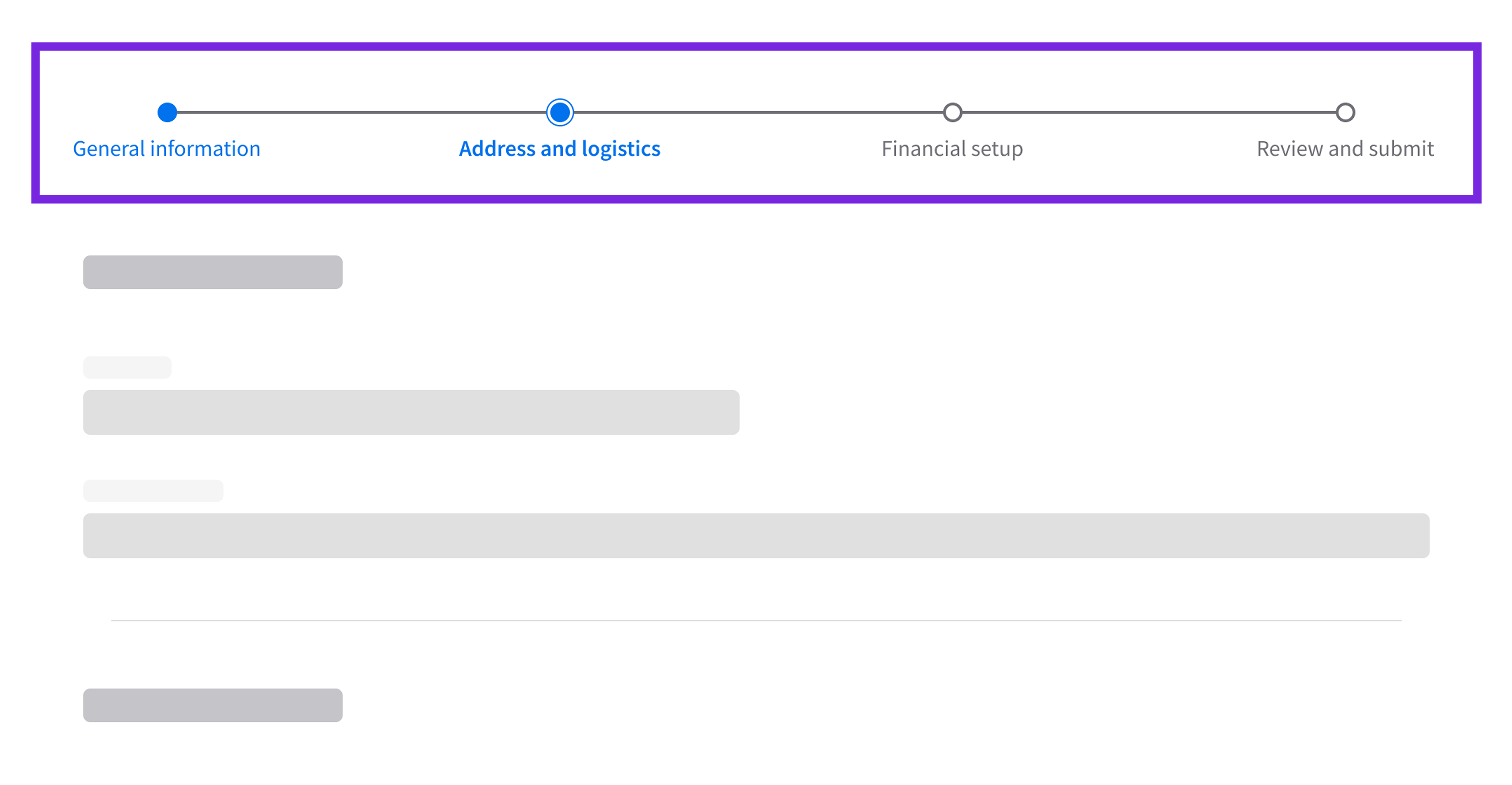
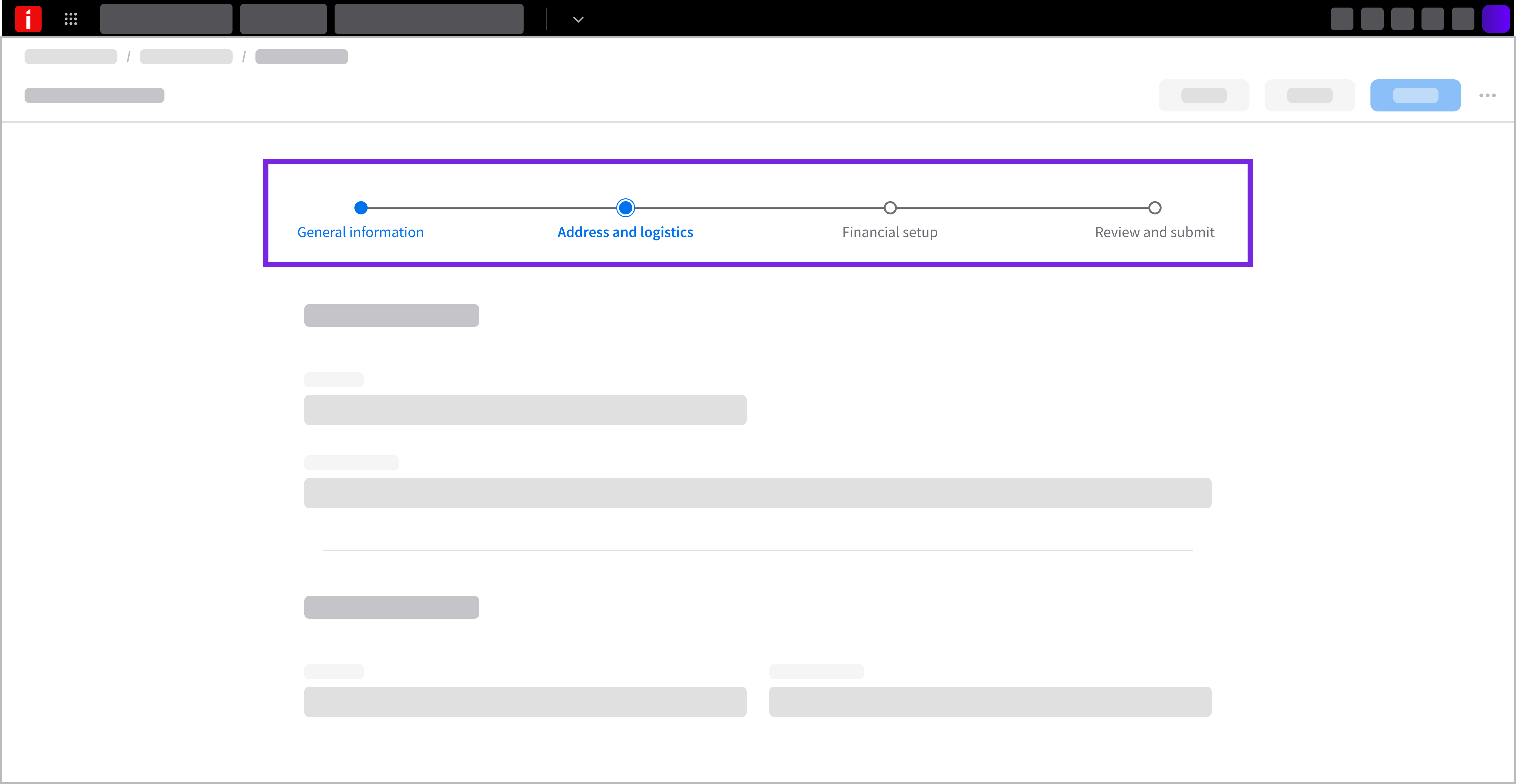
Wizard: Guides the user through a structured, multistep workflow in a defined sequence, displaying progress across dependent steps and enabling forward navigation and backward navigation.
Pagination
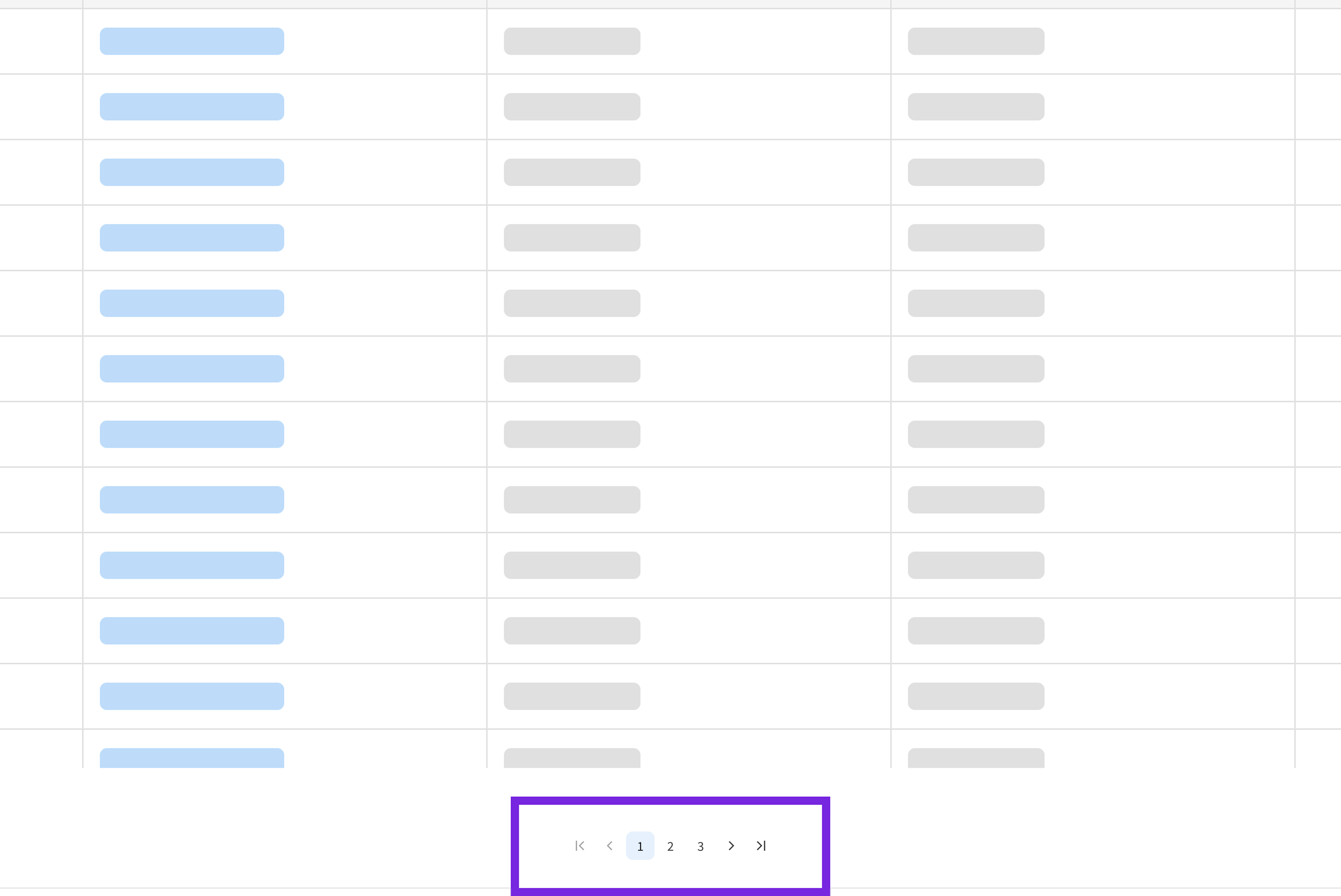
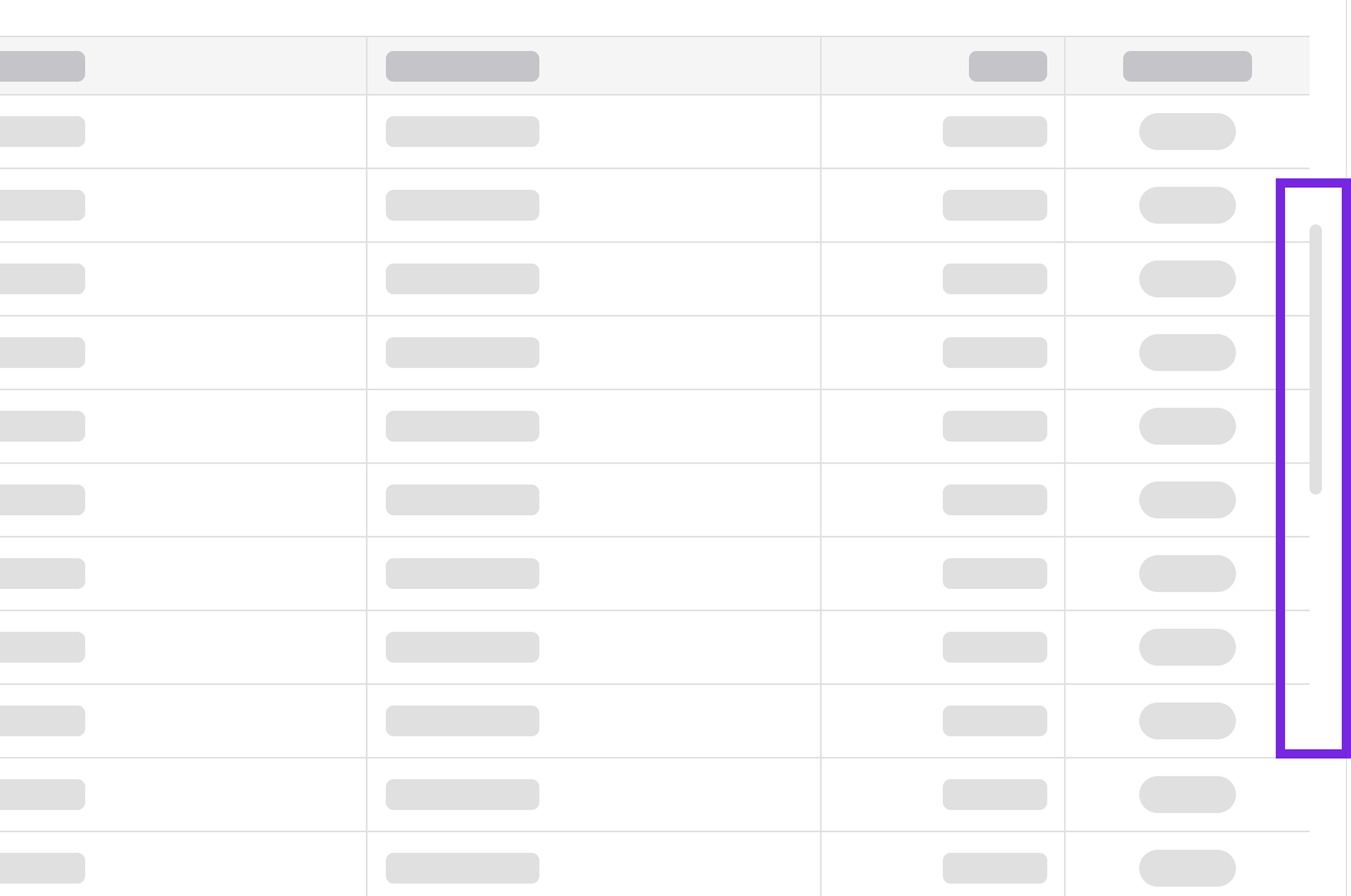
Pager: Controls pagination for large data sets, dividing records into numbered pages to support sequential navigation or direct navigation through manageable portions of data.
Use it when the user needs to jump to specific pages, know the total item count, or maintain a predictable state across batch edits.
Virtual scroller: Enables continuous scrolling through large data sets or infinite data sets, allowing the user to browse fluidly without dividing records into separate pages.
It optimizes rendering performance by loading only visible elements in the viewport, making it ideal for high-volume lists, activity logs, or data grids.
Use it when the user needs smooth, uninterrupted browsing through large or streaming data sets (like activity feeds or audit logs) without page stops.
Direct Navigation or Shortcut
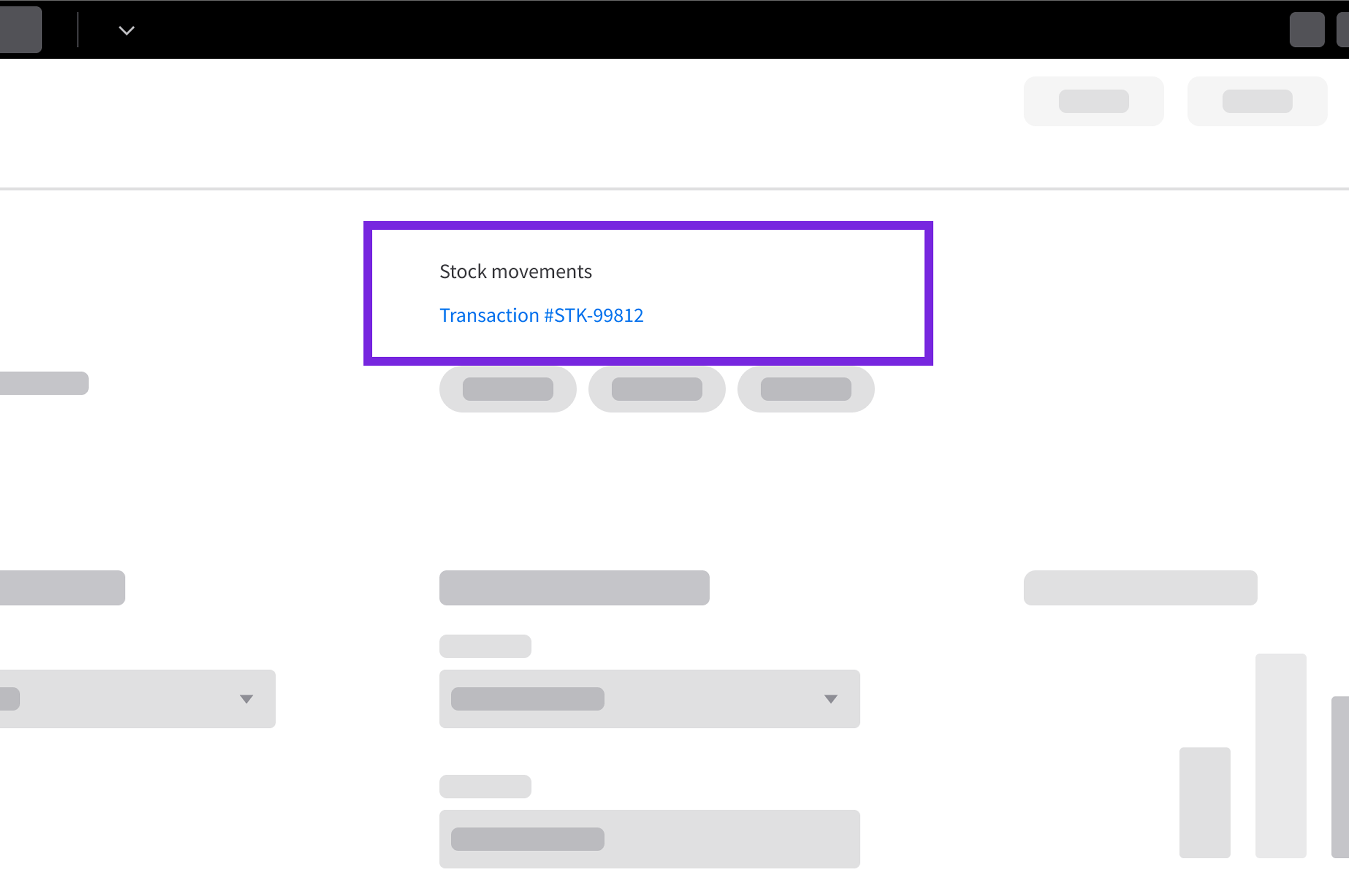
Hyperlink: Provides a contextual shortcut to navigate directly to related records, parent/child records, or external references, allowing the user to easily cross reference information.
Clicking a hyperlink takes the user to a new page (such as drilling down from a data grid or a listview into a full record) or to a new section.
Sequential Navigation
Sequential navigation guides the user through structured, multistep workflows where tasks must be completed in a defined order and earlier inputs affect subsequent steps.
Non-Sequential Navigation
Non-sequential navigation allows the user to explore content and switch between parallel views in any order, without dependencies or required steps.
- When to use: Multiview dashboards, record exploration, or editing independent sections
- Potential components: Tabs, module nav, tree, hyperlink
Search-Driven Navigation
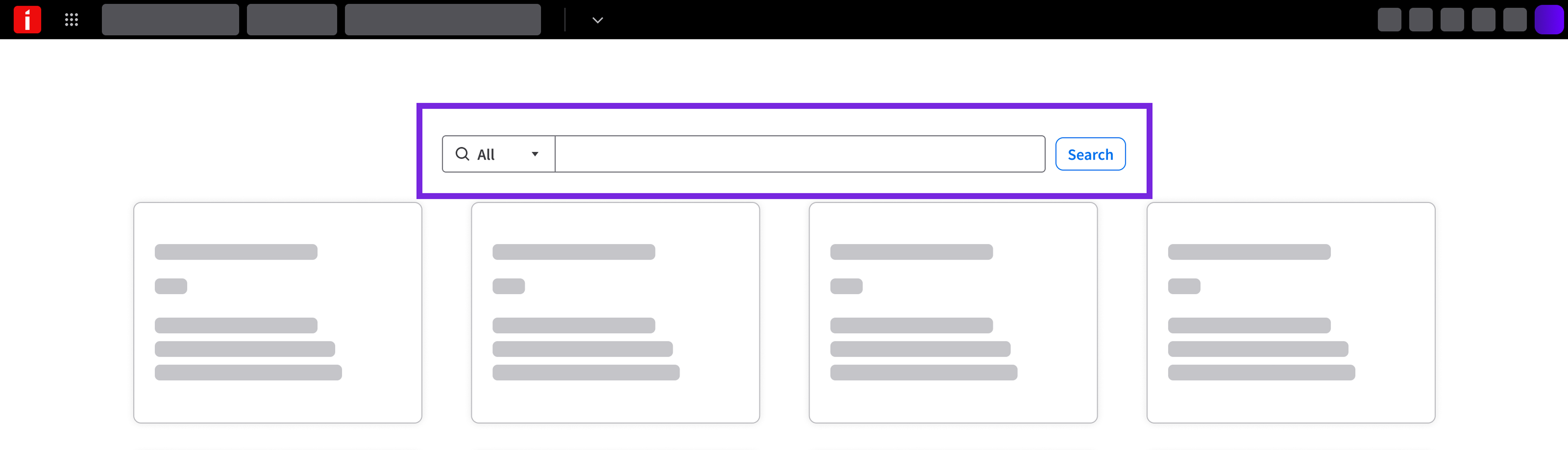
Search-driven navigation helps the user locate and jump directly to specific items or views across large data sets by entering keywords, bypassing complex hierarchies or multilevel menus.
- When to use: Navigating large data sets, finding specific transaction IDs, or finding specific records; finding destinations in applications with extensive page lists or more than 2 levels of menu hierarchy in the module nav.
- Potential components: Search field, module nav (with search field enabled)
- Related pattern: Search and filter
Best Practices
Good navigation provides clear wayfinding, reduces cognitive load, and helps the user move confidently through their workflows without getting lost.
Clear Orientation (Know Where They Are)
Use distinct visual cues and a clear primary navigation flow to make the user’s current location obvious.
Do
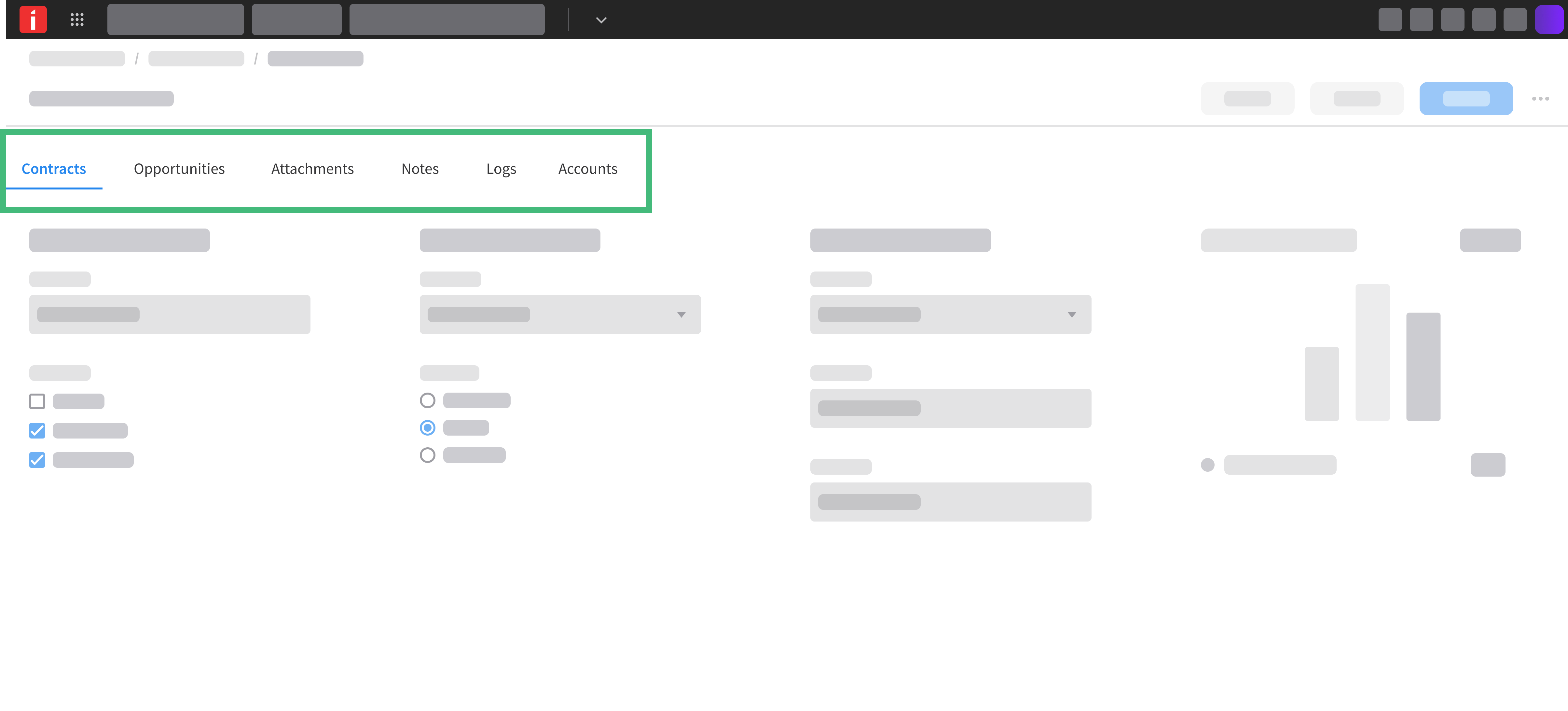
Clearly highlight active states in menus, tabs, and trees. Use page titles and breadcrumbs.
Don’t
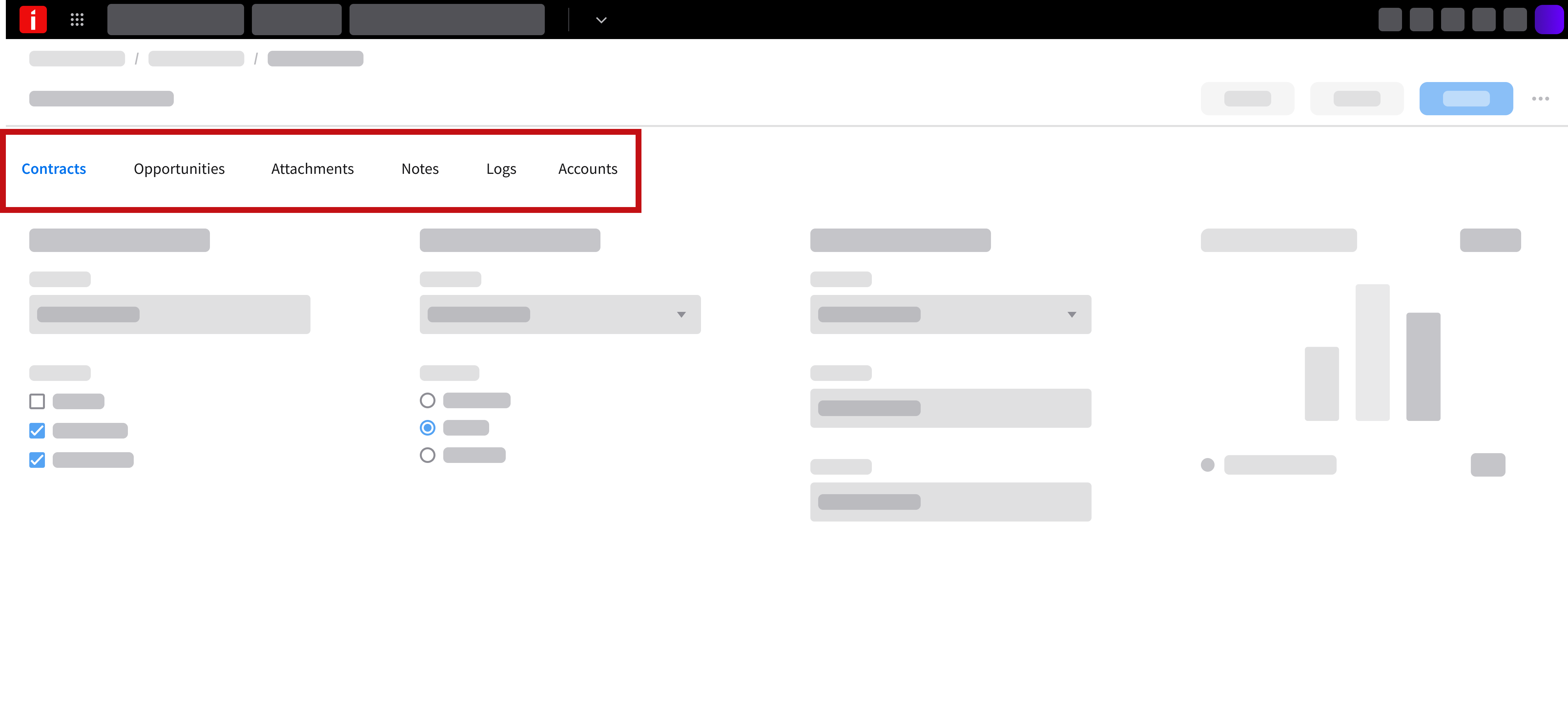
Don’t rely on color alone to indicate the active state. Include secondary visual indicators for accessibility, like icons, bold text, and underlined text.
Predictable Return Paths (Know How To Go Back)
Provide intuitive, low-effort ways for the user to go back to the previous page or the previous step without losing their work or context.
Do
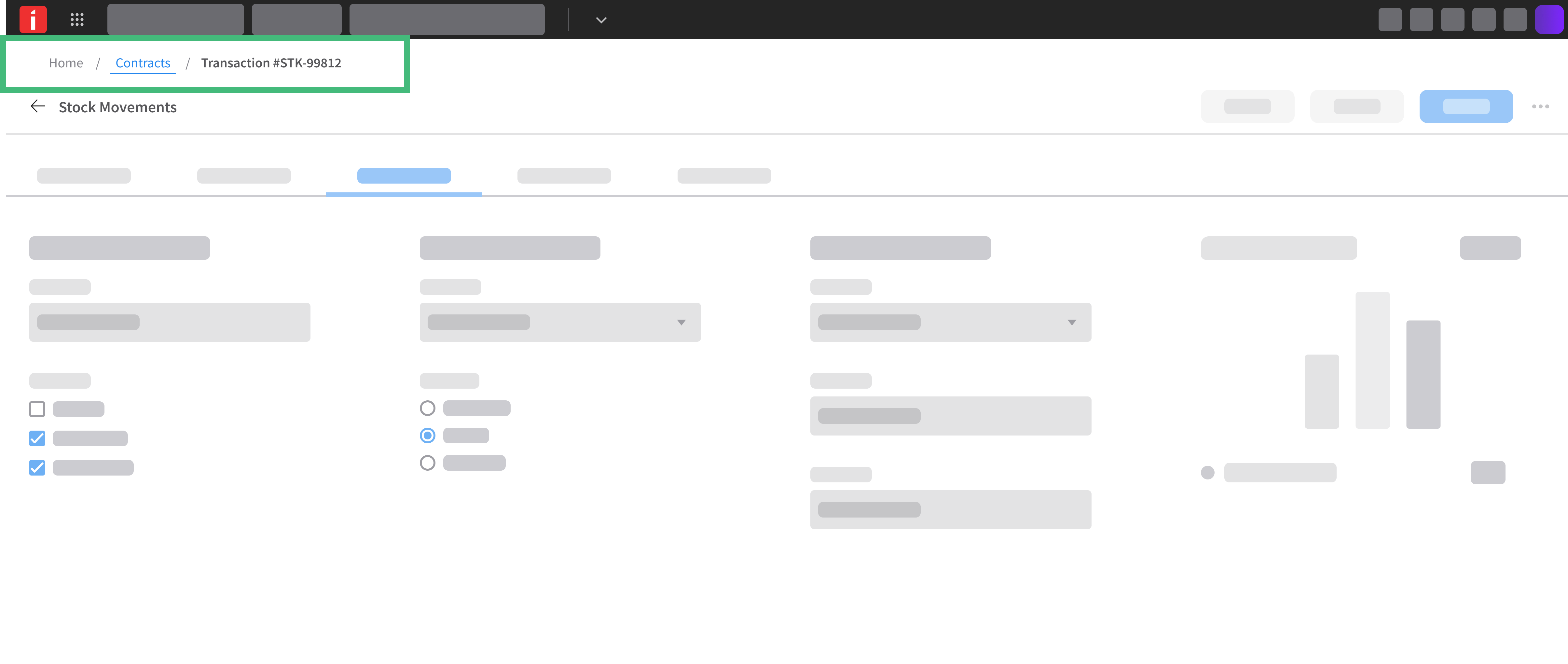
Use breadcrumbs or back buttons in nested hierarchies and flows where parent context or step-by-step return is needed.
Don’t
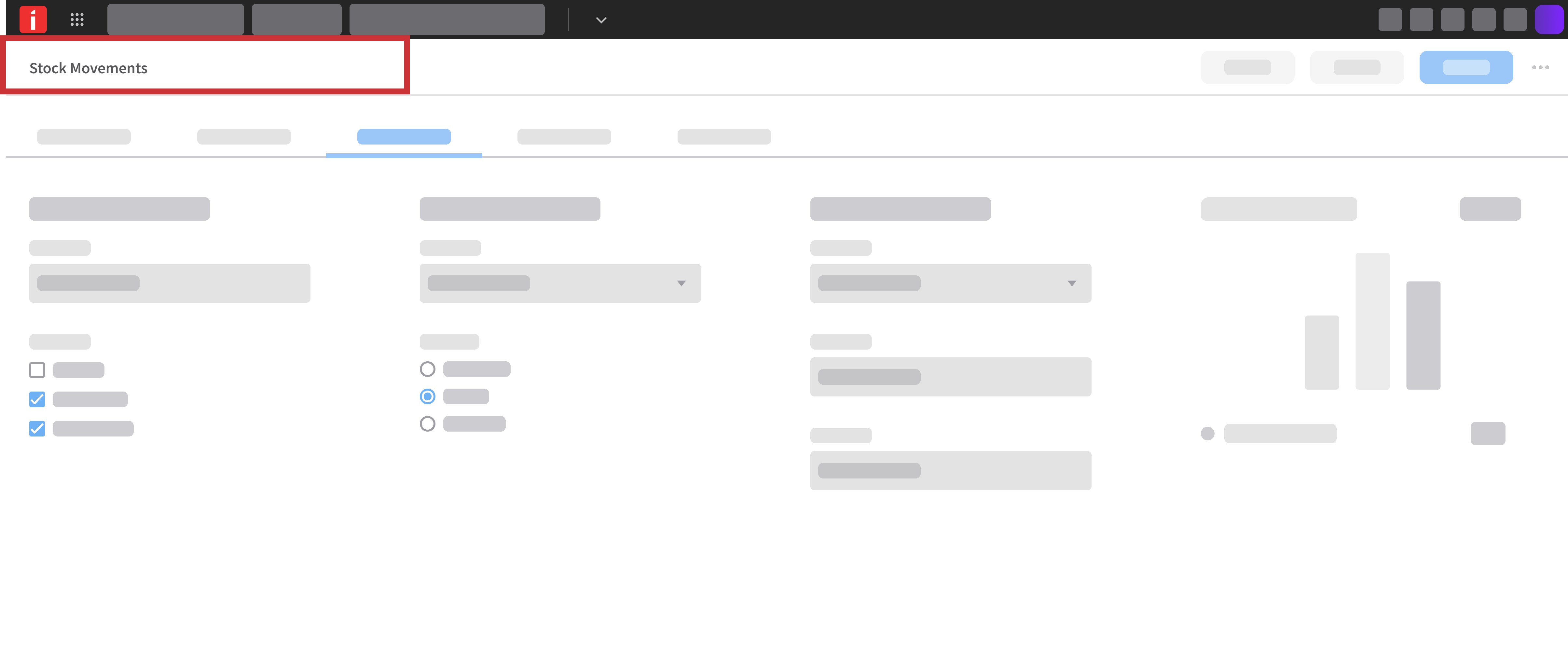
Don’t add breadcrumbs to flat, standalone, or top-level pages where there is no deeper hierarchy.
Clear Forward Paths (Know Where To Go Next)
Make primary actions and key navigation paths visually prominent. Clearly distinguish them from secondary options.
Do
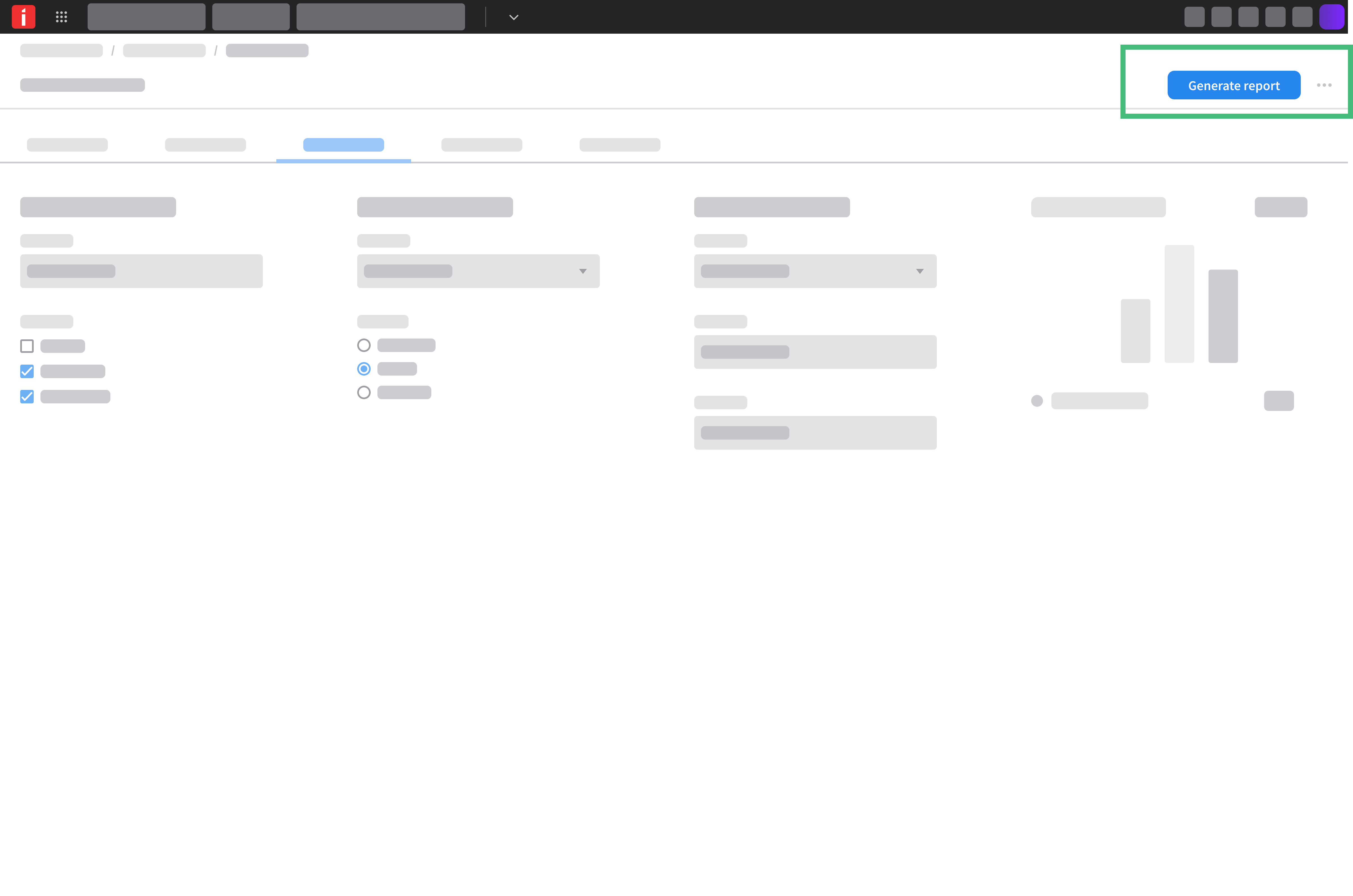
Use descriptive labels and prominent calls-to-action that indicate what view or record lies ahead.
Don’t
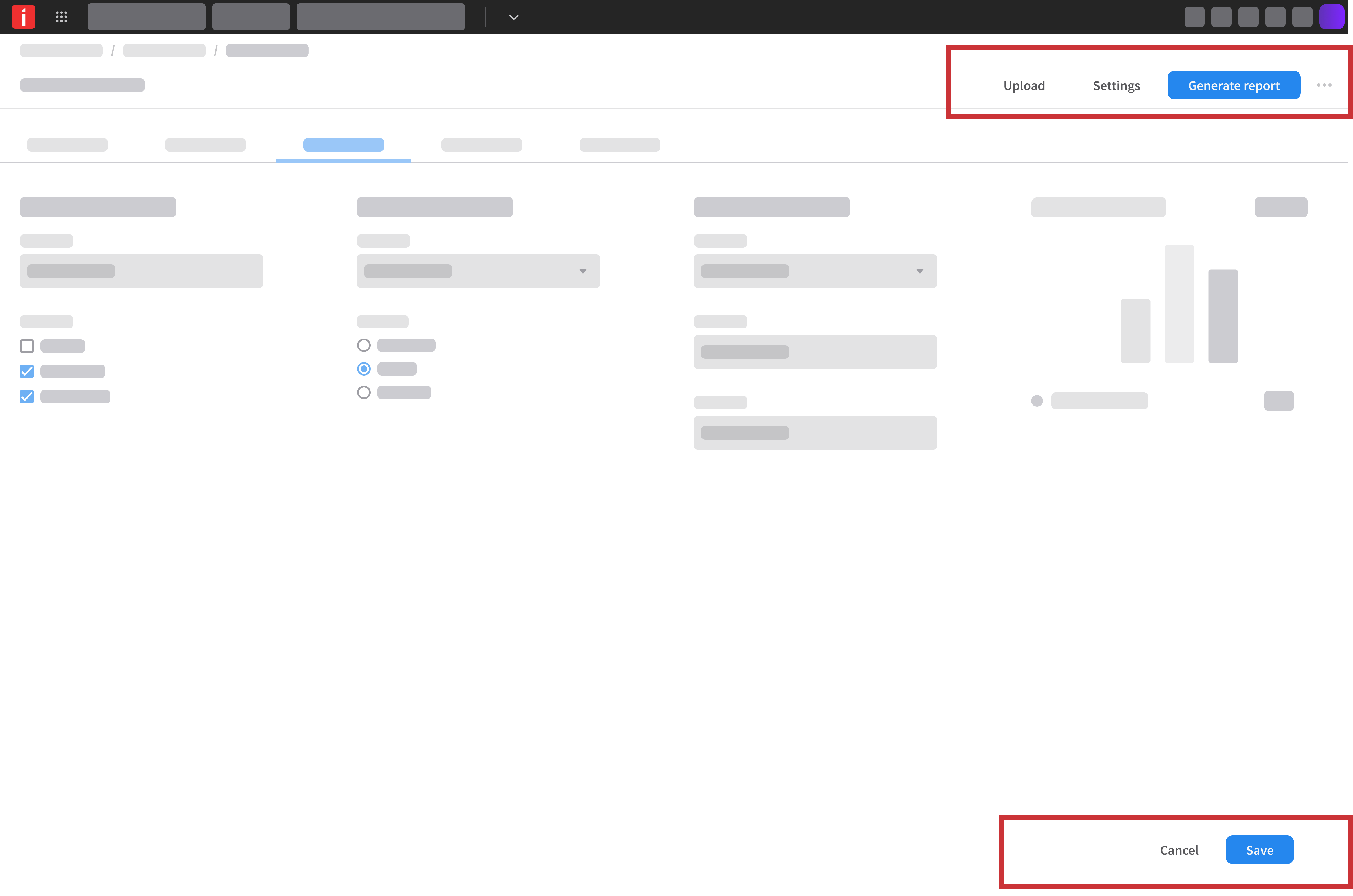
Don’t overload screens with duplicate or competing navigational links.
Logical Hierarchy and Grouping
- Organize modules, pages, and sections according to how the user thinks about their daily work, rather than technical system structures.
- Group related views, actions, and records into clear, everyday task categories.
- Keep page layouts uncluttered by prioritizing primary paths and grouping related secondary navigation into clear and predictable structures.
Consistent Styling and Placement
Clearly separate each layer of navigation.
Do
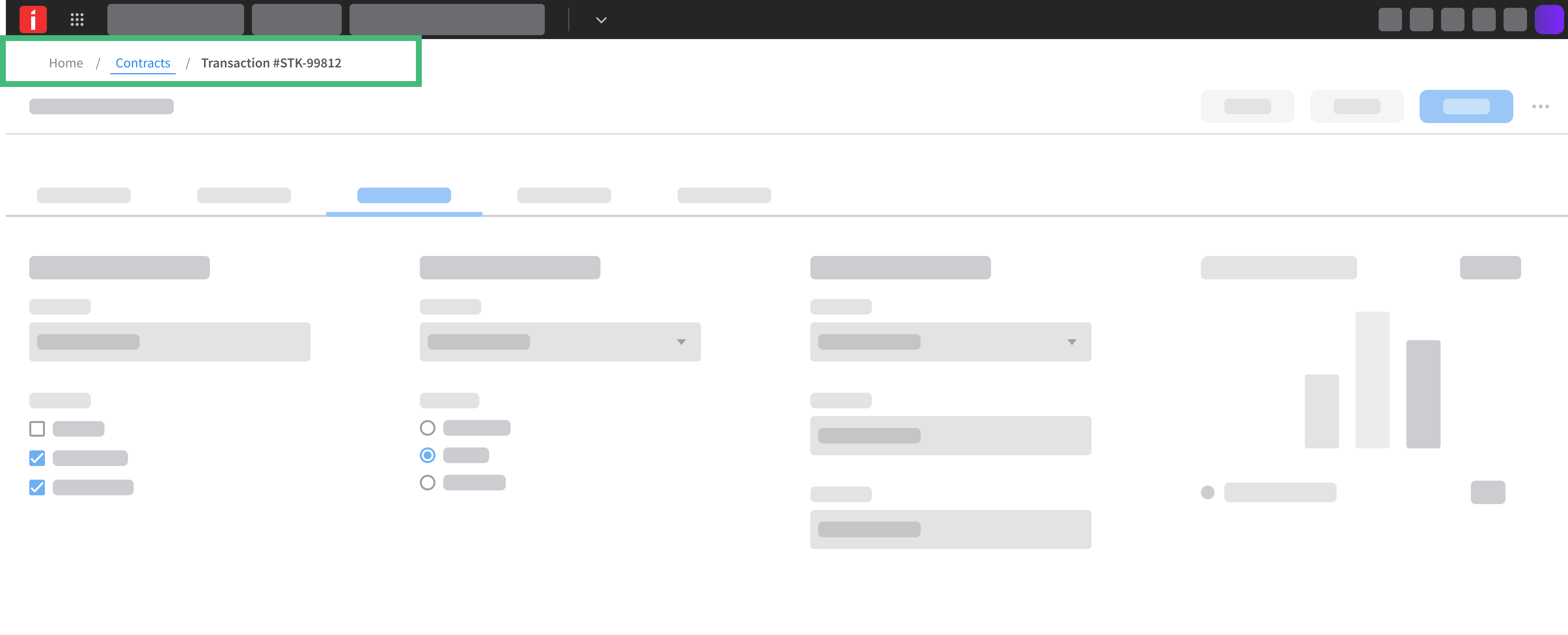
Keep platform-wide utilities strictly in the global masthead. Reserve application-level or page-level headers for local context and actions.
Don’t
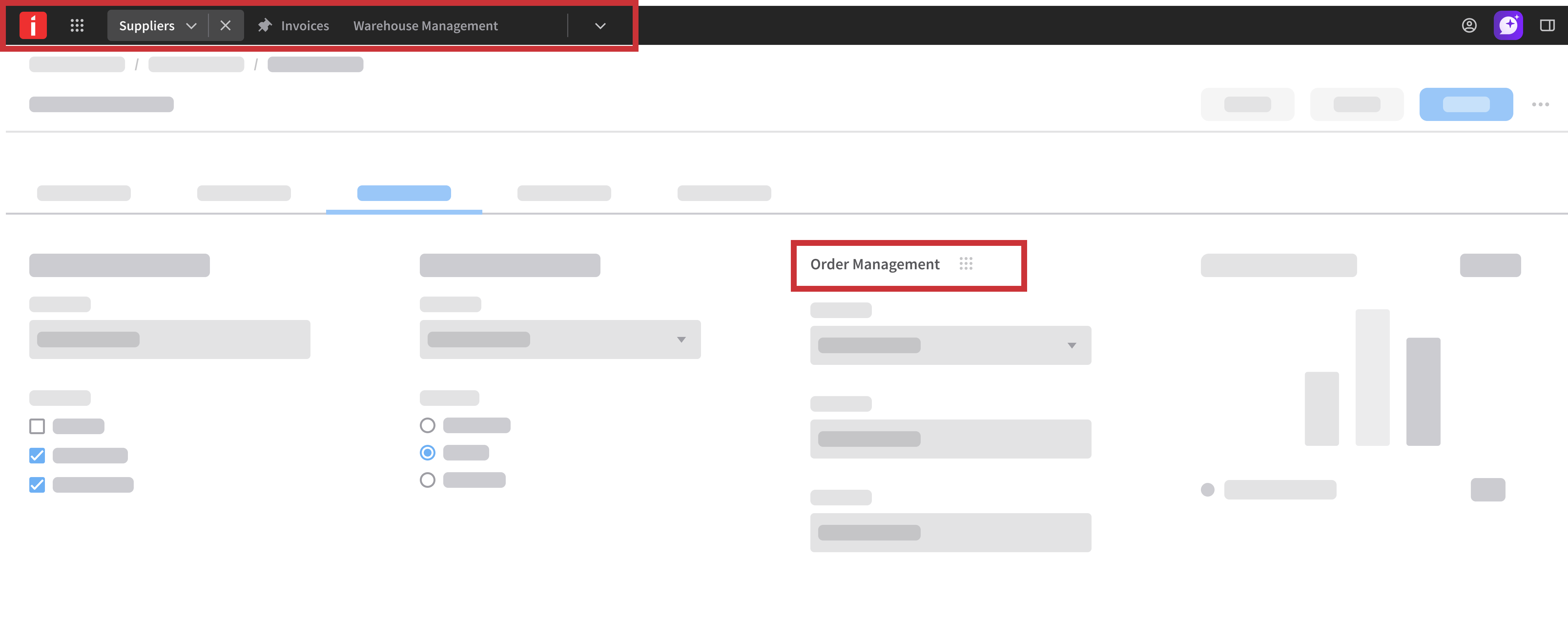
Don’t duplicate global platform utilities (like app switchers or universal user menus) inside application-level or page-level headers.
Accessibility
Navigation must be operable via keyboard and assistive technologies, providing clear orientation and landmarks across all application layers.
- Define navigation regions using semantic HTML elements (
<nav>,<header>,<main>) and descriptivearia-labelattributes so screen reader users can easily orient themselves and jump between sections. - Keep the keyboard tab sequence in a logical and predictable order that naturally follows the visual layout.
- Manage focus actively during state changes, such as moving focus into opened menus or dialogs and restoring it to the trigger button when closed.
- Include a visible-on-focus “Skip to main content” link at the top of the page so keyboard users can bypass repetitive navigation bars.
- Provide clear, accessible text labels and state indicators (like
aria-expandedandaria-current) for all interactive navigation controls and icon buttons.
Responsiveness
- Navigation must adjust to varying screen sizes, input modalities, and viewport constraints while preserving wayfinding context.
- Design navigation components to collapse into overflow menus, drawers, or hamburger menus as screen space decreases, keeping the most important actions visible.
- When a component’s layout no longer fits the available screen width or information density, replace it with a more compact equivalent—such as converting horizontal tabs into a dropdown or an accordion on smaller viewports.