
Form
A form is a structured layout that lets the user enter, review, and submit information.
It brings together various input components—like the input, the dropdown, the checkbox, and the radio—into a cohesive flow, guiding the user through data entry with labels, validation, and feedback.
Anatomy
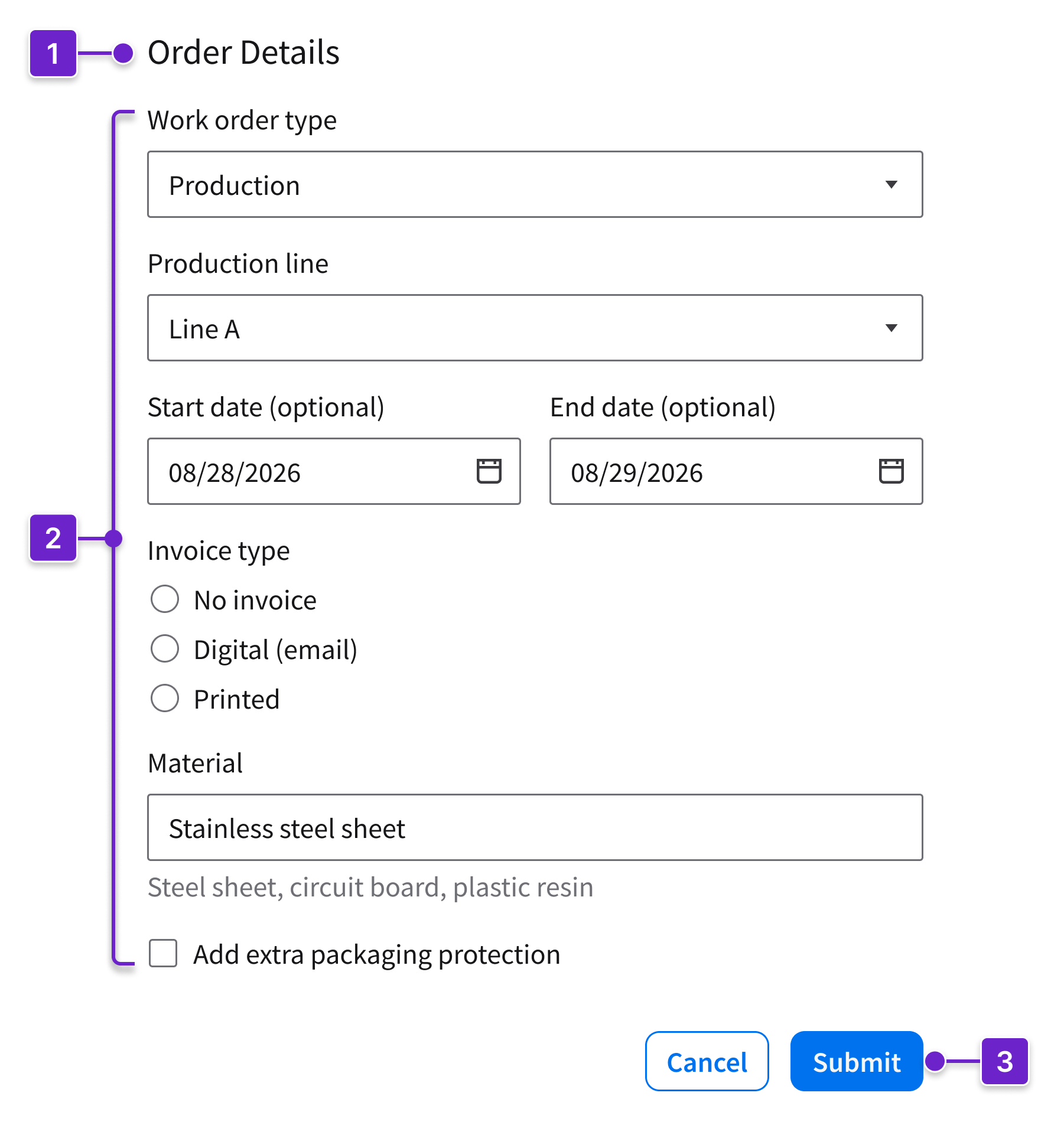
- Title (optional)
- Input components
- Actions (button group or toolbar)
Form Types
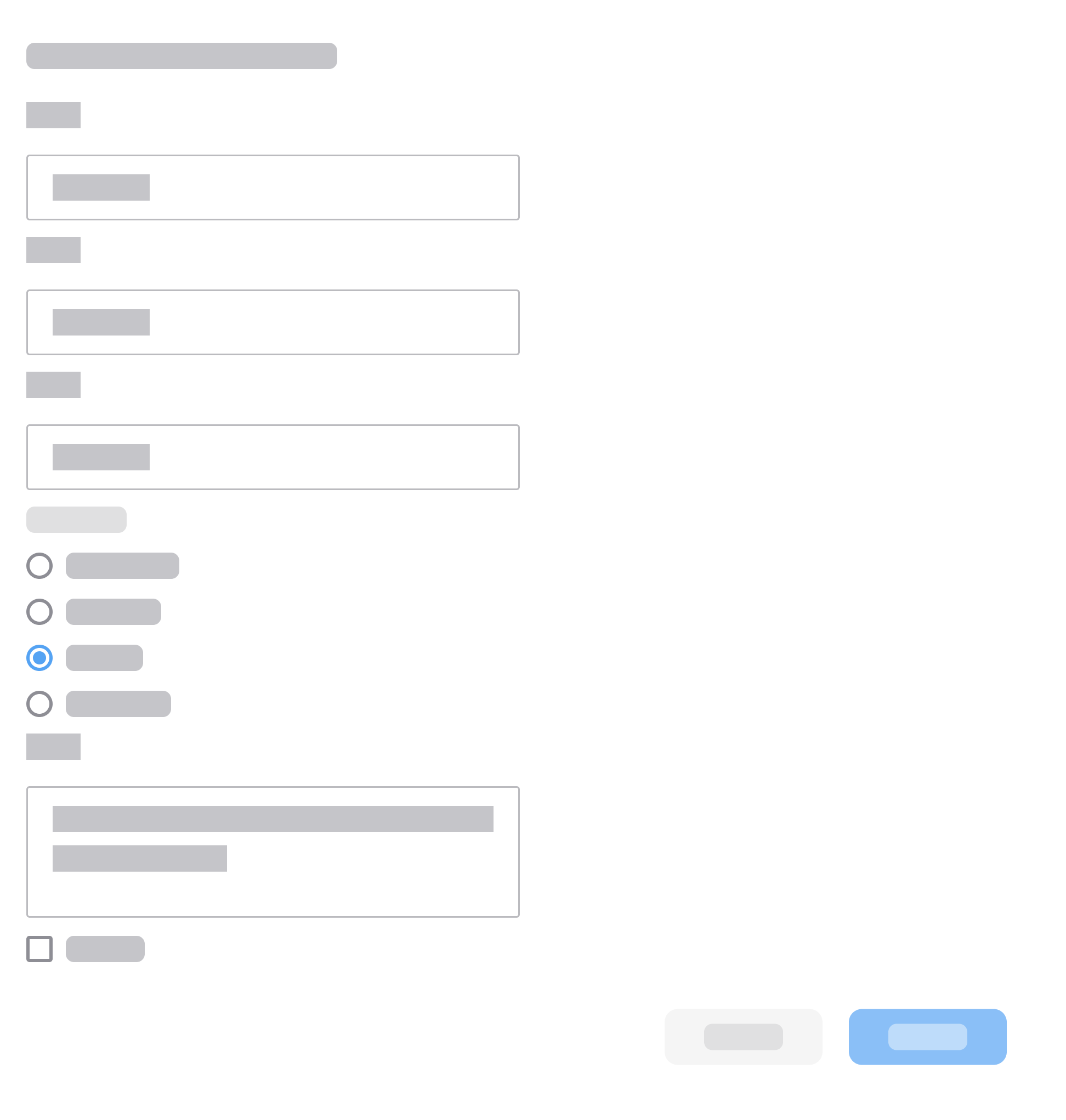
Simple Form
- Use for short and focused tasks.
- Focus the form on 1 task.
- Place primary and secondary actions in a button group at the bottom of the form.
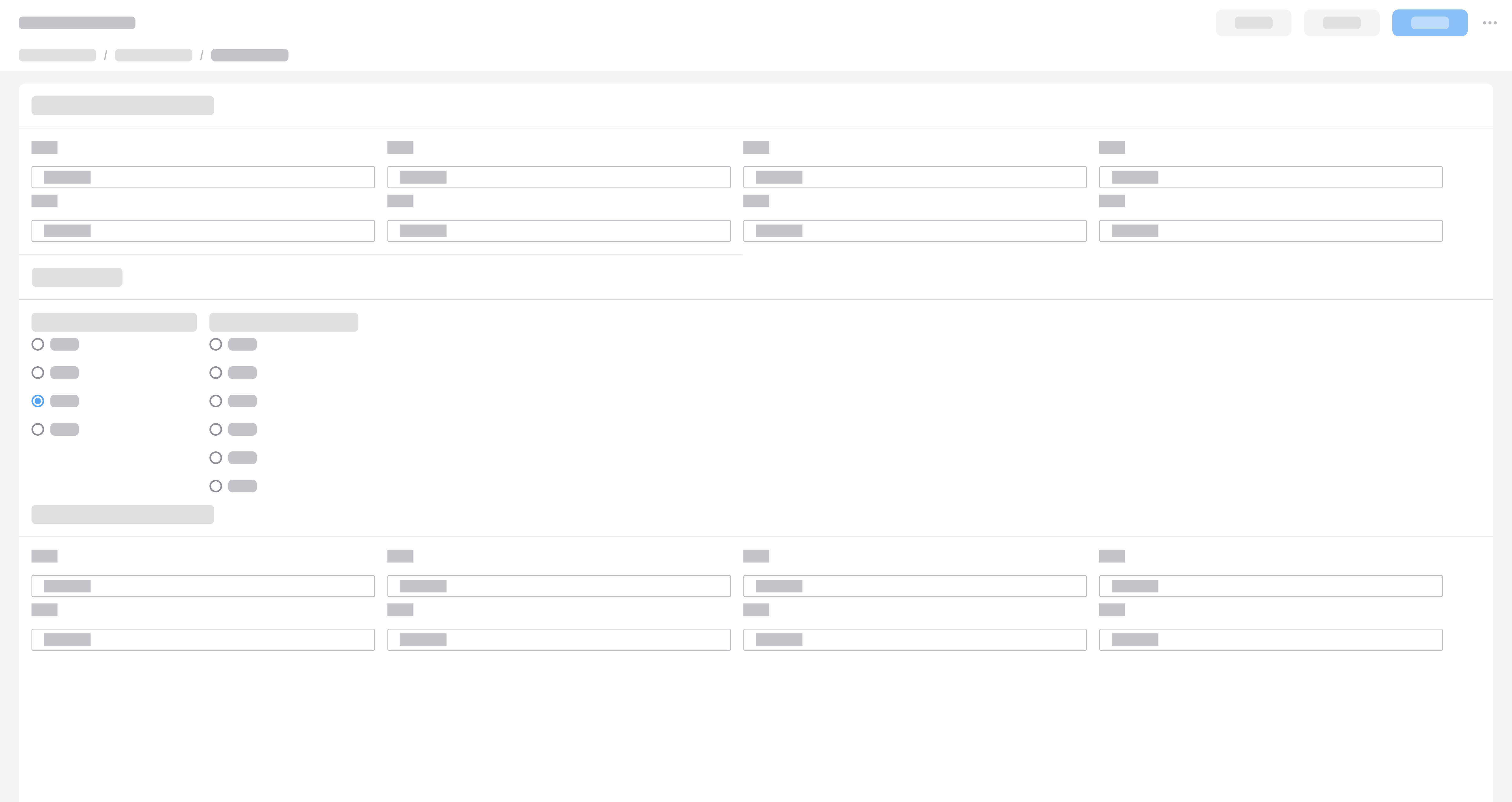
Complex Form
- Use for dense record pages or forms with multiple sections.
- Group related fields into sections and apply progressive disclosure.
- To ensure that the primary actions remain visible while the user completes the form, place them in a toolbar at the top right of the form.
Potential Components
- Inputs: Input, text area, editor (rich text), spinbox, fieldset
- Selection controls: Checkbox, radio, switch, dropdown, multiselect, rating
- Pickers: Datepicker, color picker, timepicker
- Search and lookup: Search field, lookup
- File handling: File upload, file upload (advanced)
- Actions: Button, button group, toolbar
- Navigation and progress: Wizard, process indicator
When to Use
When entering structured information in order to complete a task, such as:
- Collecting structured data: Contact info, account details
- Completing transactions: Checkout flows, registrations, applications
- Handling custom requests: Orders, scheduling, support tickets
- Gathering feedback: Satisfaction surveys, incident or bug reporting
When to Use Something Else
- For conversational input, open-ended requests, or guided exploration, consider an AI assistant.
- To update a single value without opening a form, use inline editing or bulk actions.
- To review summary information or to monitor status without data entry, use data labels.
Structure
Grouping
You can organize input components into groups.
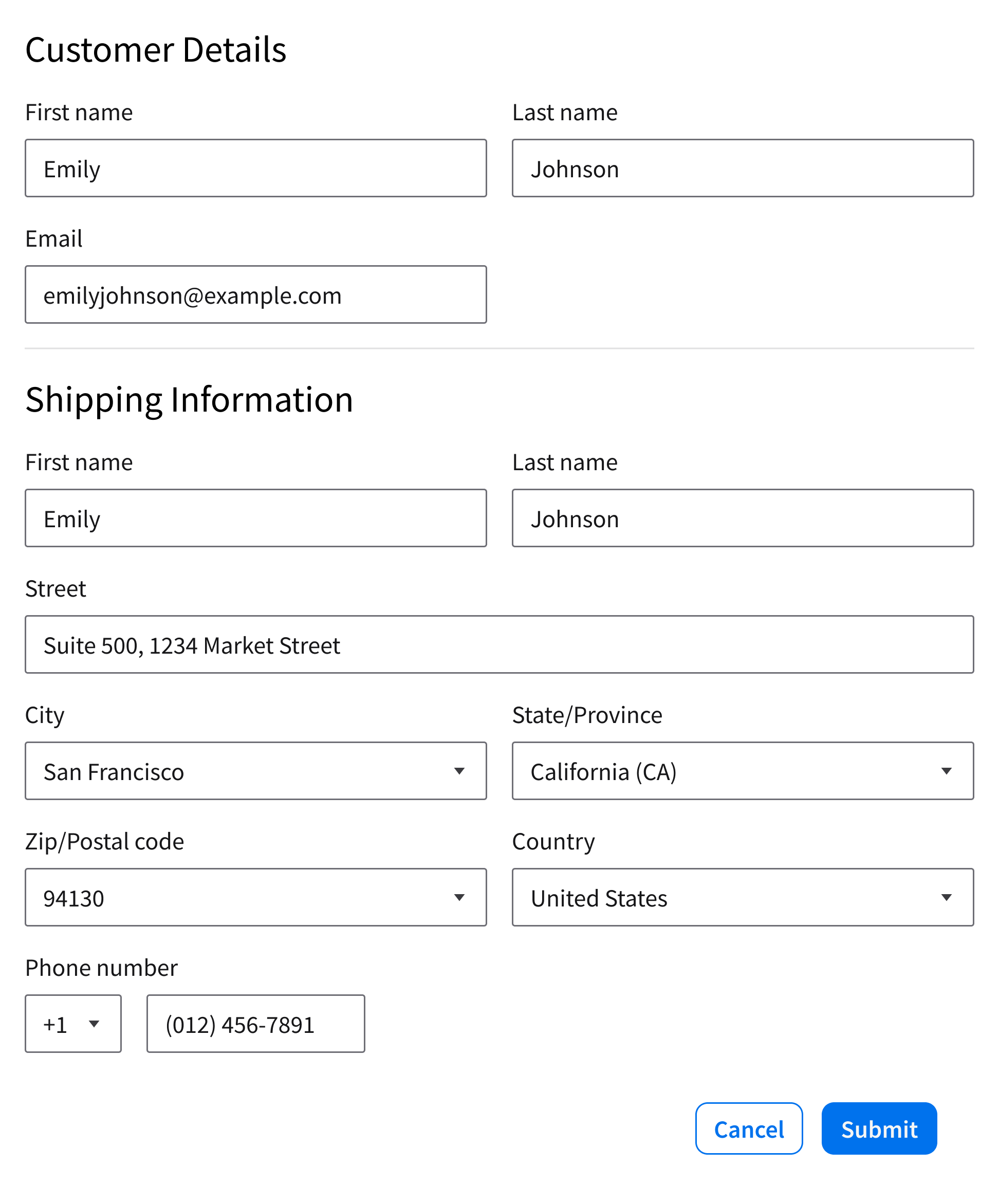
Sections (Default)
- To create separate sections of related fields, use headings.
- When there is information that the user can skip, like optional fields or advanced settings, use accordions and apply progressive disclosure.
- To create visual breaks between short sections, or when hiding content makes comparison difficult, use separators.
Inline Groups
- When 2 or more fields represent a single set of information, place them in the same row.
- Examples: Names, dates, times, addresses, phone numbers
- When each field is distinct, use separate labels.
- Examples: First name and last name; city and state/province; zip/postal code and country; start date and end date
- When fields are connected, use a single label.
- Example: Phone number and country code
Using Sections and Inline Groups
- Within each section, put fields that support the same decision or task next to each other.
- Label each inline group.
- Keep inline groups small.
Label Alignment
There are 2 ways to align a label: Top and inline. Choose 1 label alignment and use it consistently in a CloudSuite.
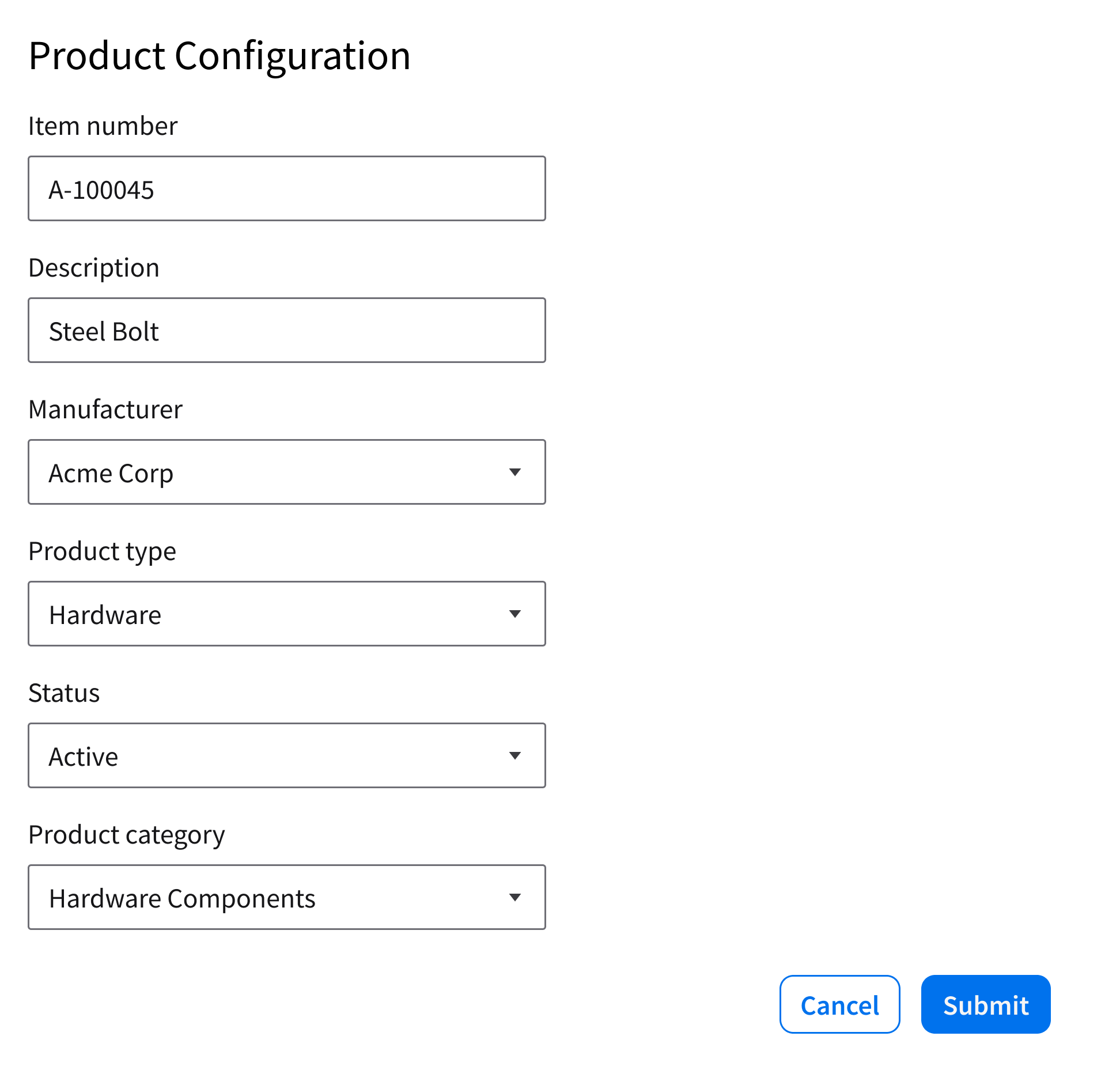
Top Label (Default)
- Place the label above the field.
- Recommended for most forms that have less than 6 fields.
- Preferred for mobile devices.
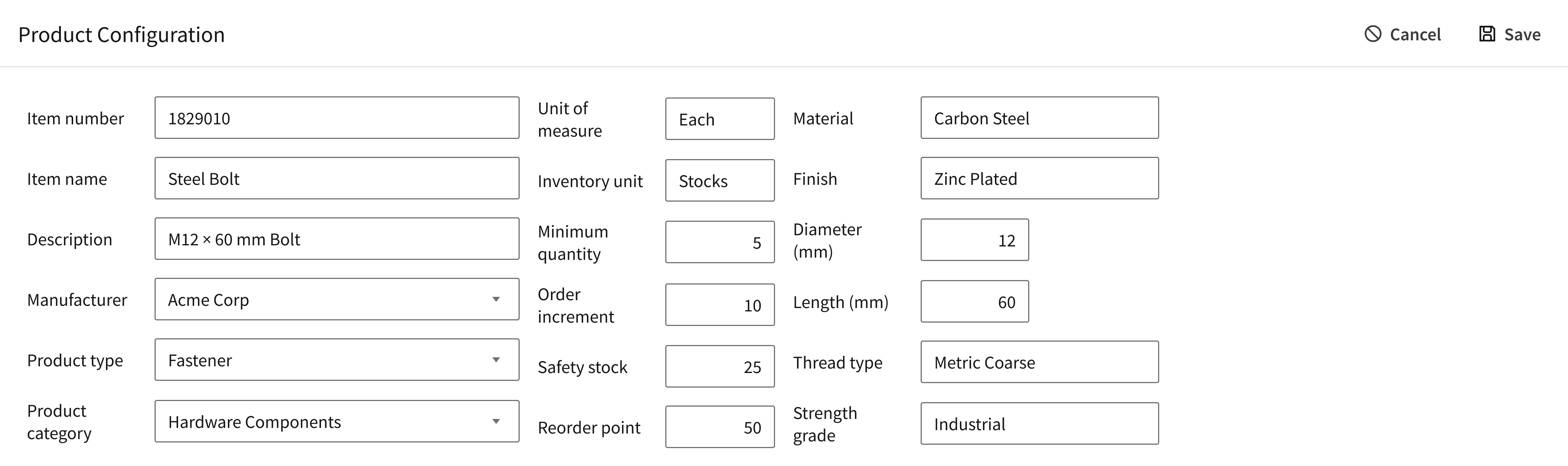
Inline Label
- Place the label to the left of the field.
- Recommended for dense forms with more than 6 fields and up to 4 columns.
- On mobile devices, inline labels switch to top labels.
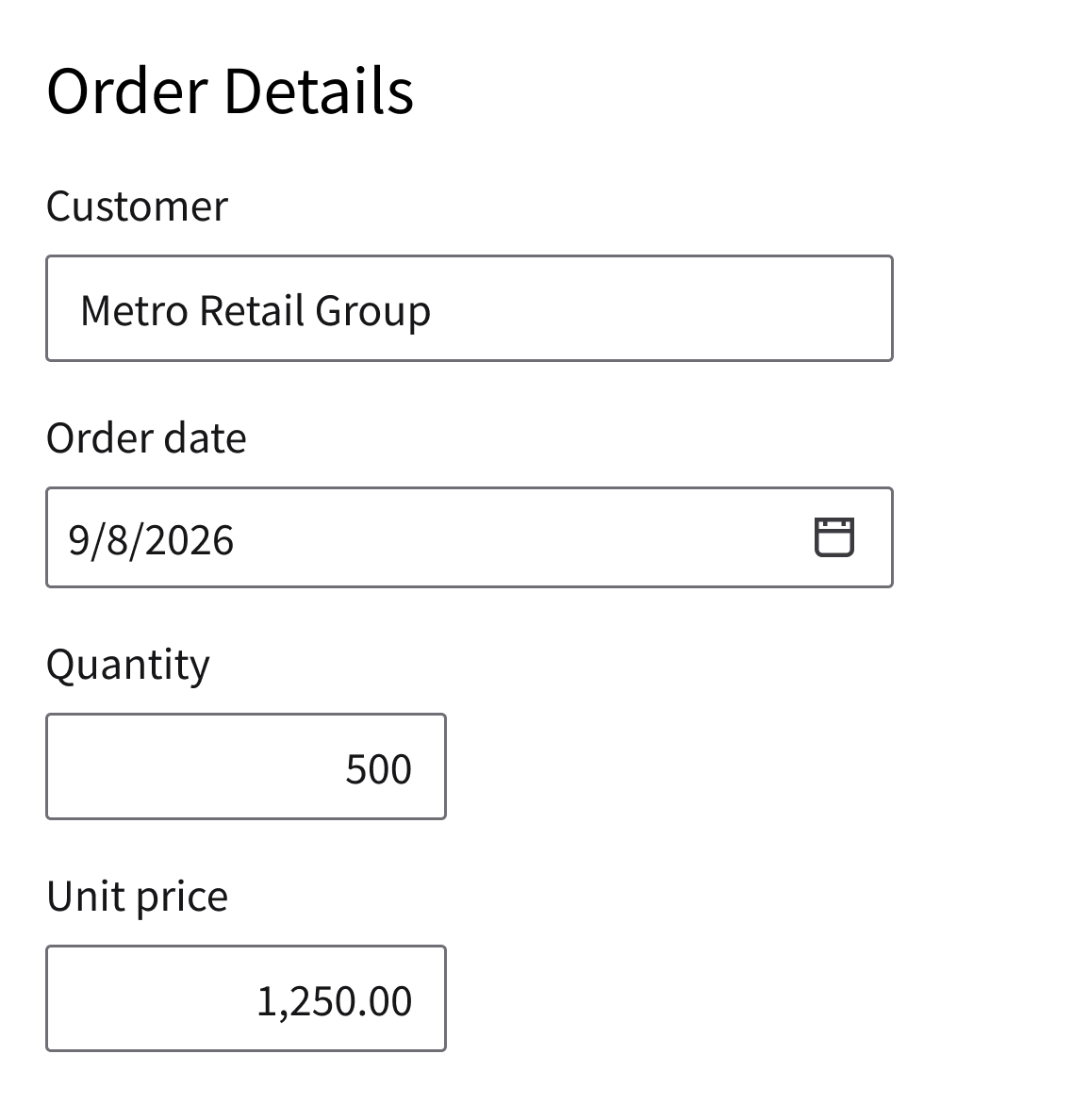
Text Values
Left-Aligned Text Values (Default)
Informational text values are left aligned.
- Examples: “Customer”, “Order date”
Right-Aligned Text Values
Numeric values are right aligned.
- Examples: Currency, quantity, percentage, measurement
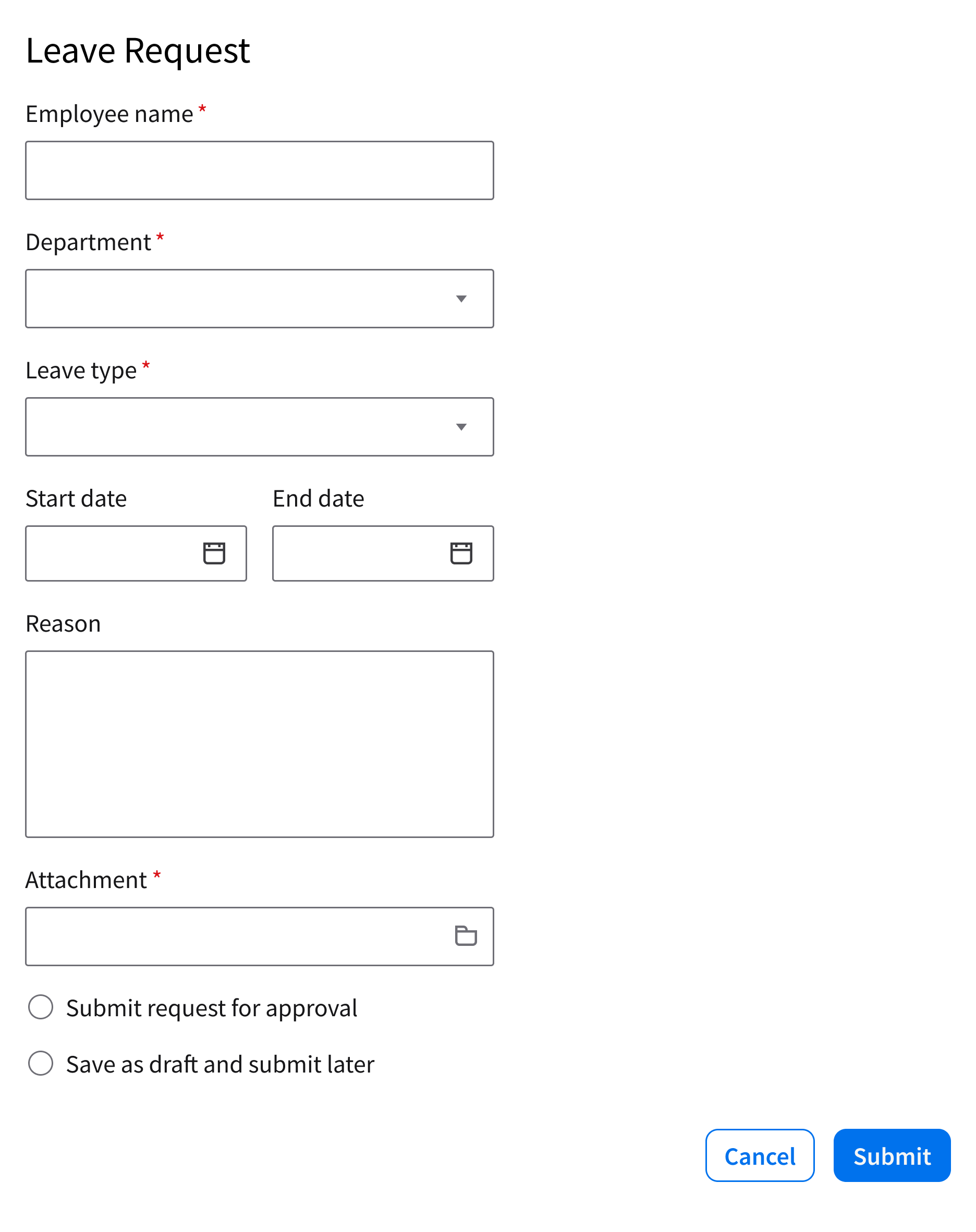
Layout
Single Column (Recommended)
- Optimizes readability and completion speed.
- Supports natural top-to-bottom scanning.
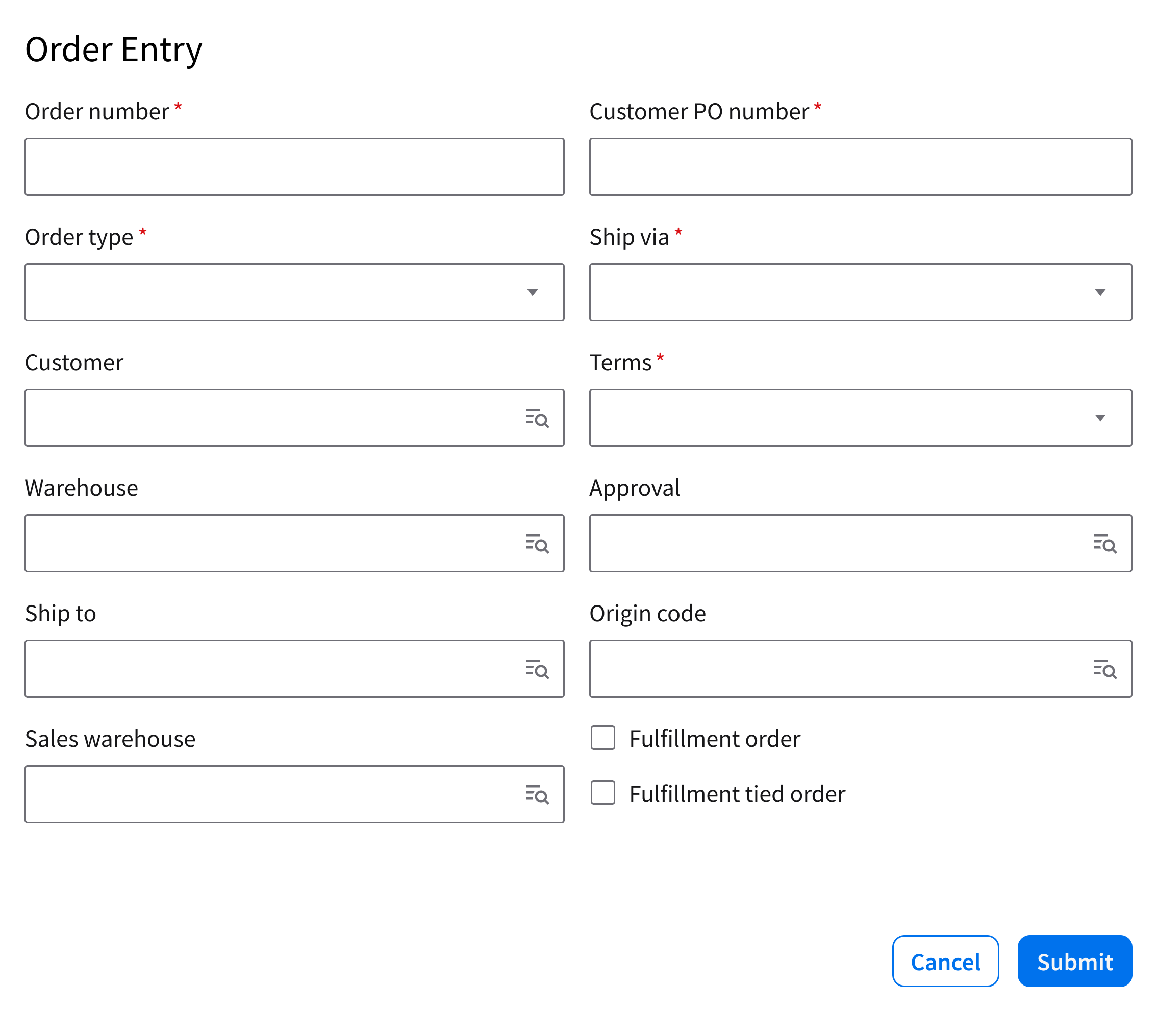
2 Columns
Best for displaying related content side by side.
Input Field Size and Switch Size
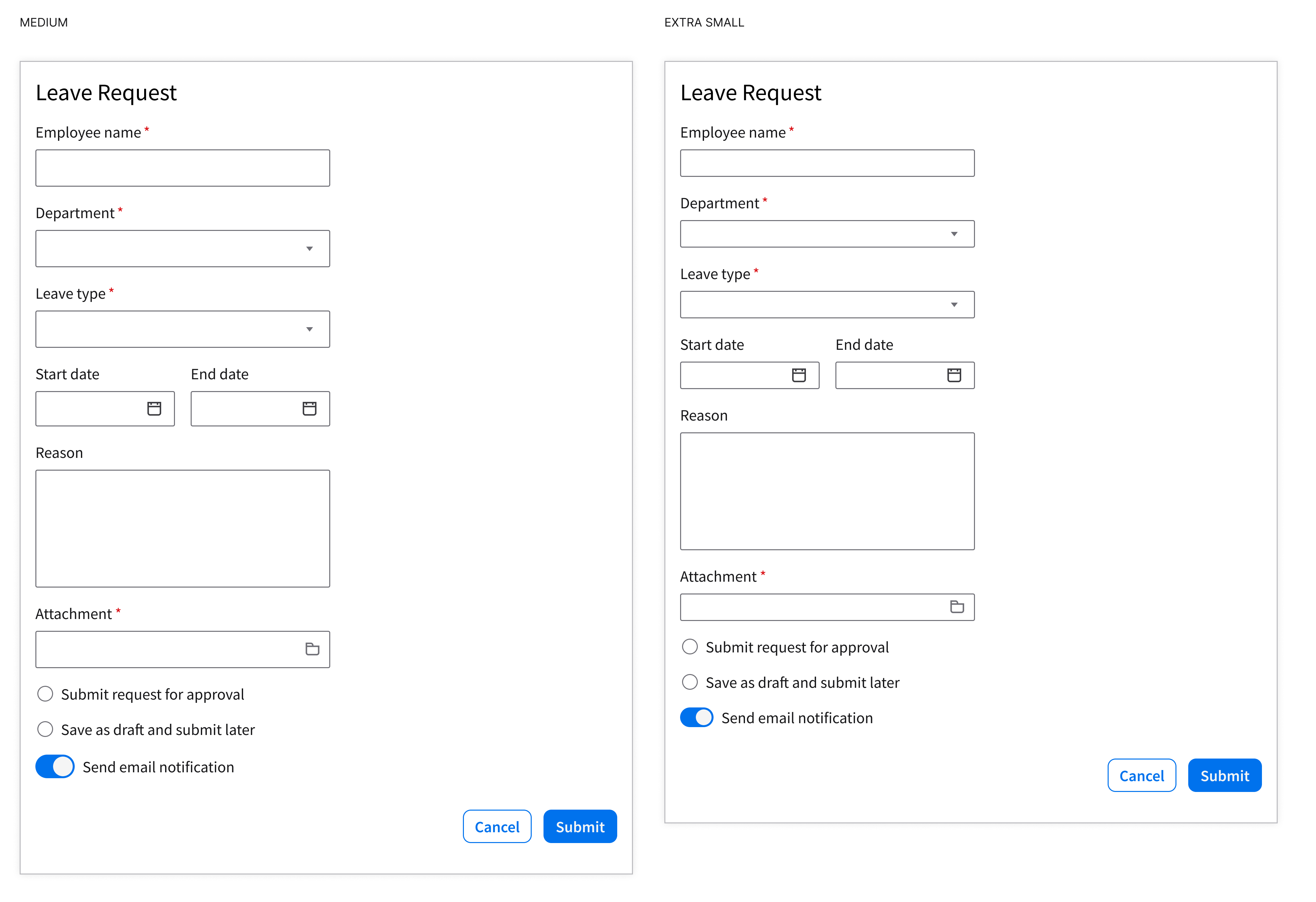
There are 2 sizes for input fields and switches: Default and compact. Choose 1 size and use it consistently in a CloudSuite.
- Default (medium): For most forms
- Compact (extra small): For dense forms
- For mobile, choose the default size or the compact based on the density of the content.
Nesting
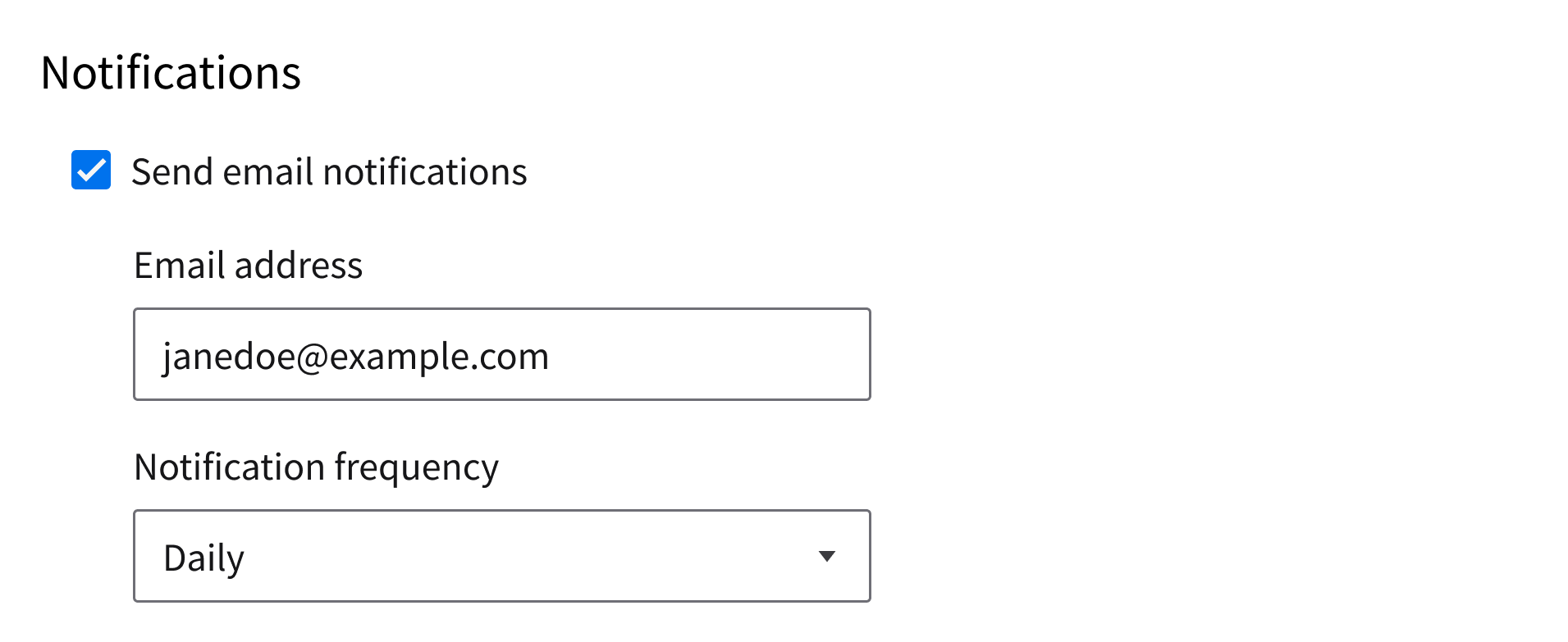
Single Level
To show the nesting hierarchy for a single level of content, use a heading, spacing, and indentation.
Multiple Levels
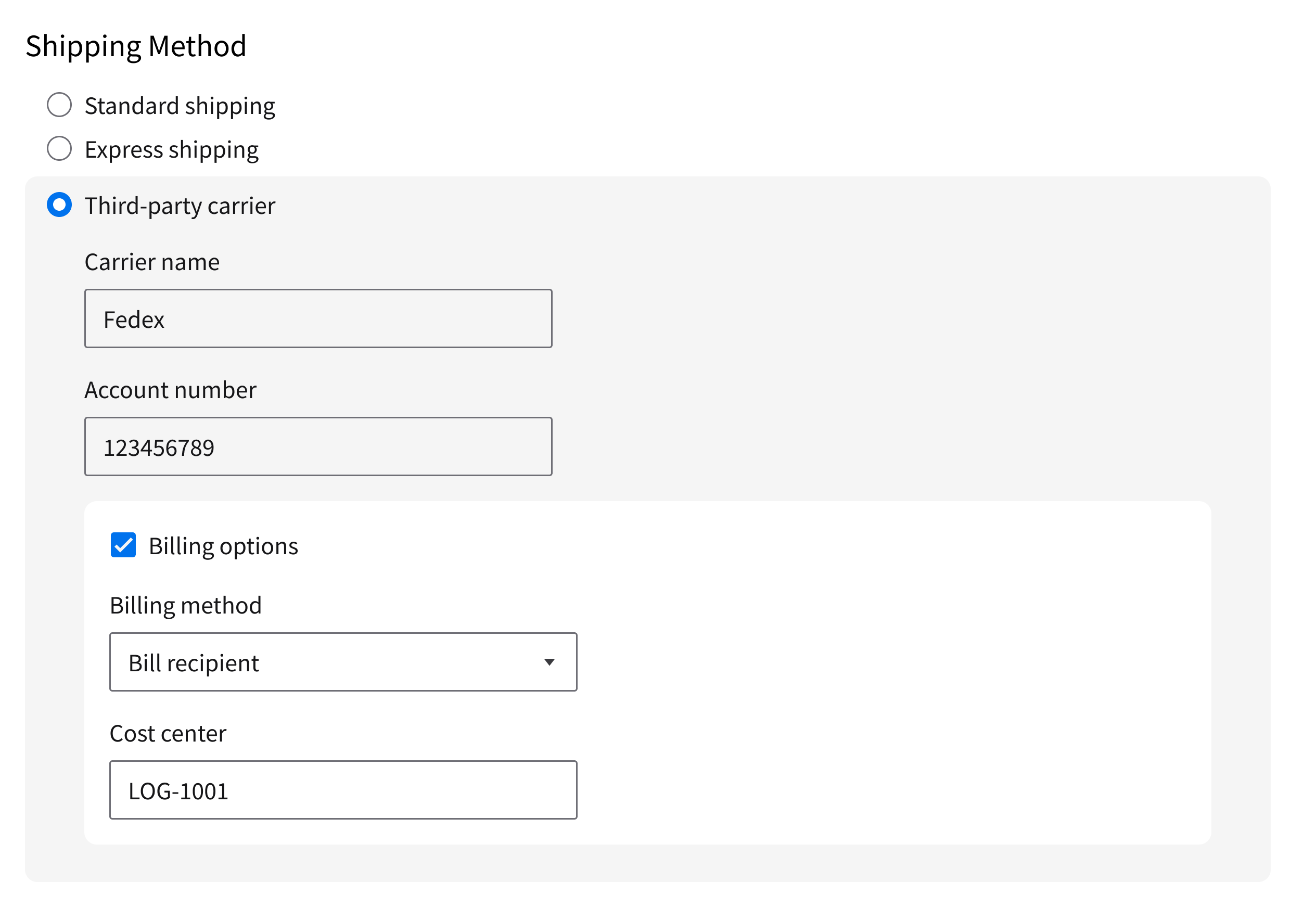
- To reinforce the nesting hierarchy for multiple levels of content, alternate a white background and a gray background.
- Combining background contrast with headings, spacing, and indentation can help the user understand the hierarchy without relying on color alone.
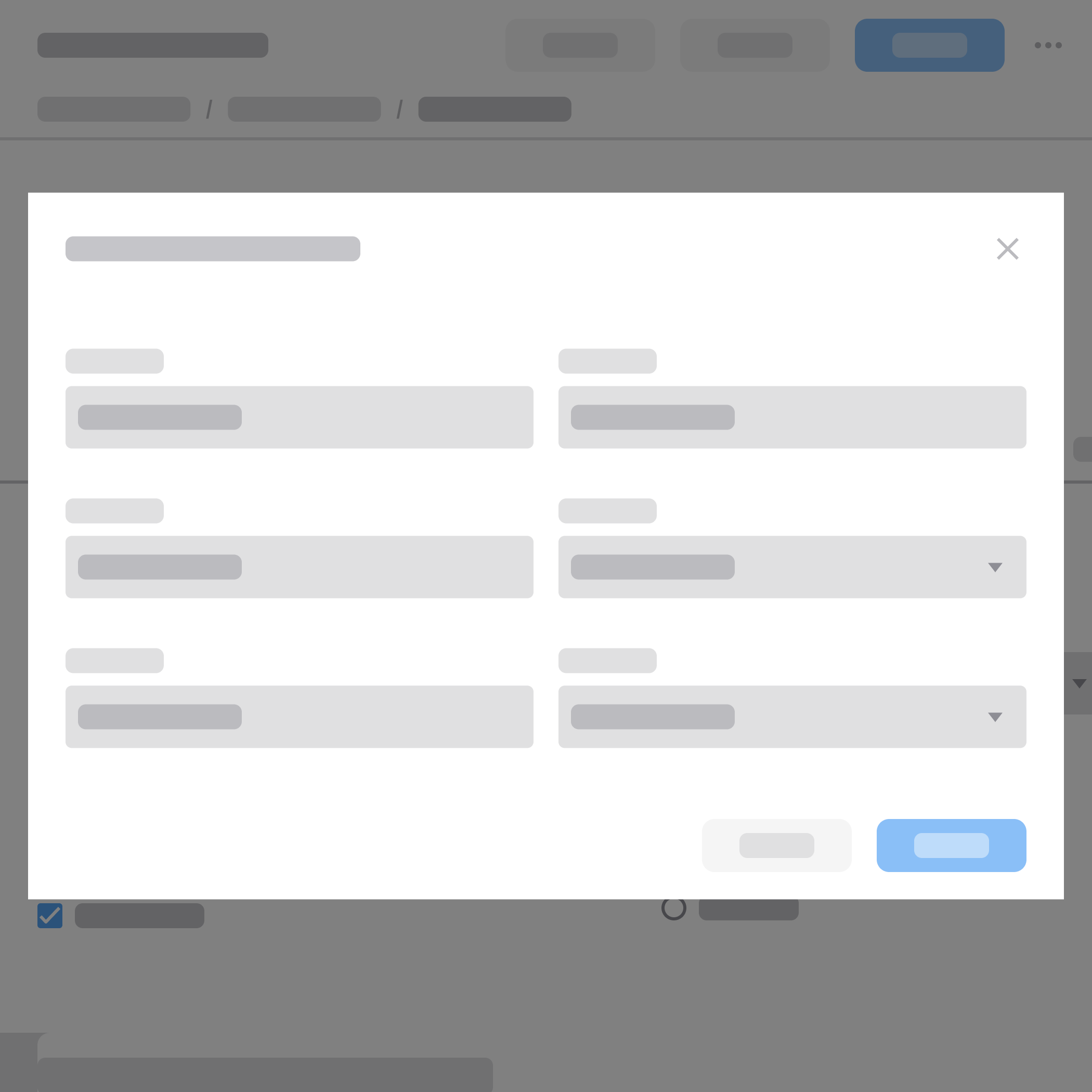
Cards
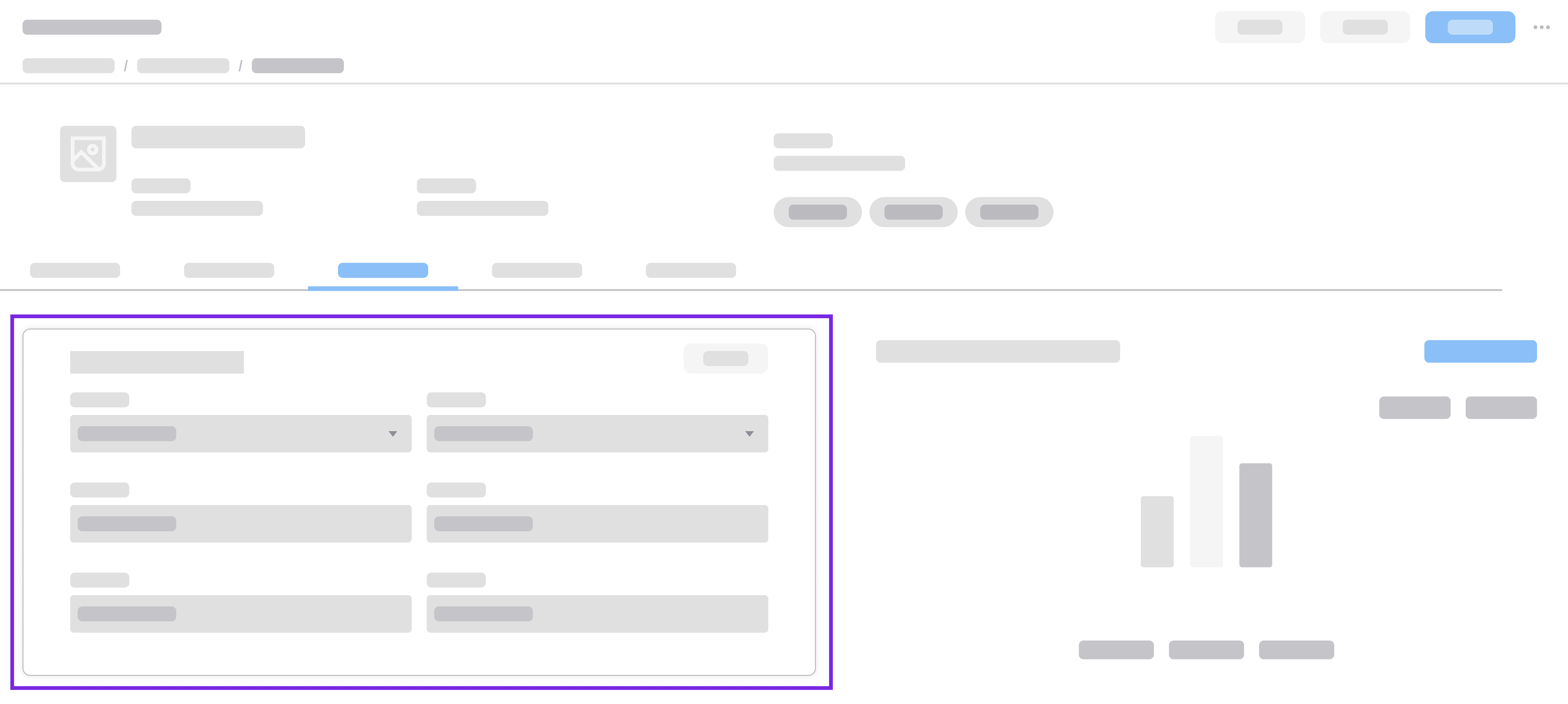
- Use for forms that appear on dashboards or overview pages.
- Use a compact layout. Choose 1 column or 2 columns based on the width of the card.
- Place actions on the header.
Behavior and Interaction
A form follows a clear progression from entry to completion, guiding the user through each step with feedback and support.
Initiating a Form
The user initiates the form by selecting an action.
- Example: Clicking a button that says “Add”, “Edit”, or “Create”
Filling Out Fields
The user moves through the form by entering values or selecting values.
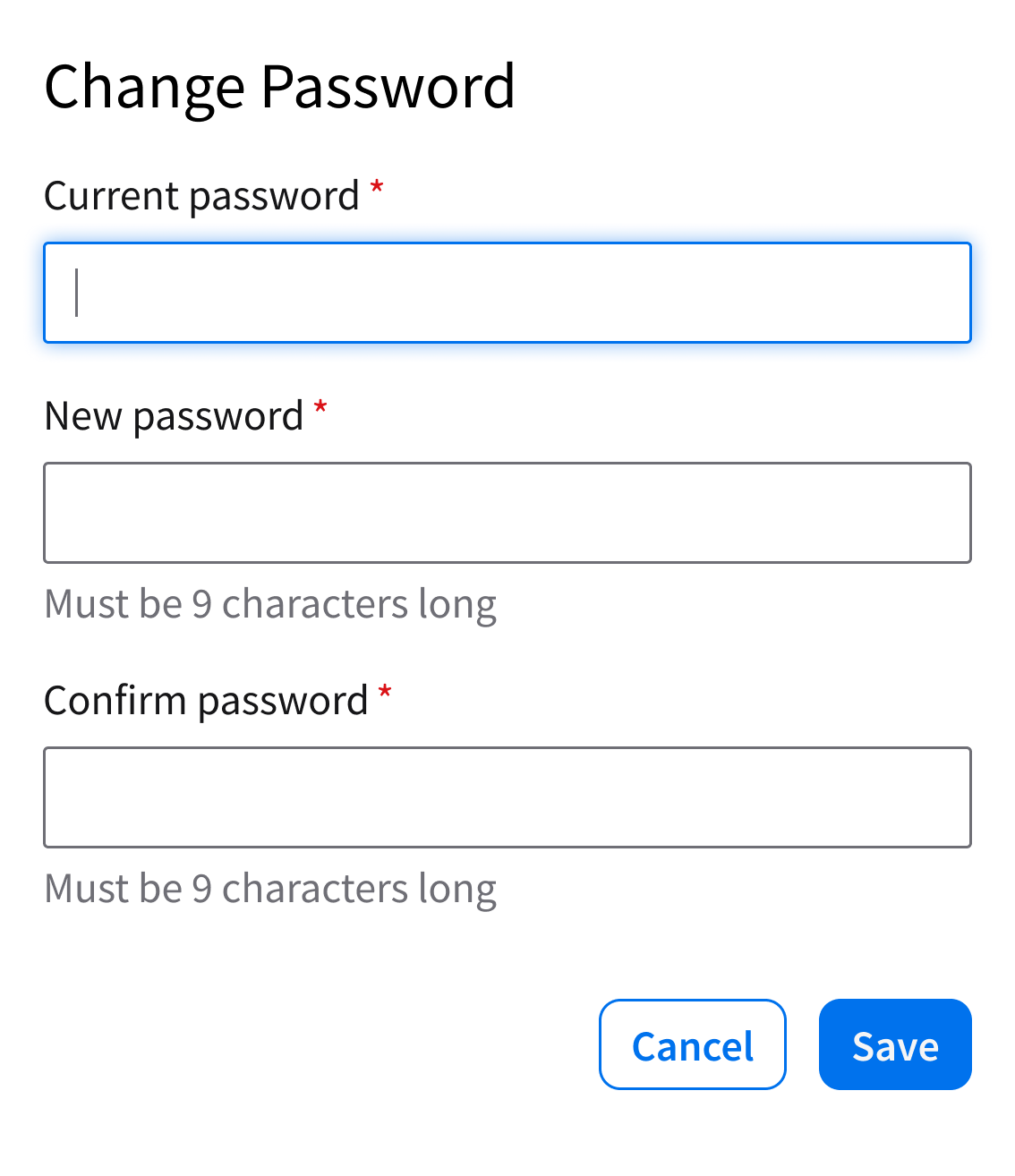
- Selecting a field triggers a focus state, helping the user understand where they are in the form.
- If a field has a specific requirement, include help text.
Inline Validation
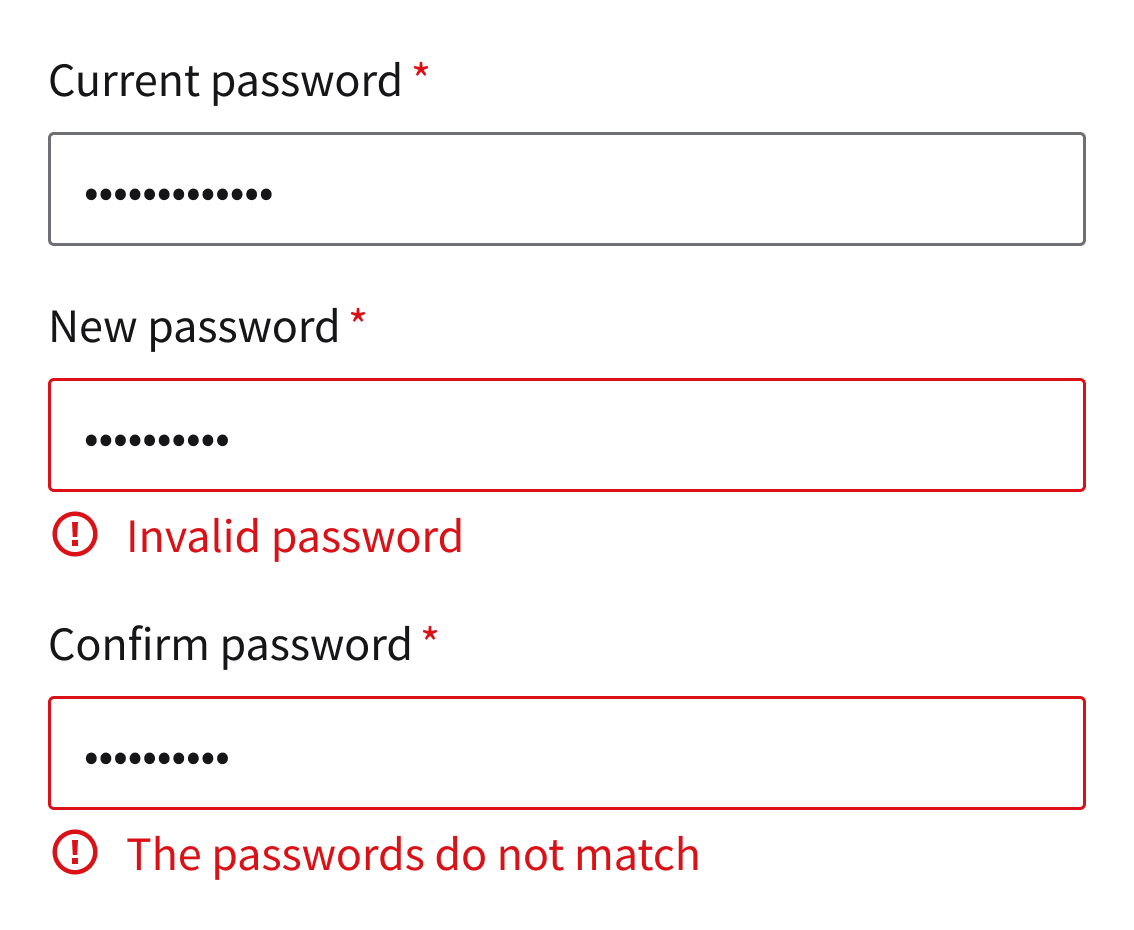
As the user interacts with a form, inline validation provides them with immediate feedback. If an input is missing, invalid, or unclear, show a short and actionable error message to help the user resolve what’s wrong.
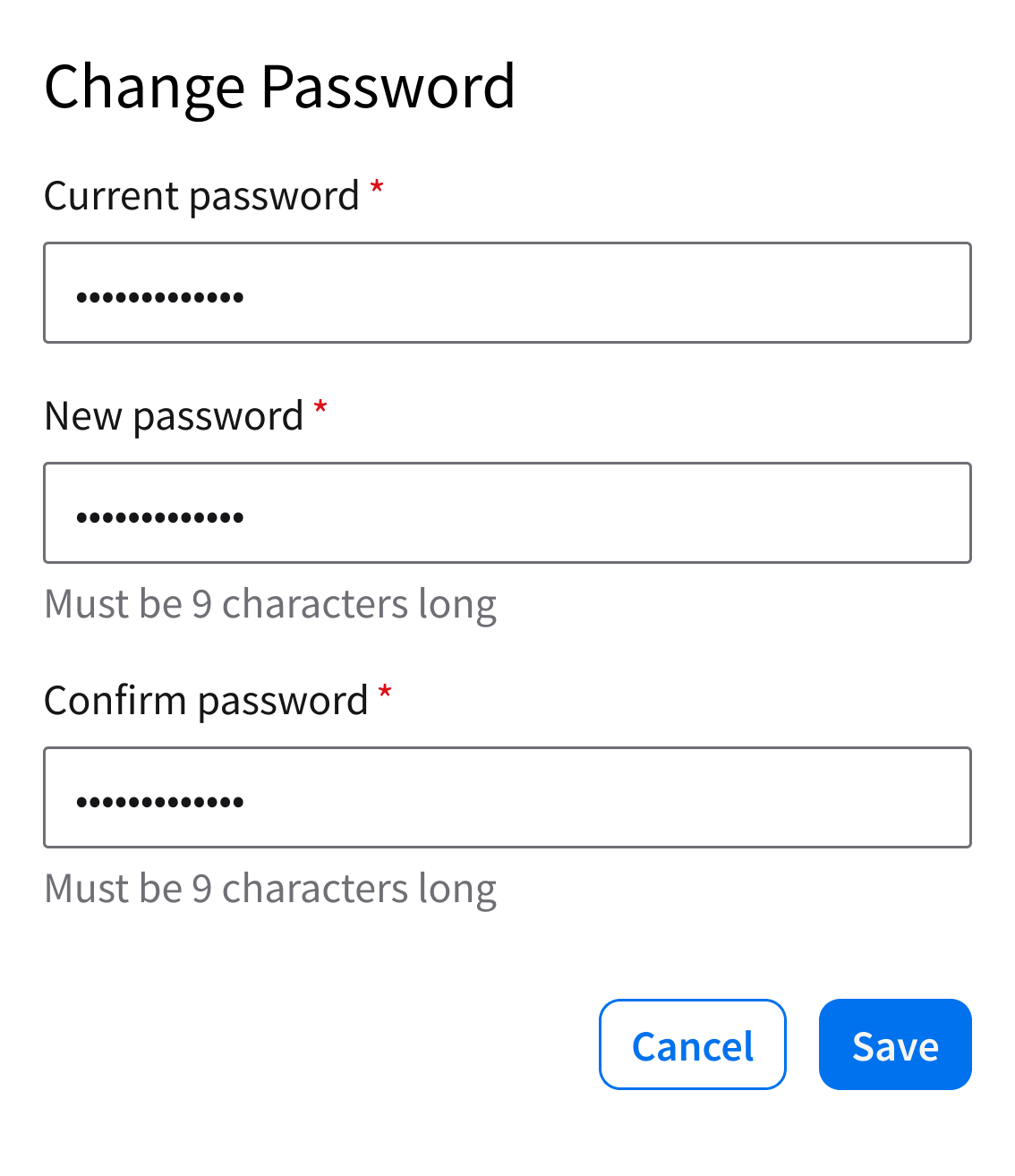
Submitting a Form
Once the user completes all required fields, they can submit the form by selecting the primary action (“Submit” or “Save”) in a button group.
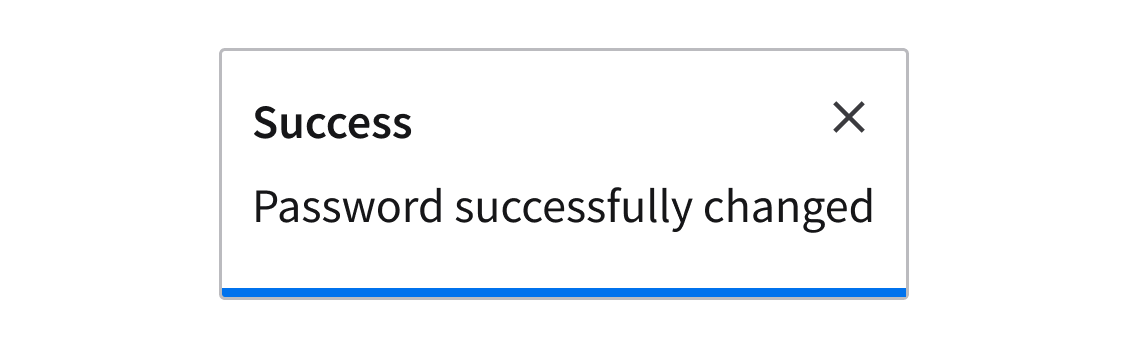
System Response
After submission, provide the user with clear feedback. On success, use a toast to display a confirmation message at the top-right corner of the page.
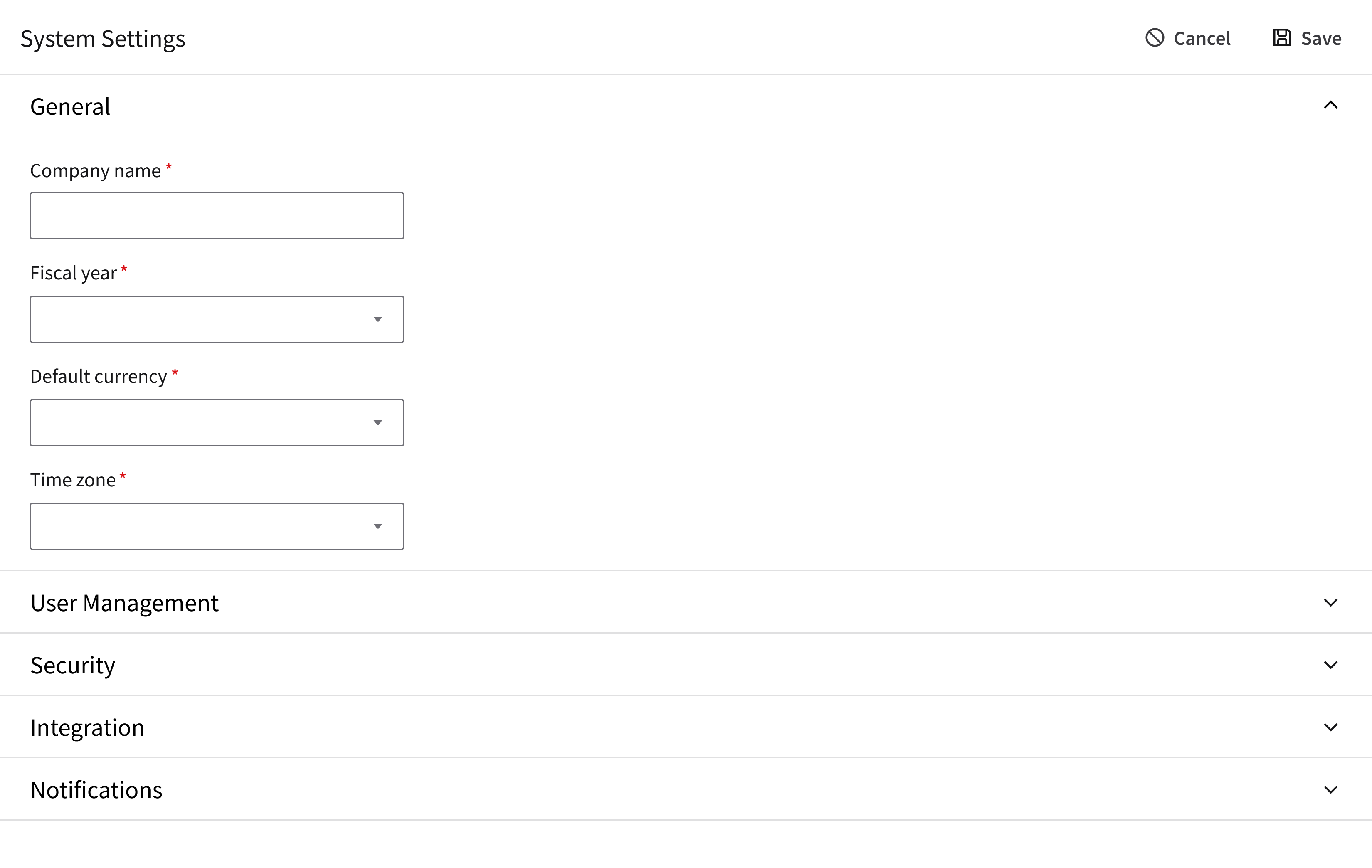
Progressive Disclosure
Organize complex forms by showing essential fields first. Then reveal additional fields as needed. Choose a progressive disclosure pattern based on the structure of your workflow.
Non-Sequential Disclosure
Use an accordion to hide secondary fields, optional fields, advanced settings, or supporting information.
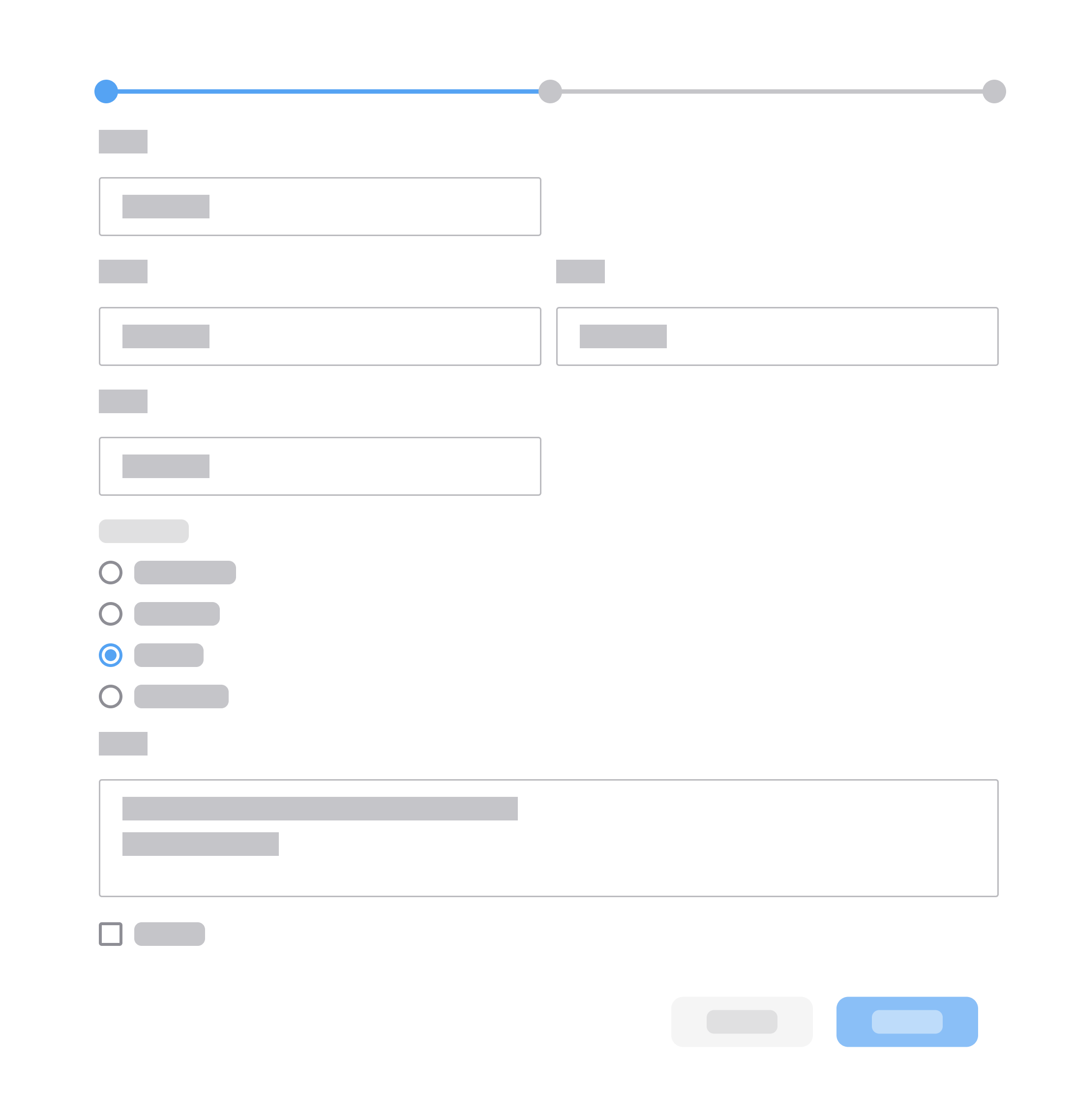
Multistep Progression
When a task spans multiple sequential steps:
- Use a wizard for required linear flows such as onboarding, setup, configuration, or checkout.
- Use a process indicator for long data-entry forms to show progress, completion, and location.
Best Practices
Keep Forms Focused
Include only the fields that are necessary for the user to complete the task. Reduce unnecessary inputs to help the user complete the form faster and with fewer errors.
Do
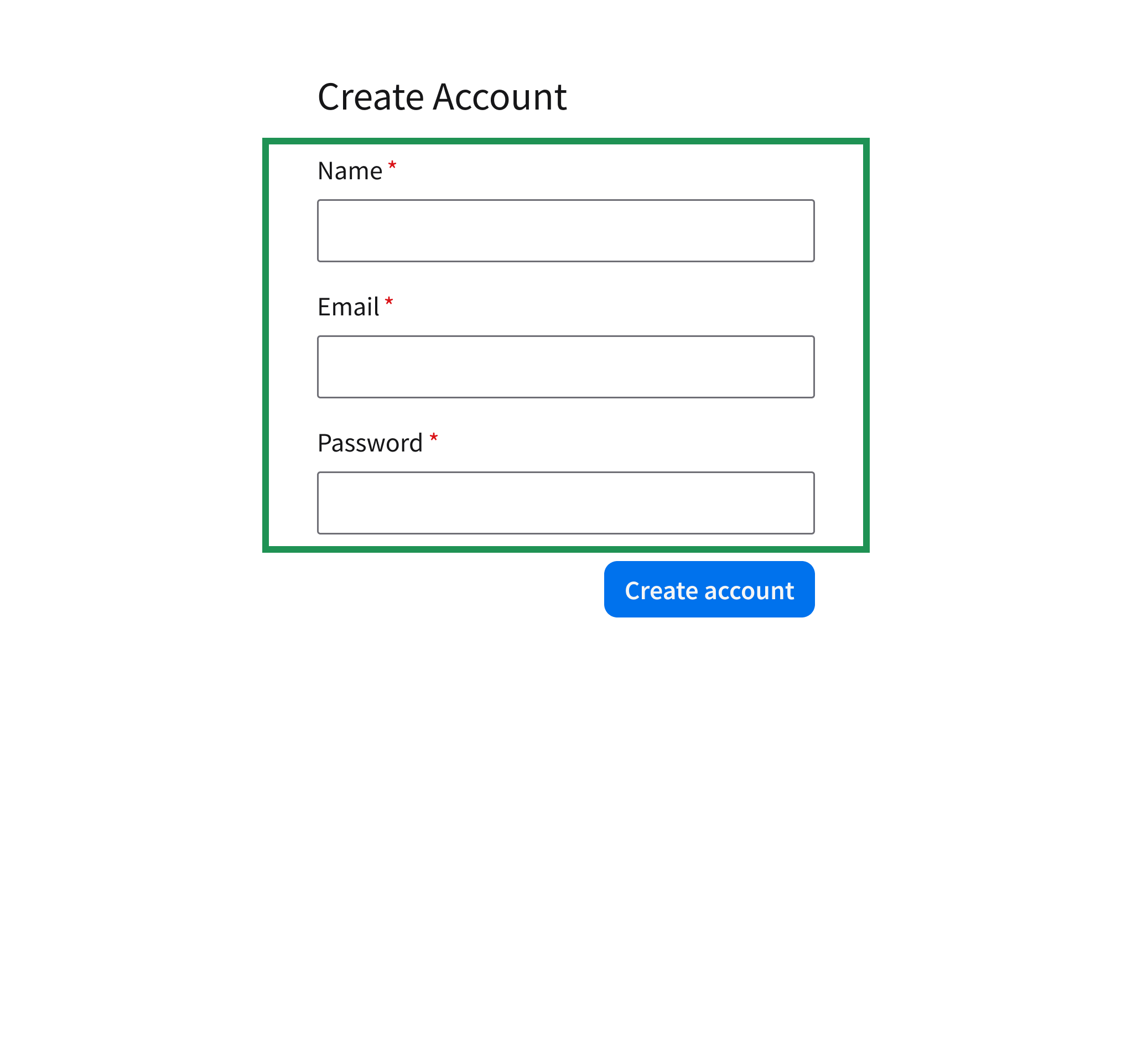
Include only essential fields. Remove anything that doesn’t support the task at hand.
Don’t
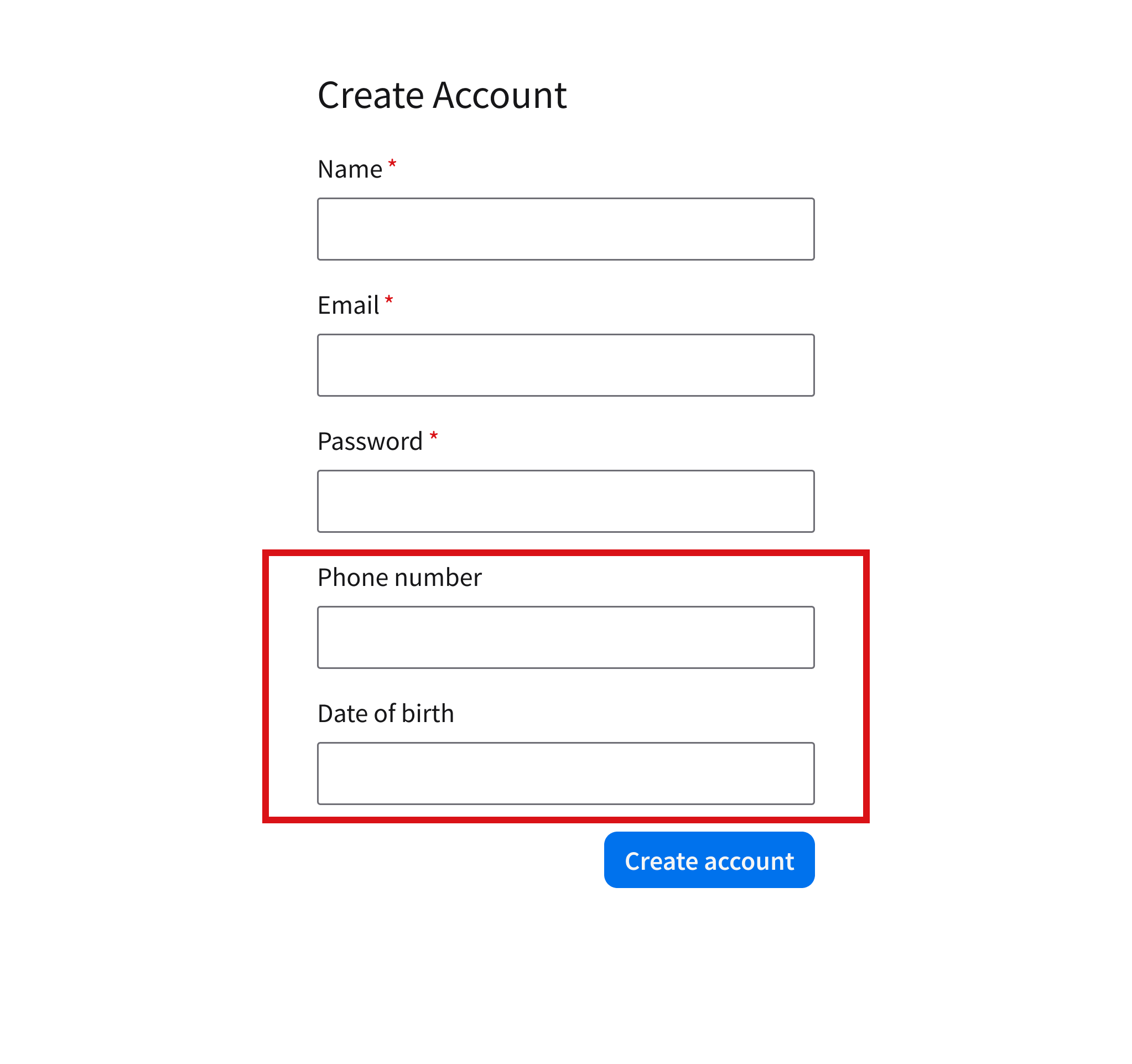
Don’t add fields that aren’t actually required.
Maintain a Clear Flow
To help the user complete all fields in order, follow a predictable, top-to-bottom structure.
Do
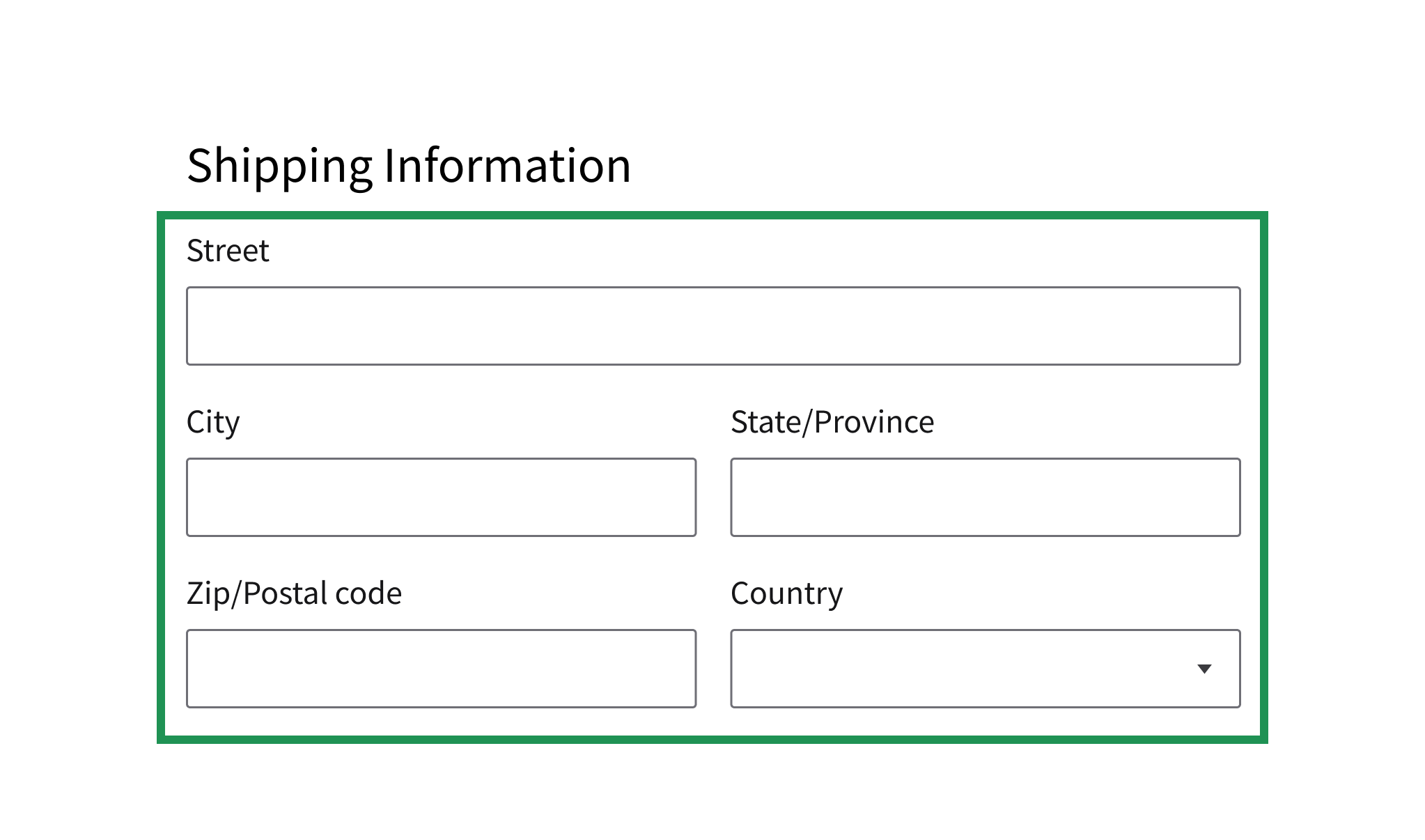
Use a single-column layout with a logical sequence of fields.
Don’t
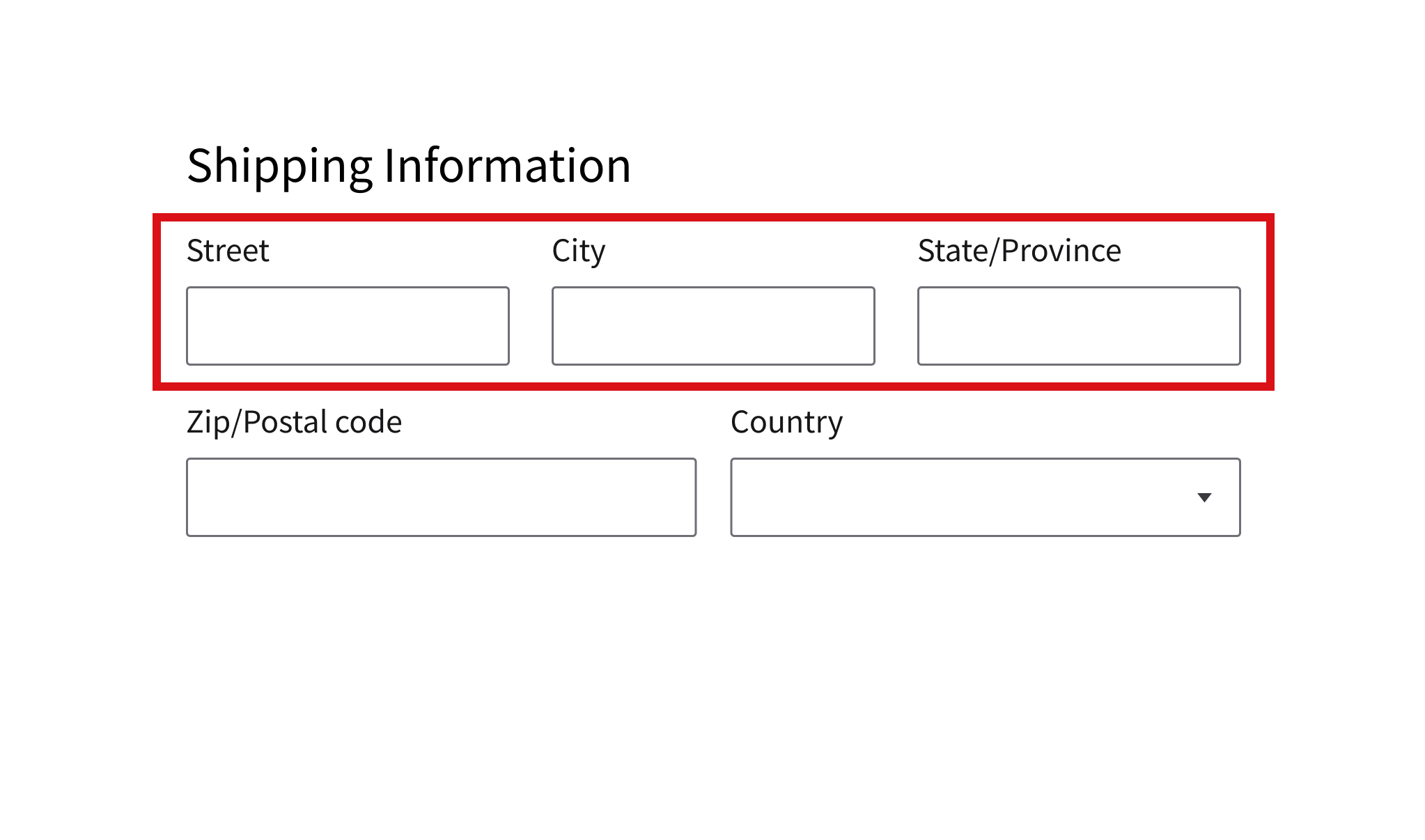
Don’t use a layout with multiple columns, fields that are placed inconsistently, or fields that truncate text.
Support Validation and Completion
Guide the user toward successful submission with clear feedback and accessible actions.
Do
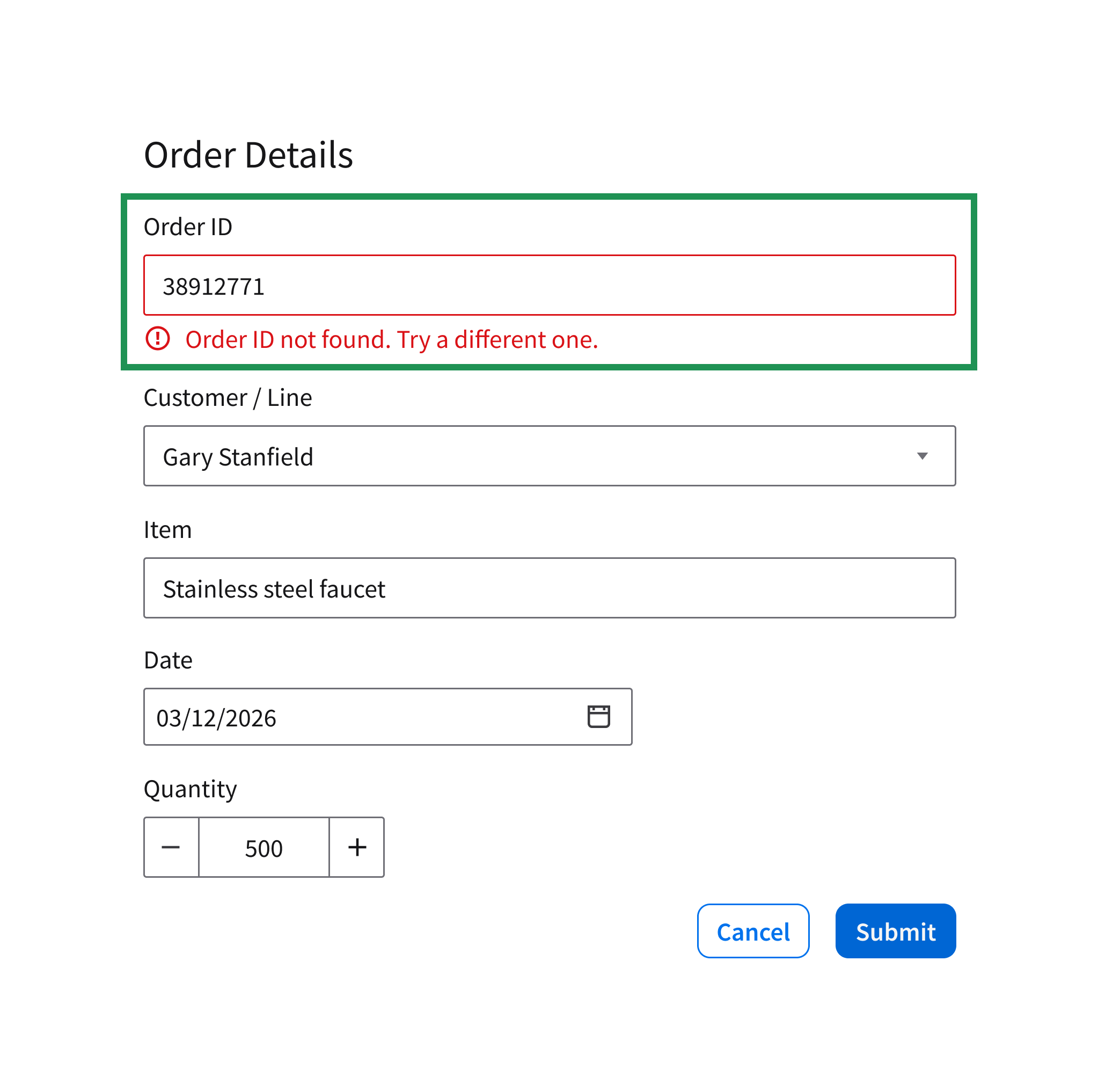
Provide inline validation and use clear primary actions like “Submit” or “Save”.
Don’t
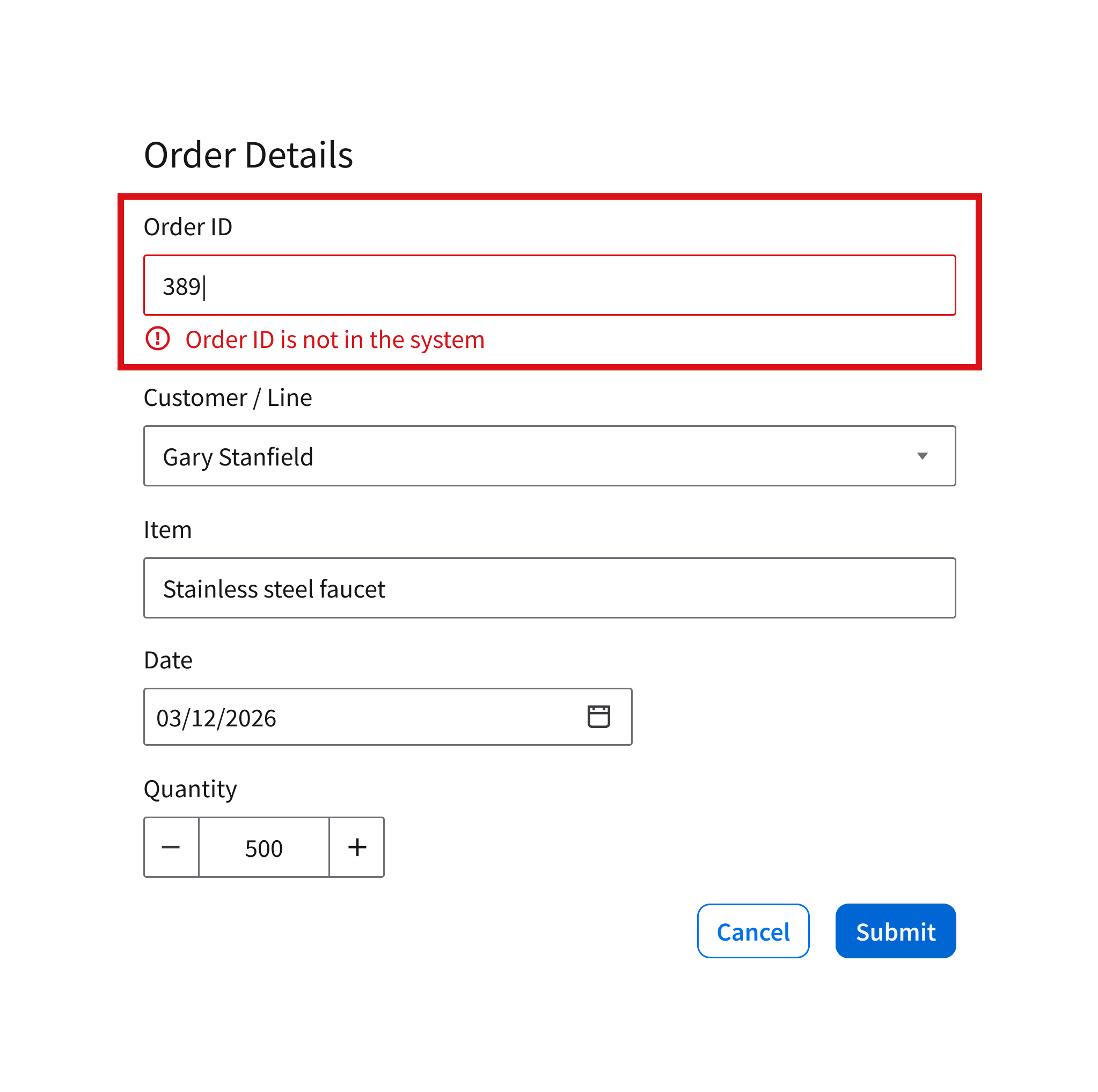
Don’t delay feedback, hide key actions, or show input errors until the user is done typing.
UX Writing
- Use sentence case for labels and help text: Only capitalize the first word and any proper nouns.
- For help text with multiple sentences, use punctuation.
- See more UX writing tips for hint text for search and form fields.
Accessibility
See the input component.