
Common Actions
Common actions are recurring tasks that allow the user to create, review, modify, and maintain things like content, records, and processes.
They promote consistency across products and workflows, helping the user recognize, learn, and complete recurring tasks with confidence and minimal effort.
Types of Common Actions
| If the user needs to… | Use |
|---|---|
| Create a new record, object, or workflow | Create |
| View and modify existing information | Edit |
| Remove information or content | Delete |
| Exit a workflow without completing changes | Cancel or Close |
| Retrieve the latest information from the system | Refresh |
Create
The user can add new records, items, or data to the system. The “create” action uses a button. It typically features a “plus” (+) icon or an action-oriented label (like “Create new order”). Placement varies across CloudSuites and workflows. It appears in headers, toolbars, empty states, and data grids.
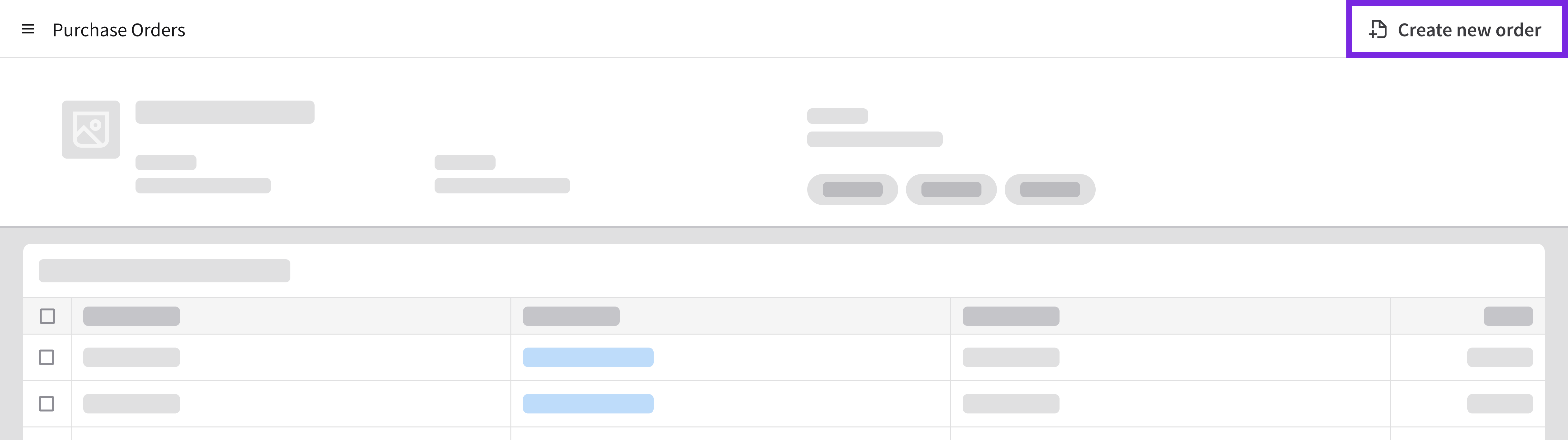
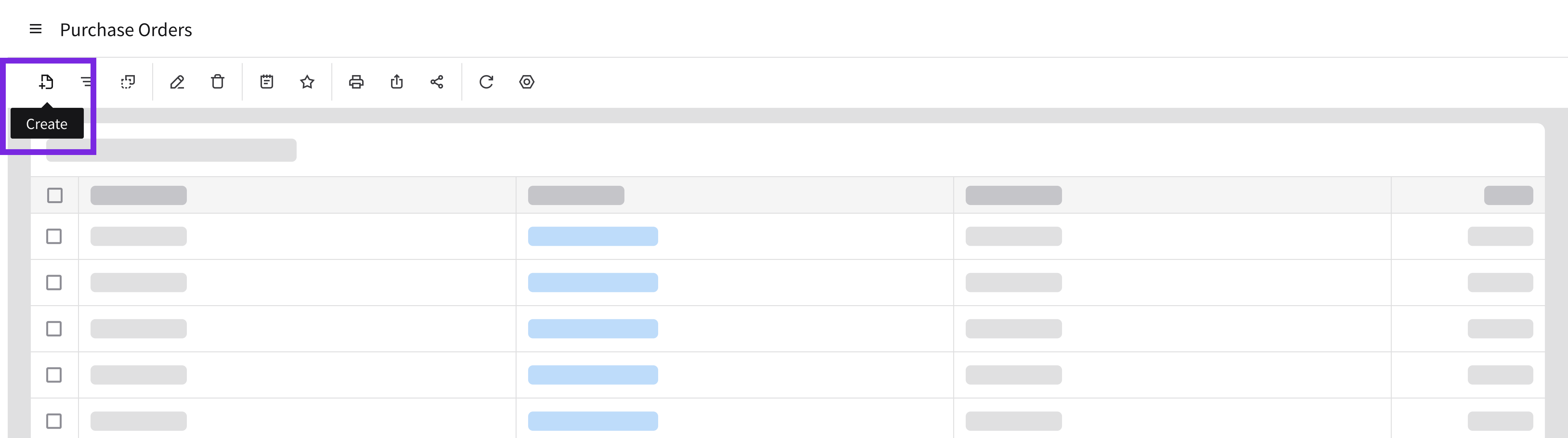
Header and toolbar: Use when creating content is a primary, persistent task on a page or a Workspace and the user needs a standard, predictable location for adding top-level records.
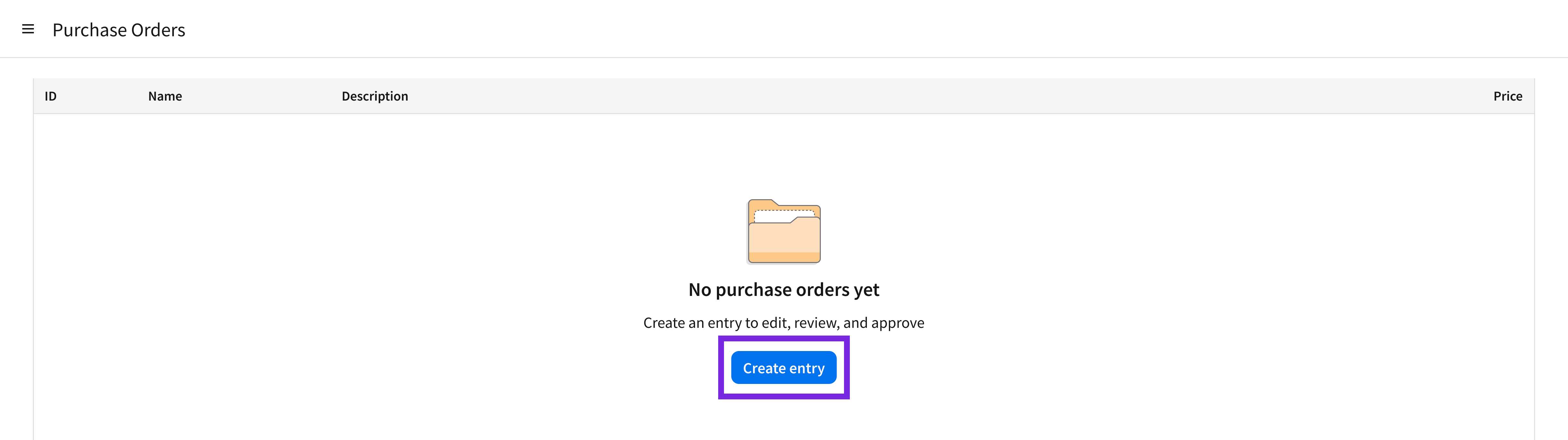
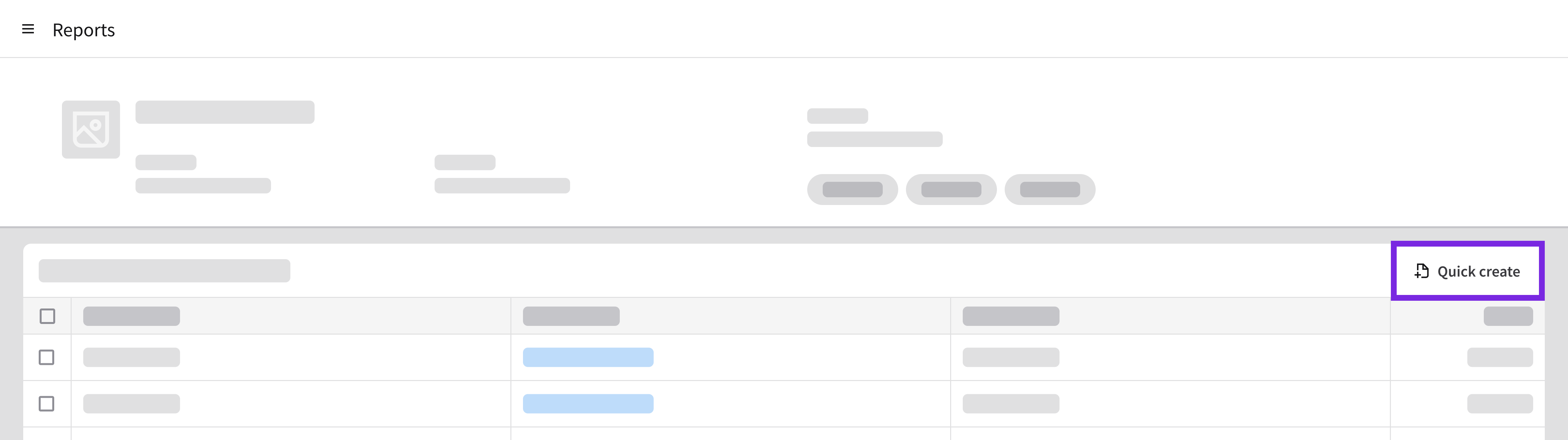
Similarly, the container that opens after selecting “Create” depends on the CloudSuite and how much information the task requires. Common containers include:
- Modals: Typically used for simple creation tasks with limited input.
- Full pages: Typically used for complex workflows with multiple sections or step-by-step processes.
- Full-page workflows often follow standard page layouts, such as profile record, data grid view, split screen, and list and details.
Edit
The user can update existing records, items, content, or workflows. Editing typically starts directly from the record that the user is viewing, such as a row in a data grid, a list item, or an open record page. The user is able to edit either explicitly or directly.
Explicit Editing (Default)
The record is read-only by default. To switch the view to an editable state, the user must select an “edit” action (commonly represented by a “pencil” button).
Use when:
- A record is viewed or reviewed more often than it is edited.
- Accidental changes have a high risk or business impact.
- A record or a form is complex and contains multiple sections, sensitive data, or extensive validation rules.
- Audit trails or permissions require a clear distinction between viewing data and modifying data.
Direct Editing
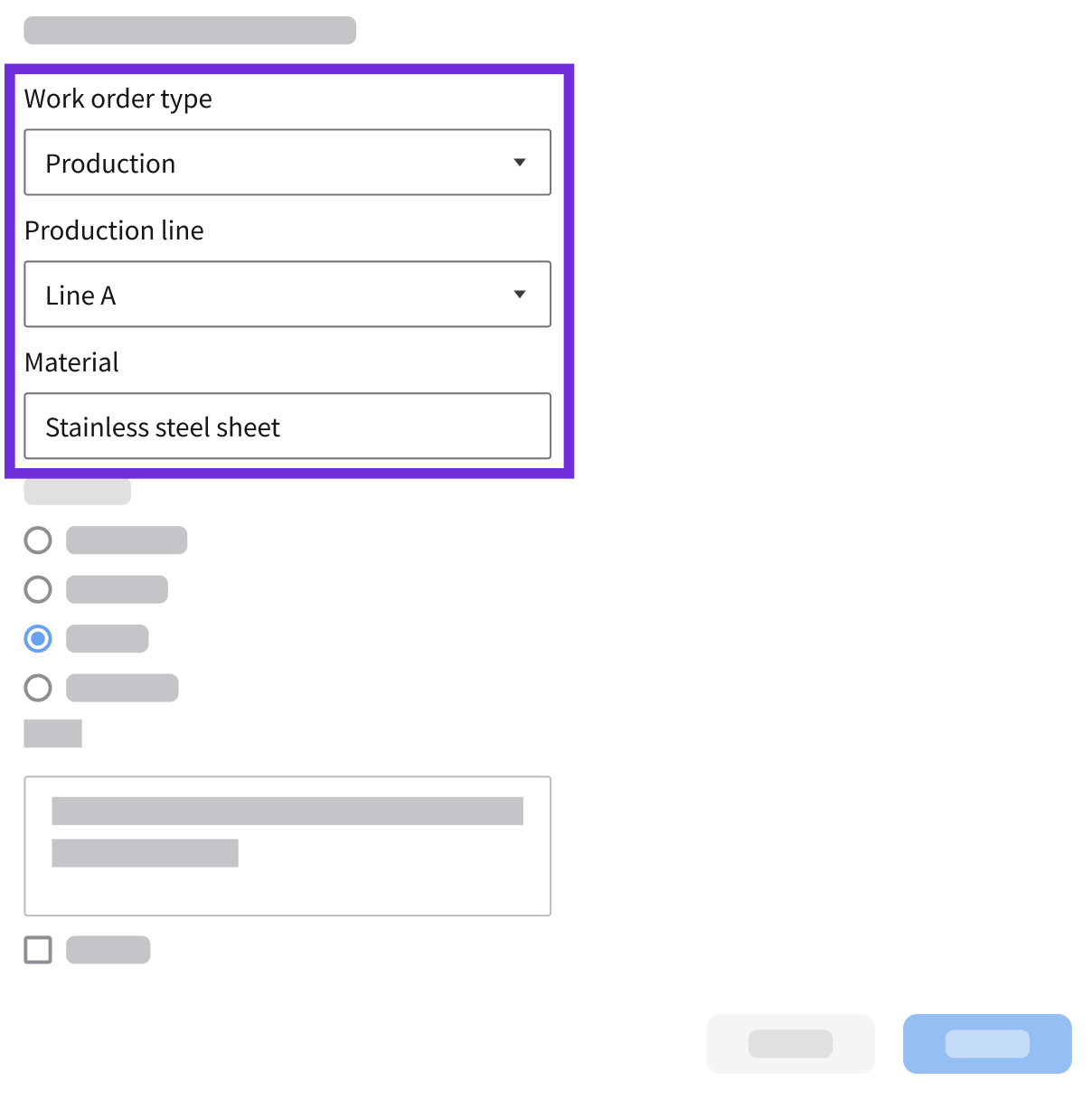
Upon opening a record or selecting a record, the user can modify inputs directly. Direct editing, without a separate “Edit” button, is best when:
- Editing is the primary task.
- The user makes frequent and routine updates across multiple records or fields.
- Examples: Rapid data entry, spreadsheet-style grids
- Accidental changes are low risk or easily reversible.
- Changes can be saved in bulk or autosaved without disrupting the workflow.
When editing directly:
- A dirty indicator marks a modified field to signal that changes are pending.
- Changes are only committed when the user selects “Save”.
Delete
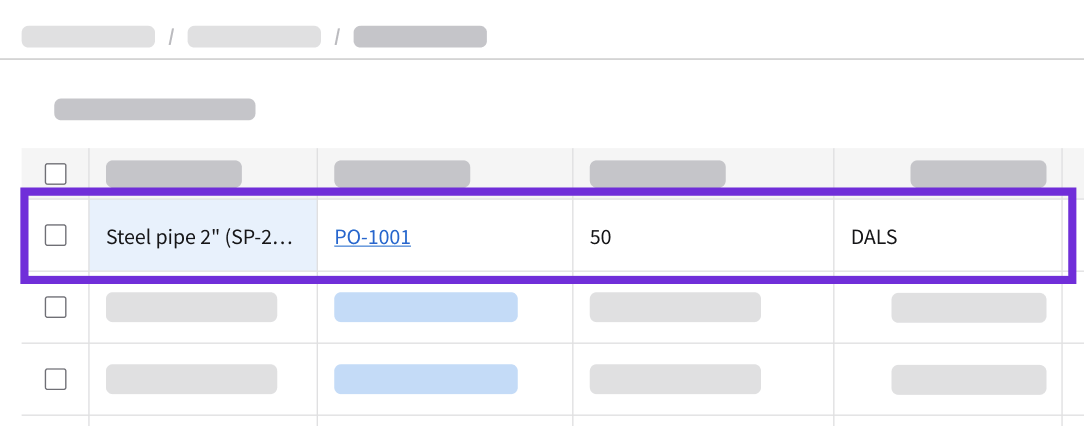
The user can permanently delete records, items, content, or data. The “delete” action uses a destructive button.
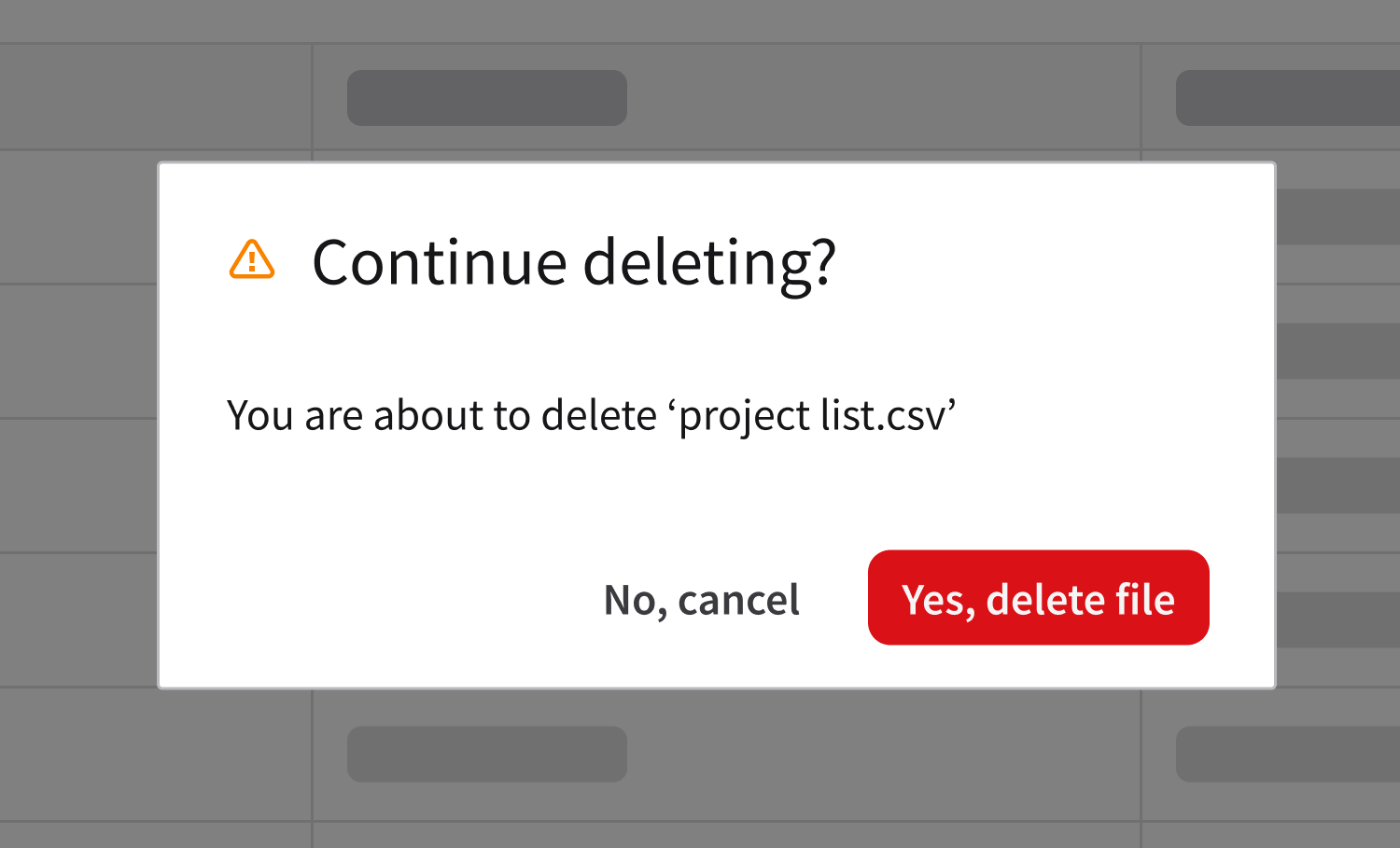
Because it’s a destructive action, don’t delete records without a confirmation. Use a confirmation dialog that identifies what will be deleted. Include the number of affected records when applicable.
The “delete” action is typically represented by a “trash” button. Follow the styling for destructive buttons to communicate the risk to the user. Refer to the error pattern for guidance about confirmations, irreversible actions, and recovery options.
Cancel
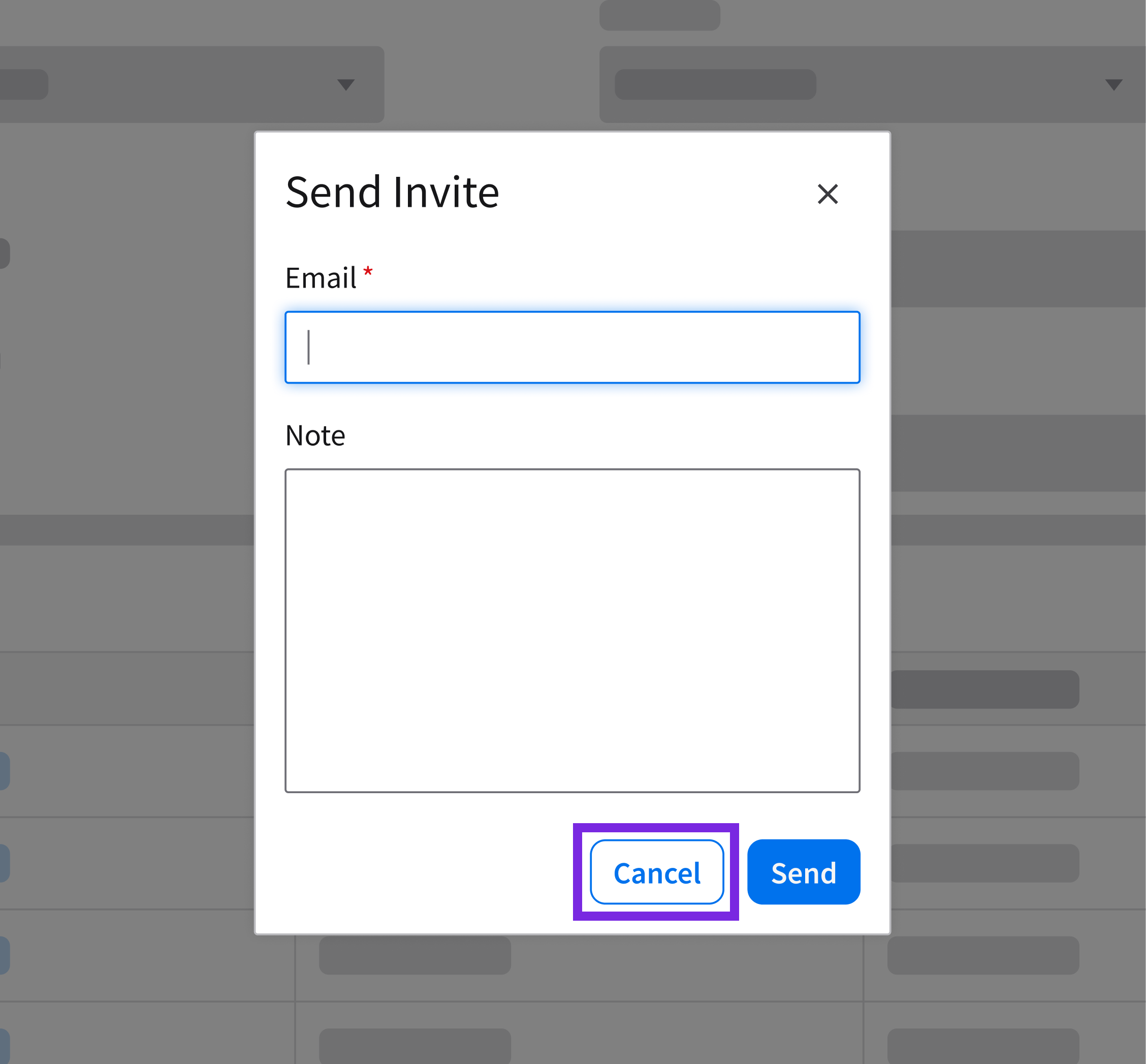
The user can discard uncommitted changes and exit the current workflow. The “cancel” action can be used in a variety of scenarios:
Close
The user can dismiss temporary content after they have reviewed it. The “close” action is typically represented by a “close” button (×) that is located at the top-right corner of a component.
Use it when:
- Dismissing notification banners or toasts.
- Exiting an informational dialog or a media gallery where no form data was edited.
- The “close” button (×) may function as a “cancel” action when dismissing a workflow with unsaved changes. Refer to the dialog pattern for more guidance about confirmation dialogs and unsaved changes in workflows.

Example of a notification banner that can be closed.
Refresh
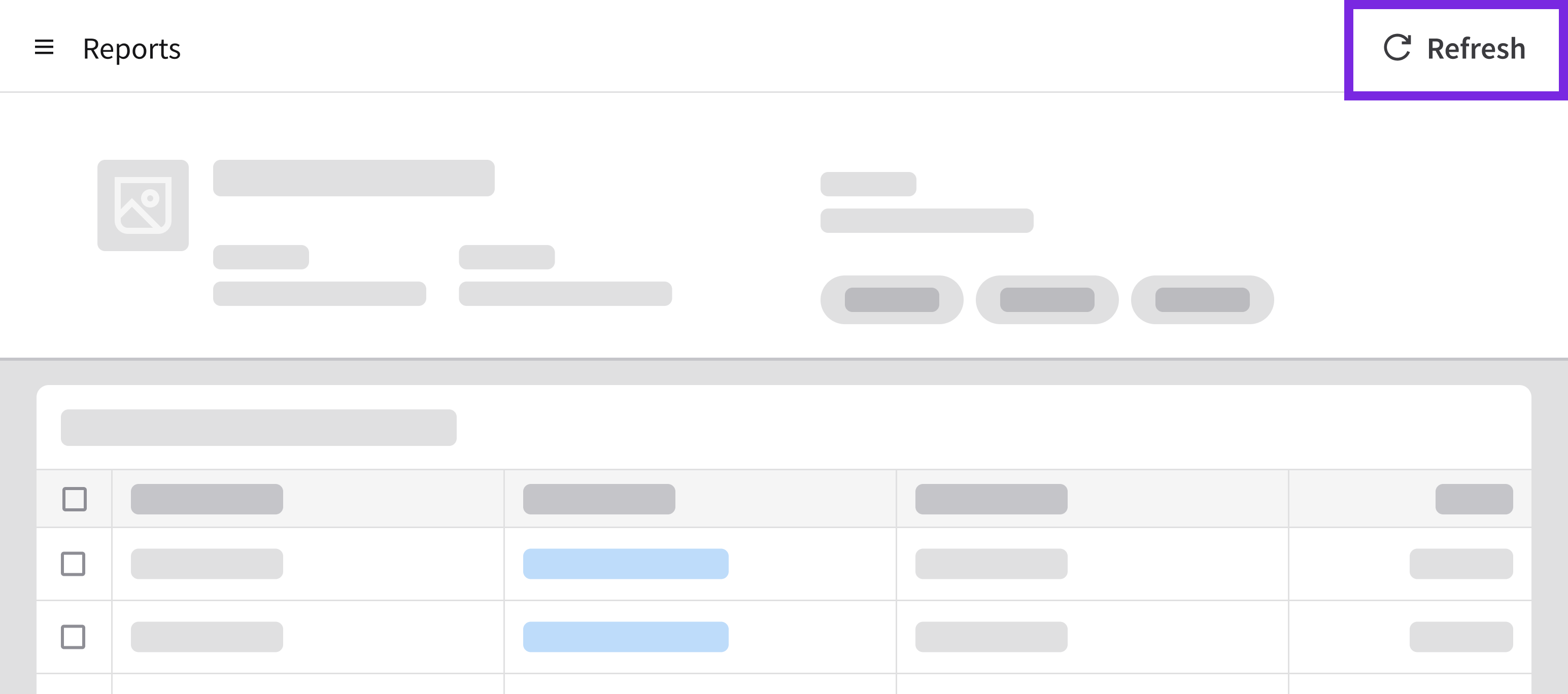
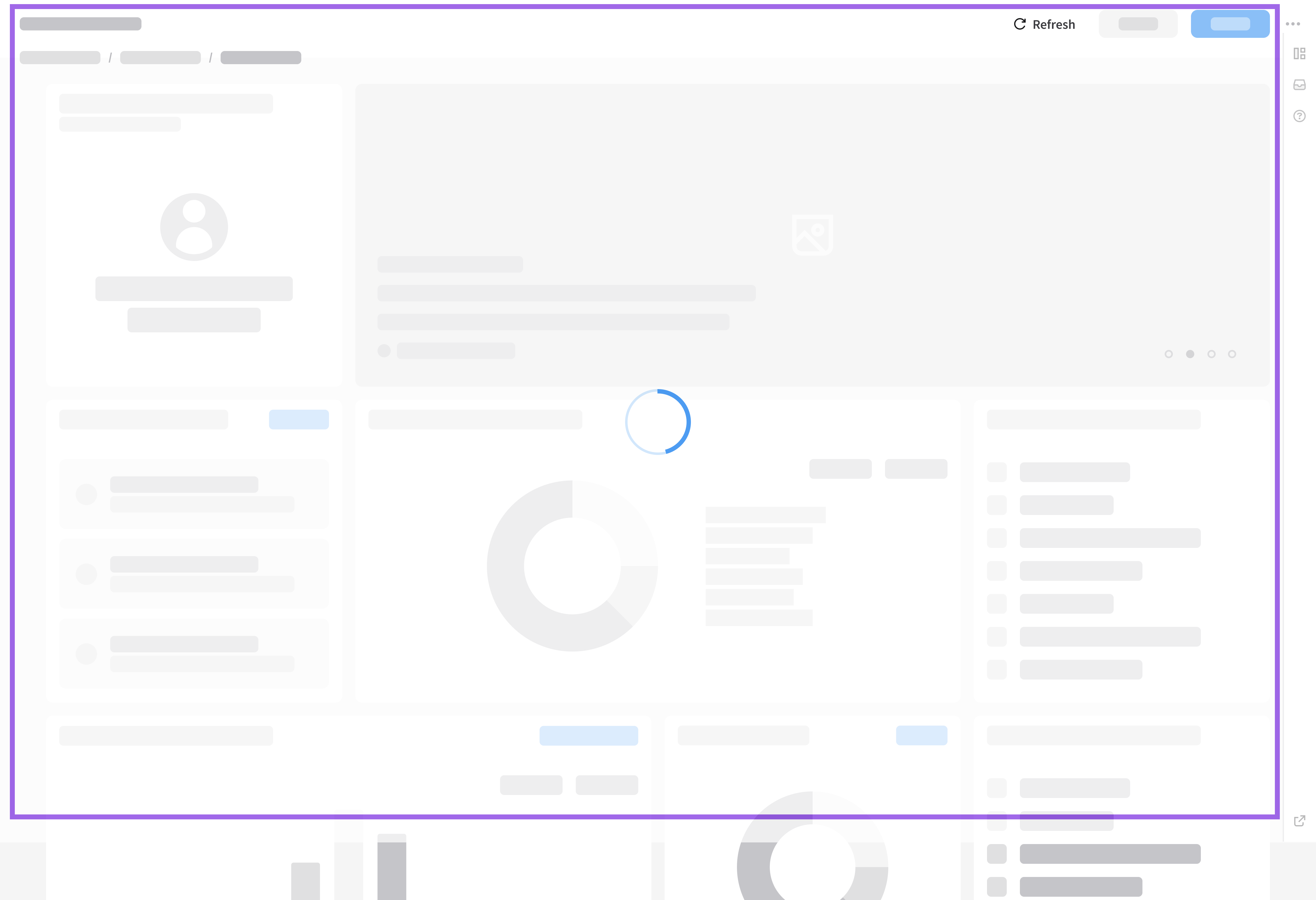
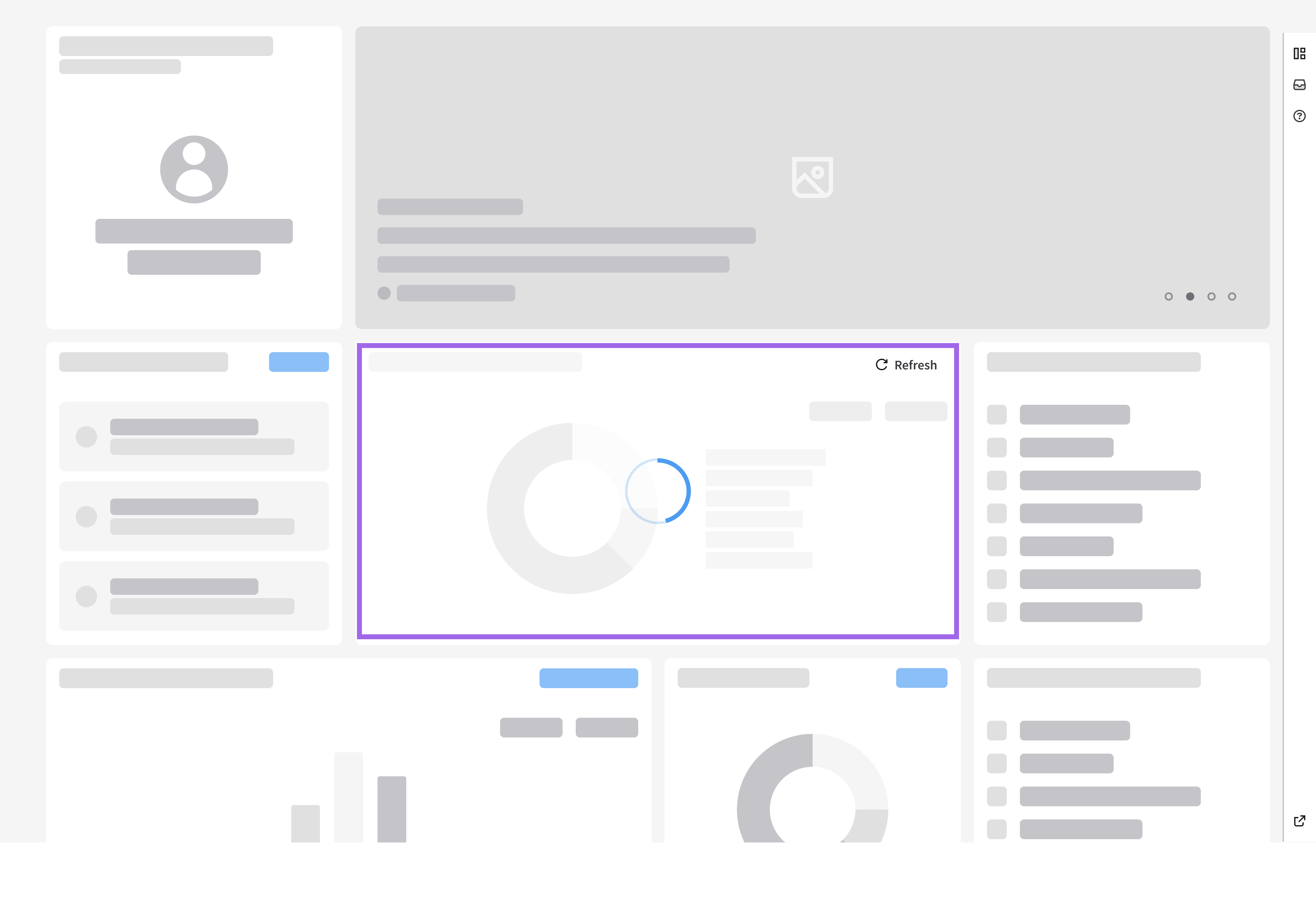
The user can update content to display the latest available information. The “refresh” action is commonly represented by a “refresh” button (with a label or without a label).
Refreshing can be applied at the page level or the section level, depending on the scope of the content being updated. When reloading takes longer than a second, use a loading indicator to communicate that the system is processing.
Accessibility
Common actions must be accessible across different input methods and assistive technologies. They must clearly communicate their purpose and outcome.
- Provide descriptive labels and accessible names for icon-only actions. Refer to the guidelines for the icon and the button.
- Ensure that actions are keyboard accessible. Refer to the associated component guidelines for keyboard interaction requirements.
- Communicate validation, status, and error messages to assistive technologies.
- Manage focus appropriately when actions open dialogs or workflows. See the modal guidelines.
- Provide confirmation for destructive actions when appropriate.