
Search and Filter
Searching and filtering helps the user locate information and refine data sets.
They can be used independently or together. Search finds broad matches. Filter narrows visible results.
How It Works
Search lets the user find information by entering a search query. It helps the user navigate and retrieve content, records, metadata, application areas, or other information—including items that are not currently visible on screen.
Filter narrows a visible, discrete data set using available attributes or predefined criteria, such as status, date, category, or record type. Unlike search, filter always operates on a data set that is already displayed.
Consider the user’s context when deciding how search and filter work: Where are they in the application? What are they looking for? What data is available?
The user can navigate and find content across:
- CloudSuites
- Applications or modules
- Discrete data sets
CloudSuite
Search helps the user navigate applications and Workspaces across a CloudSuite to find the right application or bookmark.
For more information, refer to the navigation pattern guidelines.
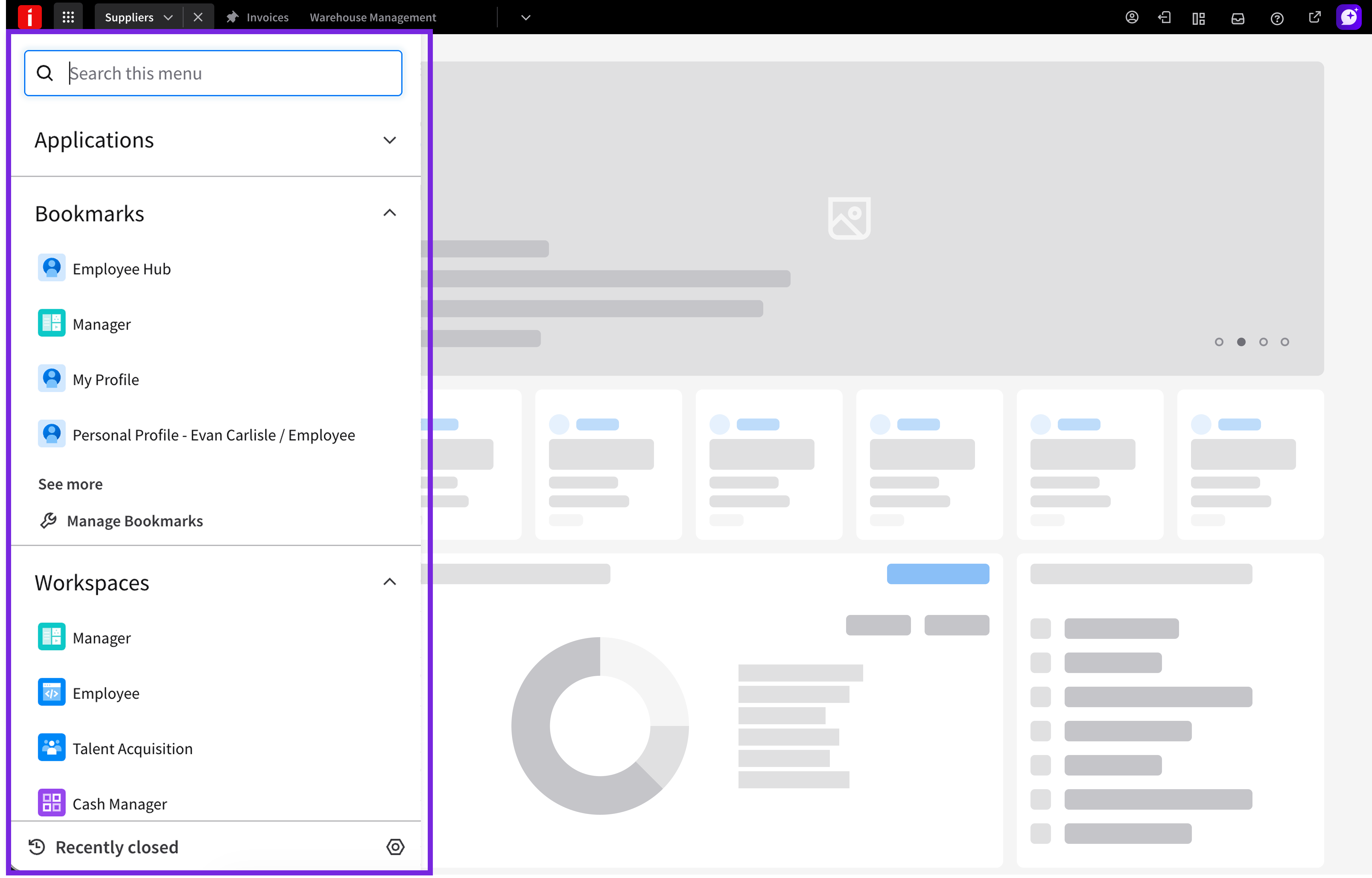
Application launcher search
Application Search
The user can search for pages, records, or other content in an application. How search is implemented varies by product and use case.
Common approaches include searching navigation items through the module nav, launching application functions directly, and finding business records using business terminology.
Search can also help the user find business data such as customers, products, vendors, and warehouses.
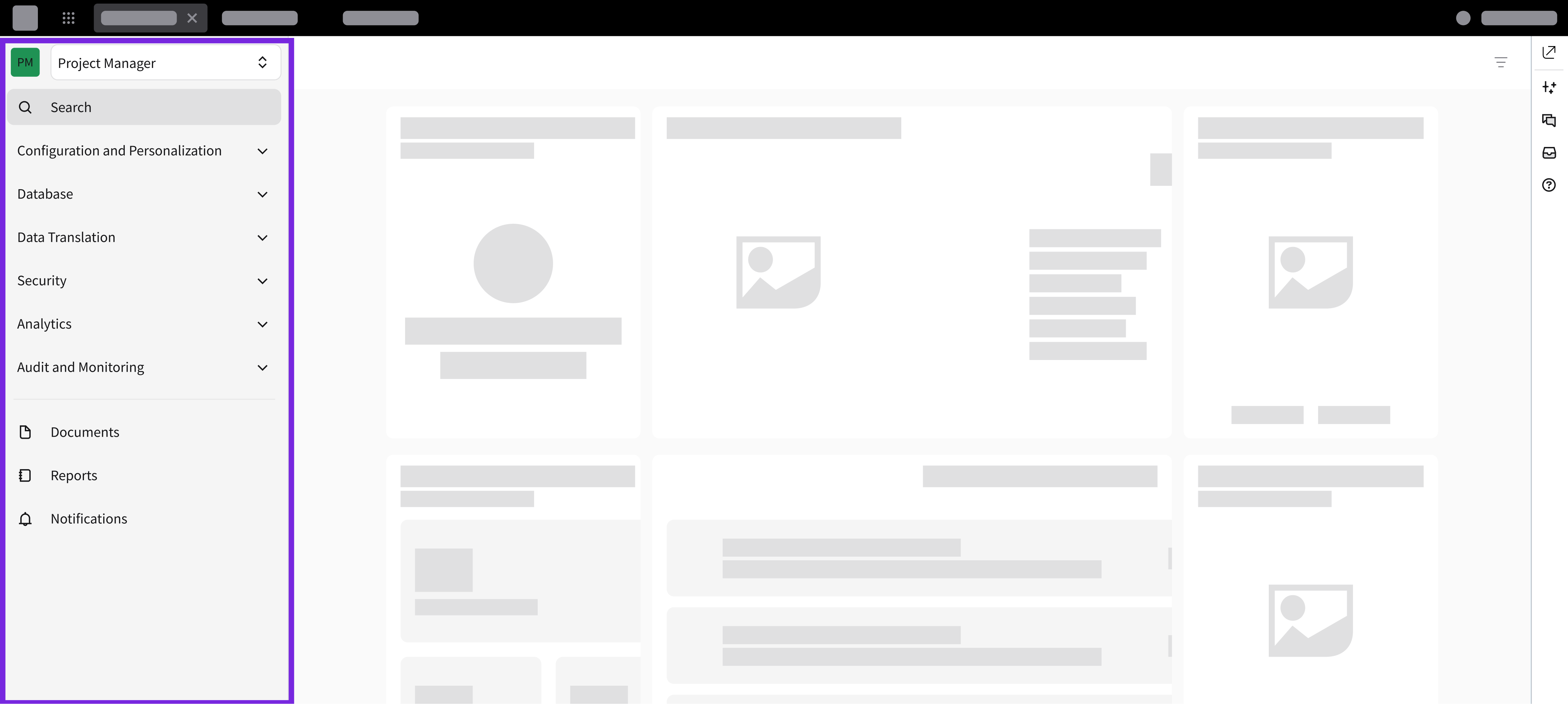
Searching a page via module nav
Discrete Data Set
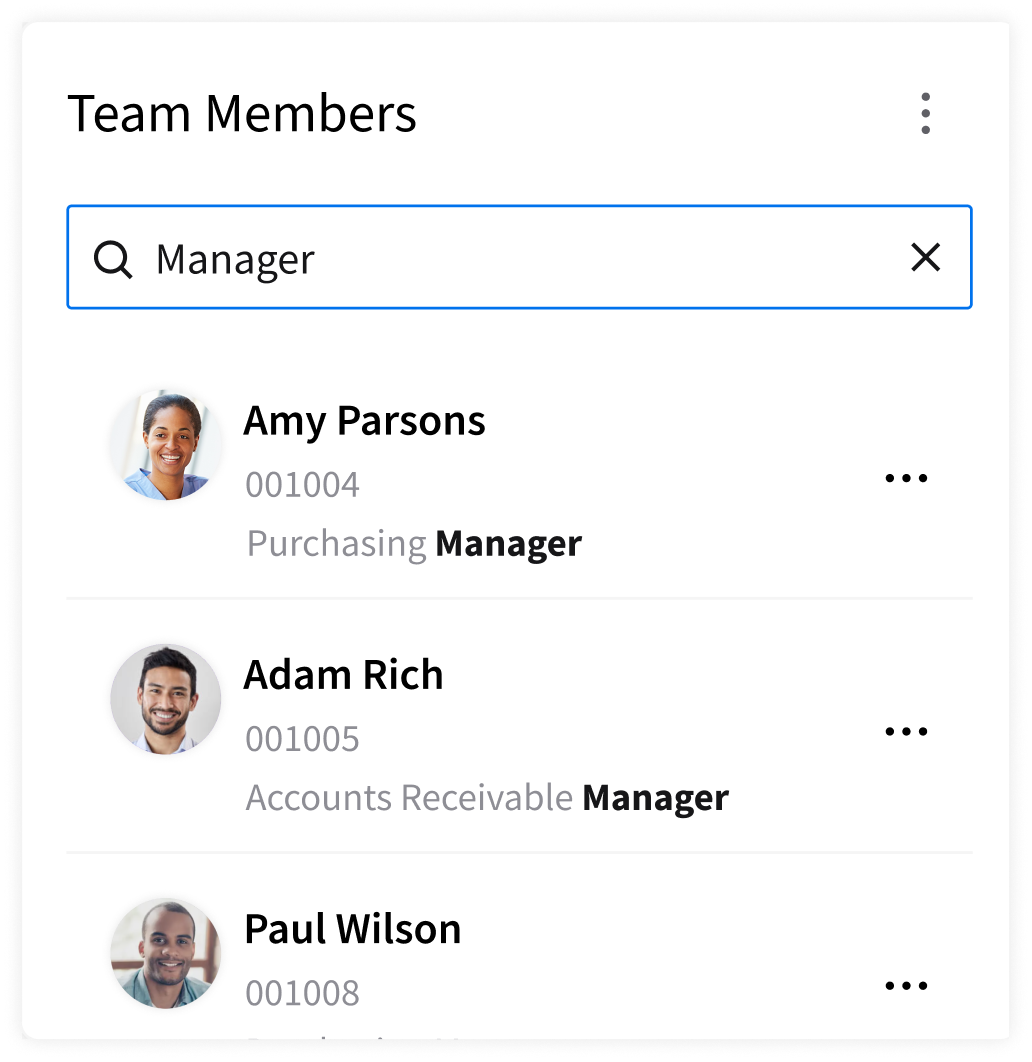
The user can search for content and data that’s currently shown on screen.
- How search works: The user enters a keyword to match text across visible rows, attributes, or cards.
- How filter works: The user applies attribute constraints—such as status, date range, department, or column criteria—to exclude non-matching records.
When to Use
- The user needs to search or filter within a bounded set of records.
- The search or filter is tied to a specific data container, such as a card, a listview, or a data grid.
- The user may need filters, sorting, or column-level refinement to narrow results further.
Examples
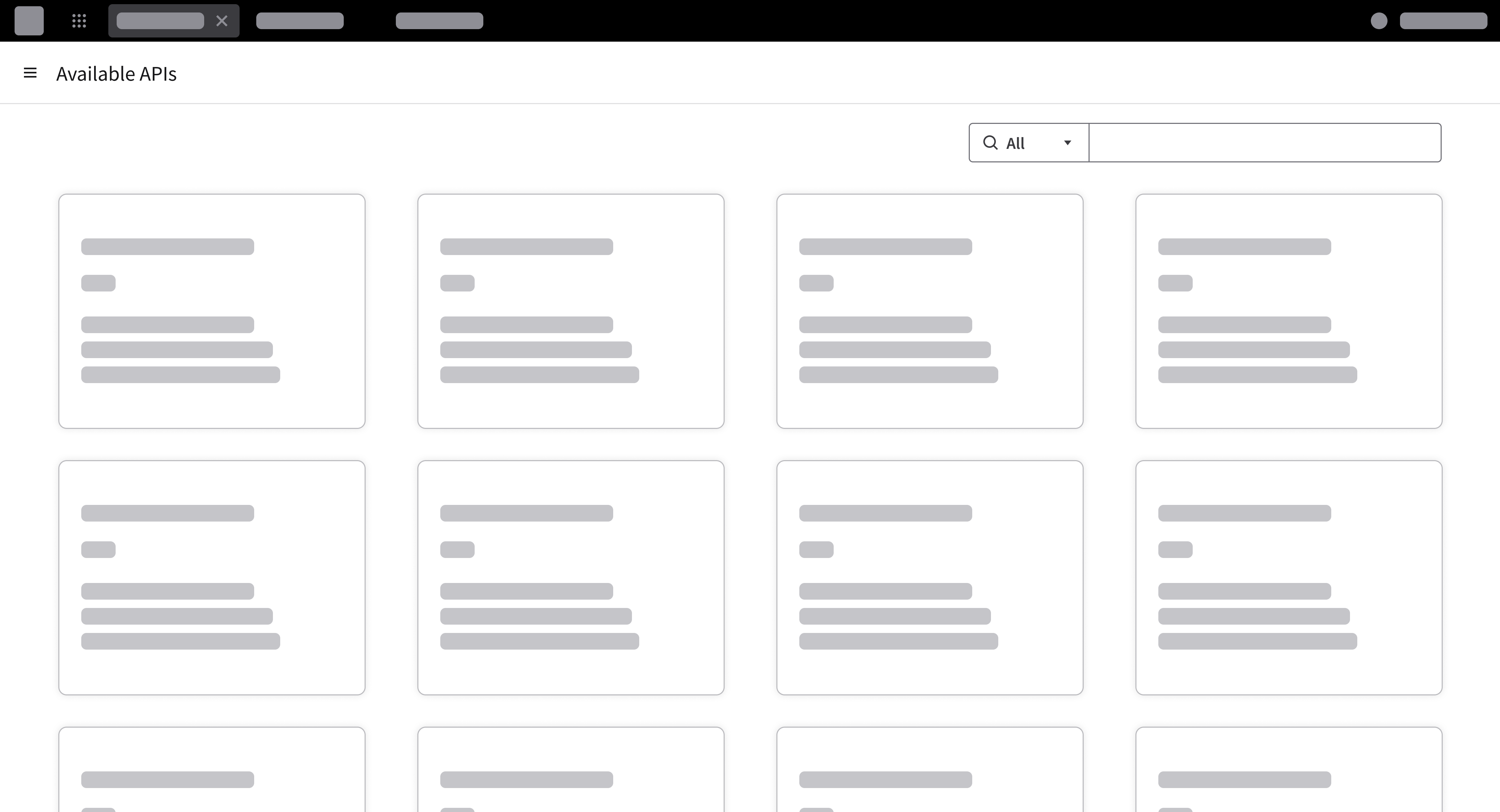
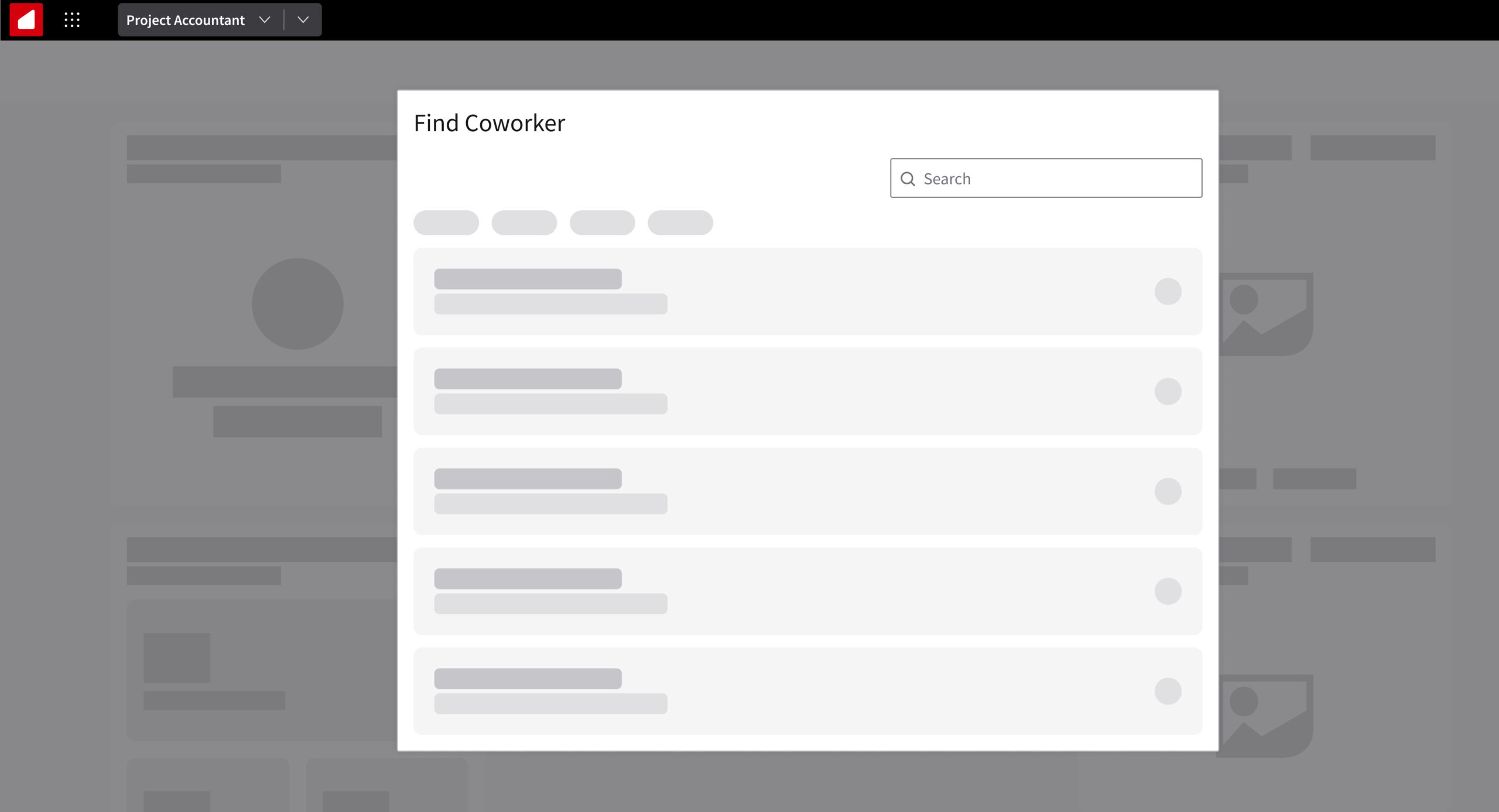
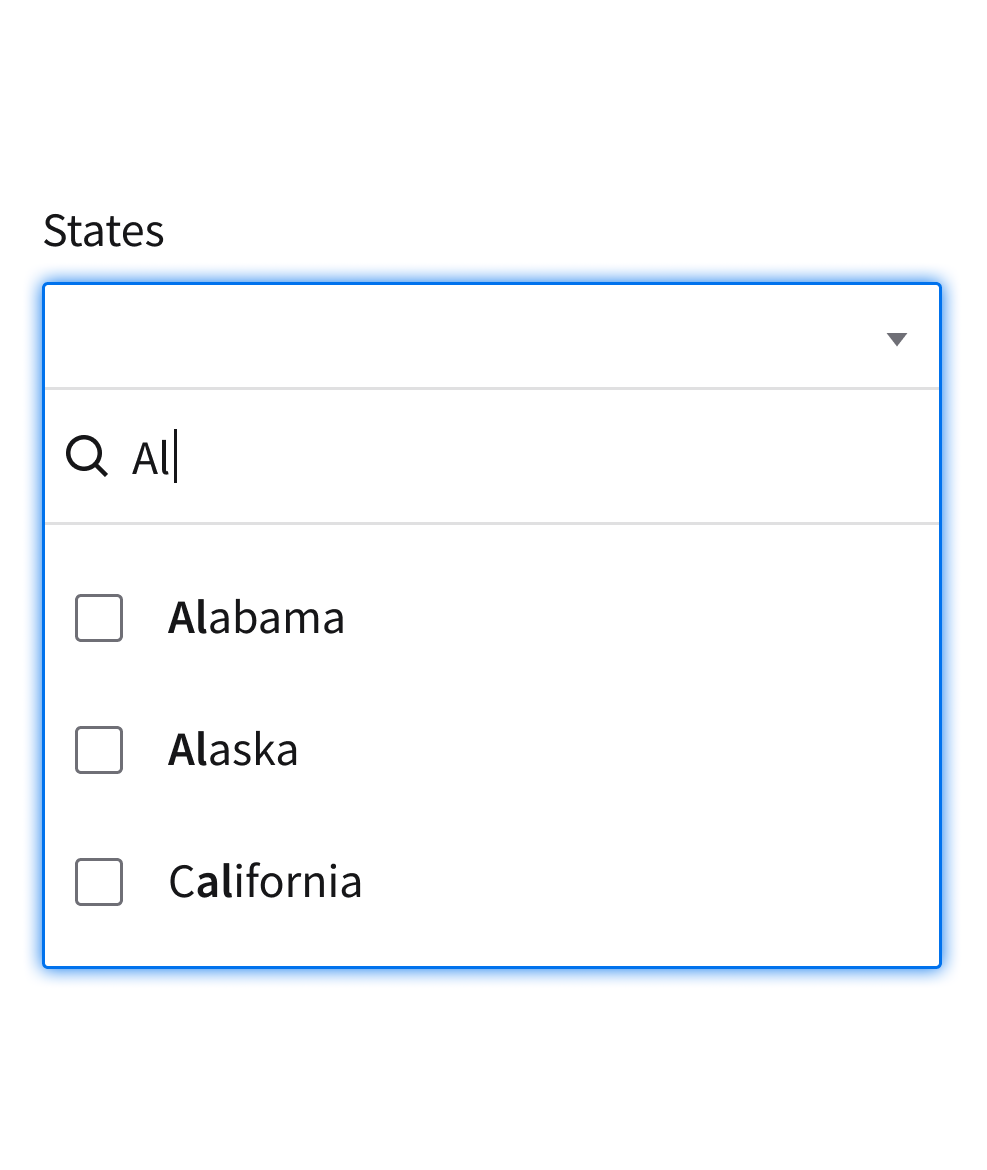
Search in a multiselect
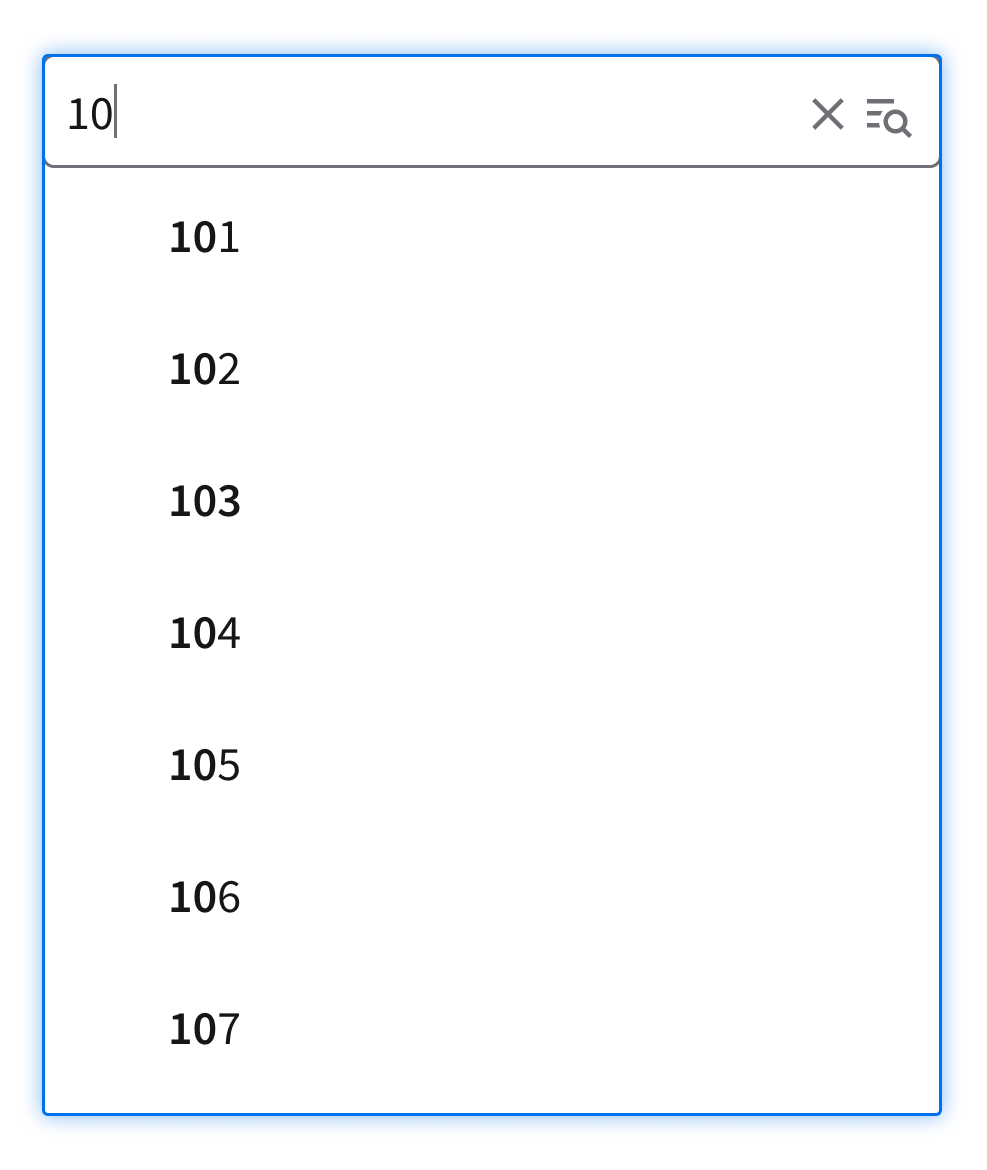
Search in a lookup
Search and Filter Types
Single-Field Search (Quick Search)
- The user can find items by entering a keyword or a phrase into a search field.
- Use when a quick, free-form lookup across 1 input is sufficient.
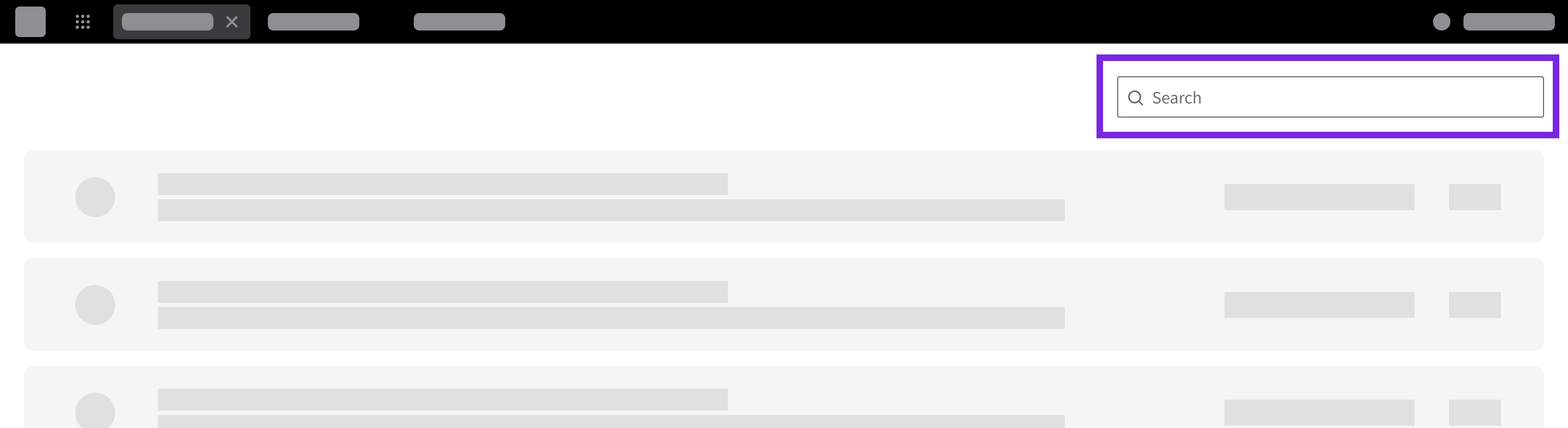
Search and Filter
- The user can combine keyword search with predefined filter controls in a single view.
- Use this pattern when the user needs to narrow a visible data set by known attributes—like status, category, date, or type—while still allowing them to search by entering keywords.
- Use selection controls for finite values: When filter values are predefined, use components like dropdowns, multiselects, datepickers, or field filters instead of relying only on a search field.
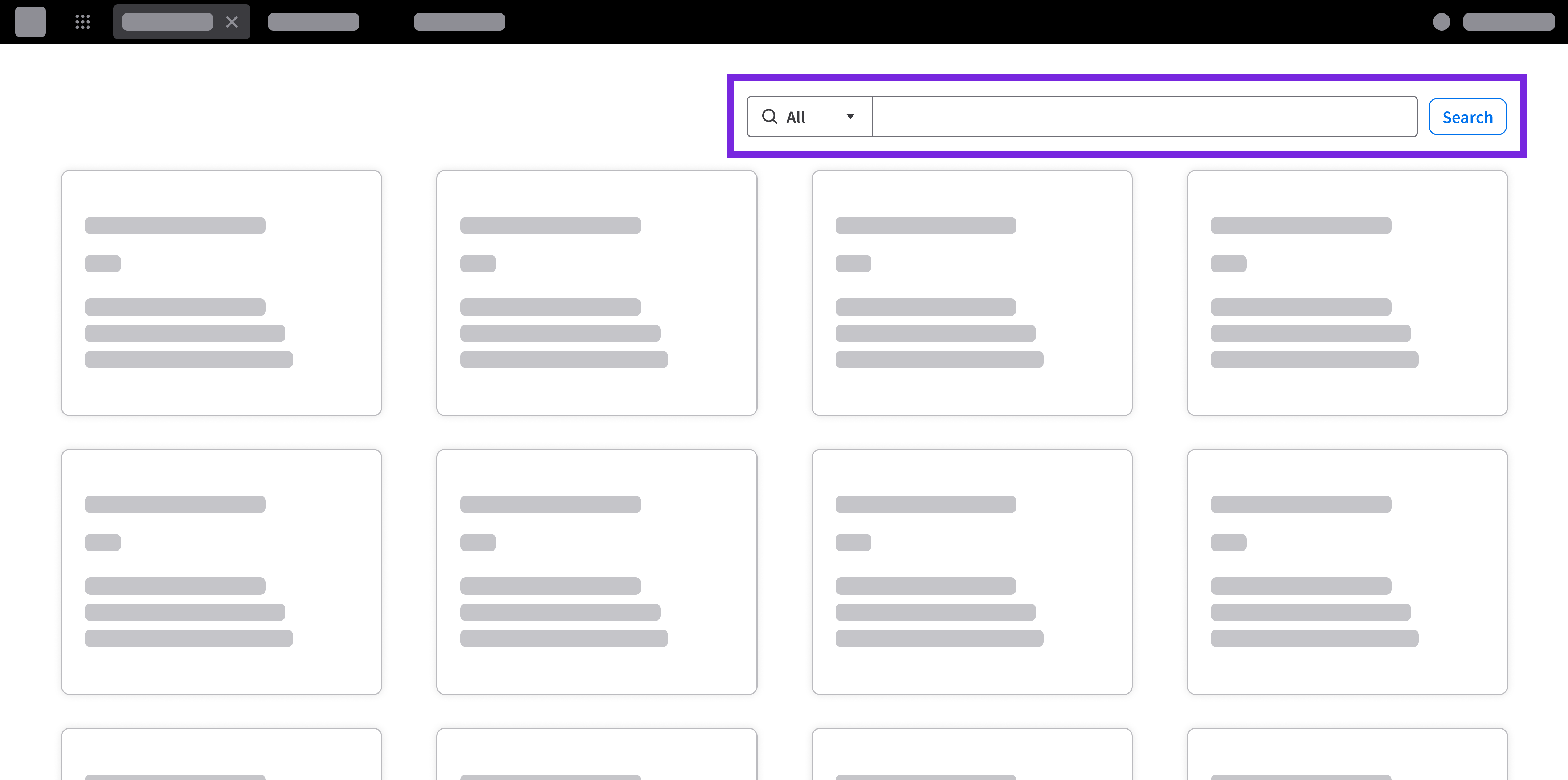
Keyword search using a search field with categories
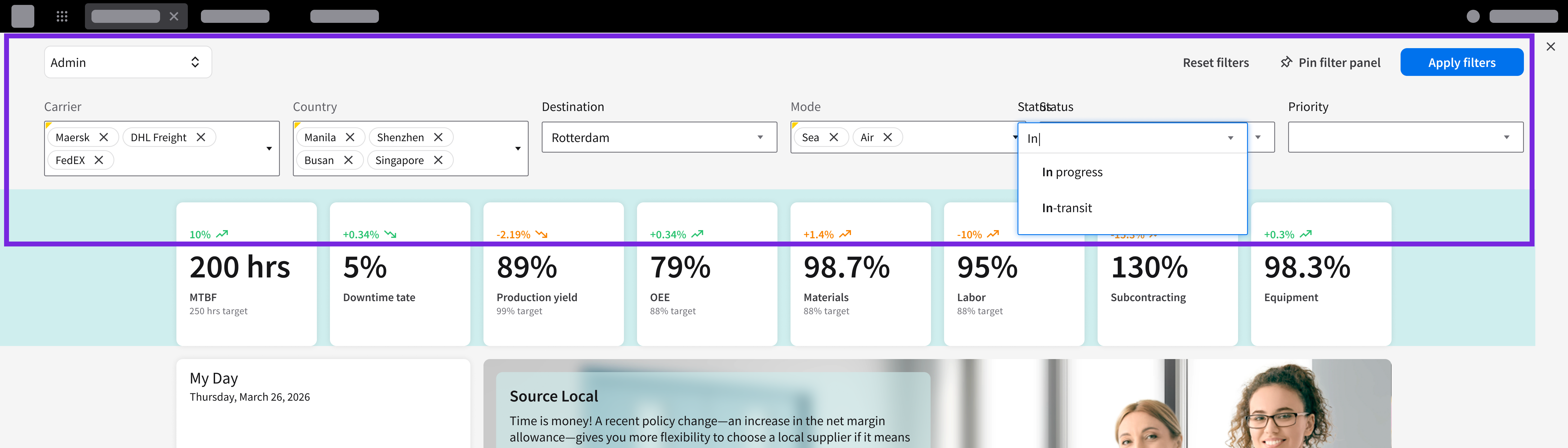
Search and filter with multiple criteria
Advanced Search
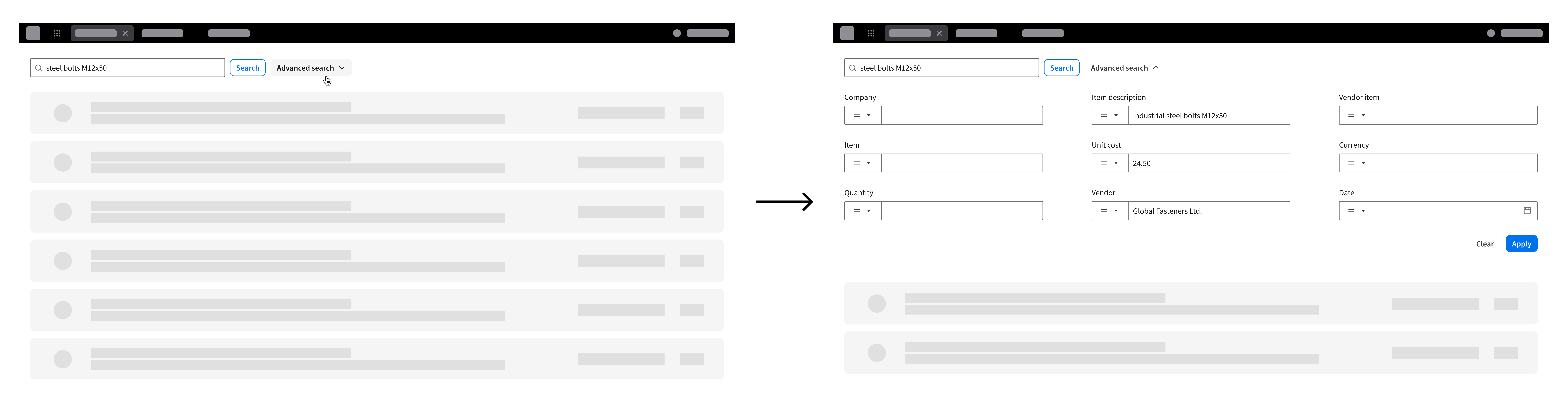
- The user can construct complex queries using multiple fields, attributes, or operators across large data sets or varied data sets.
- Use this pattern when simple keywords and inline filters are insufficient—such as running business reports, cross-referencing multiple parameters, or searching across an unloaded database.
- For more guidance, see progressive disclosure.
Potential Components
Behavior and Interaction
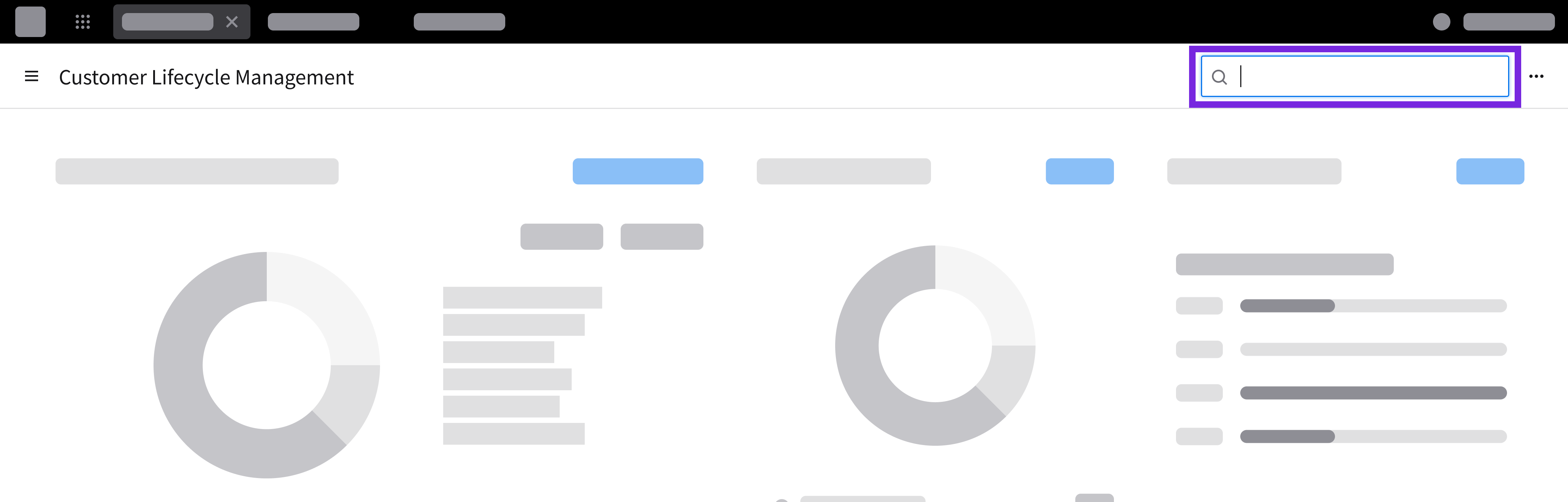
Placement
Header
- A global top bar used for broad, system-wide search across content, applications, and navigation from a persistent location.
- Place a header at the top of an application to let the user search globally across modules, find quick navigation links, or look up records across the entire system.
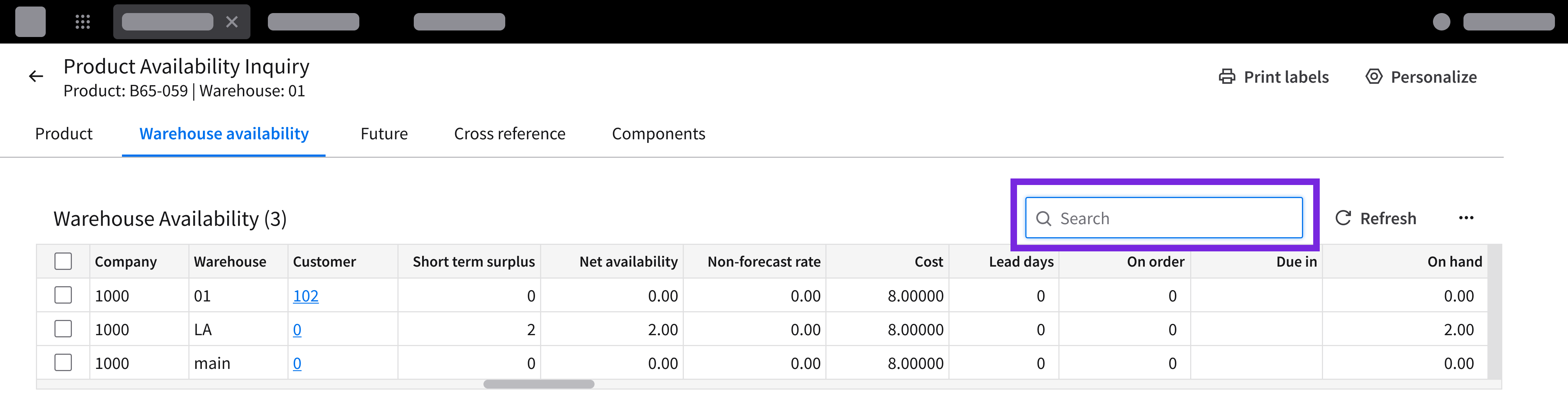
Toolbar
- A persistent bar placed above a page or container that houses global search and filter triggers together.
- Place a toolbar above a list or a table when the user needs a keyword search field alongside a filter trigger button that opens an expandable drawer or modal.
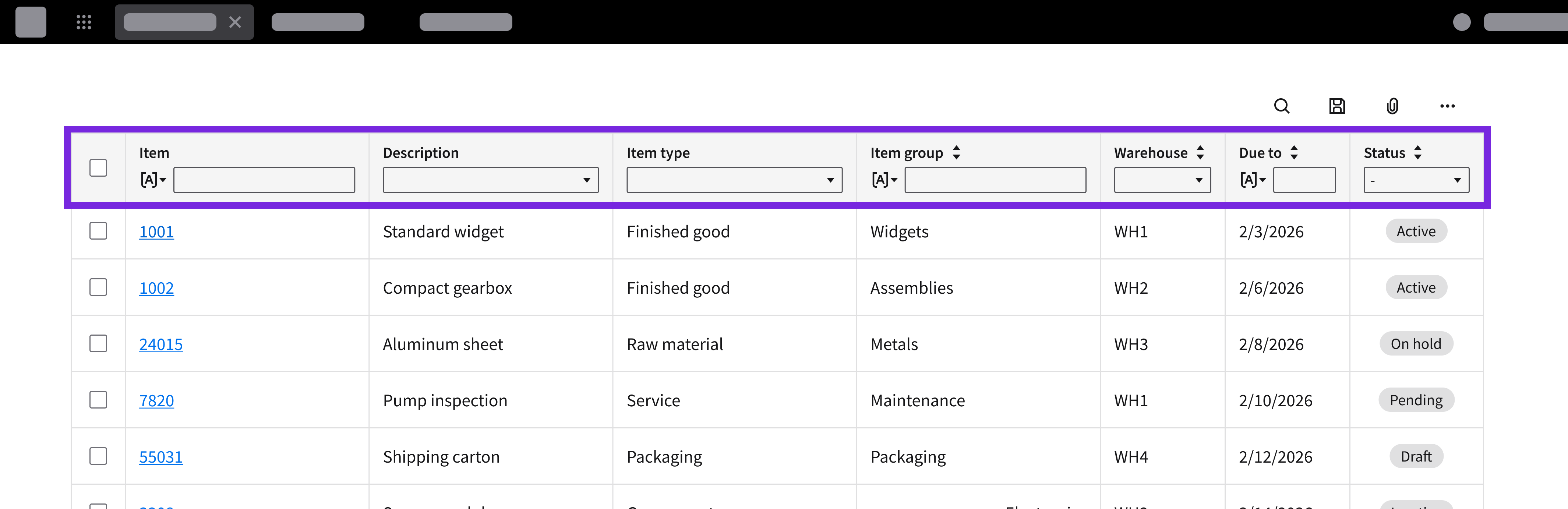
Column Filters
- Filters that are integrated directly into column headers in a data grid for refining results by a specific field.
- Use column filters when the user needs to narrow a table by 1 column at a time, such as entering a customer name or selecting an order status within that column header.
Inline Controls
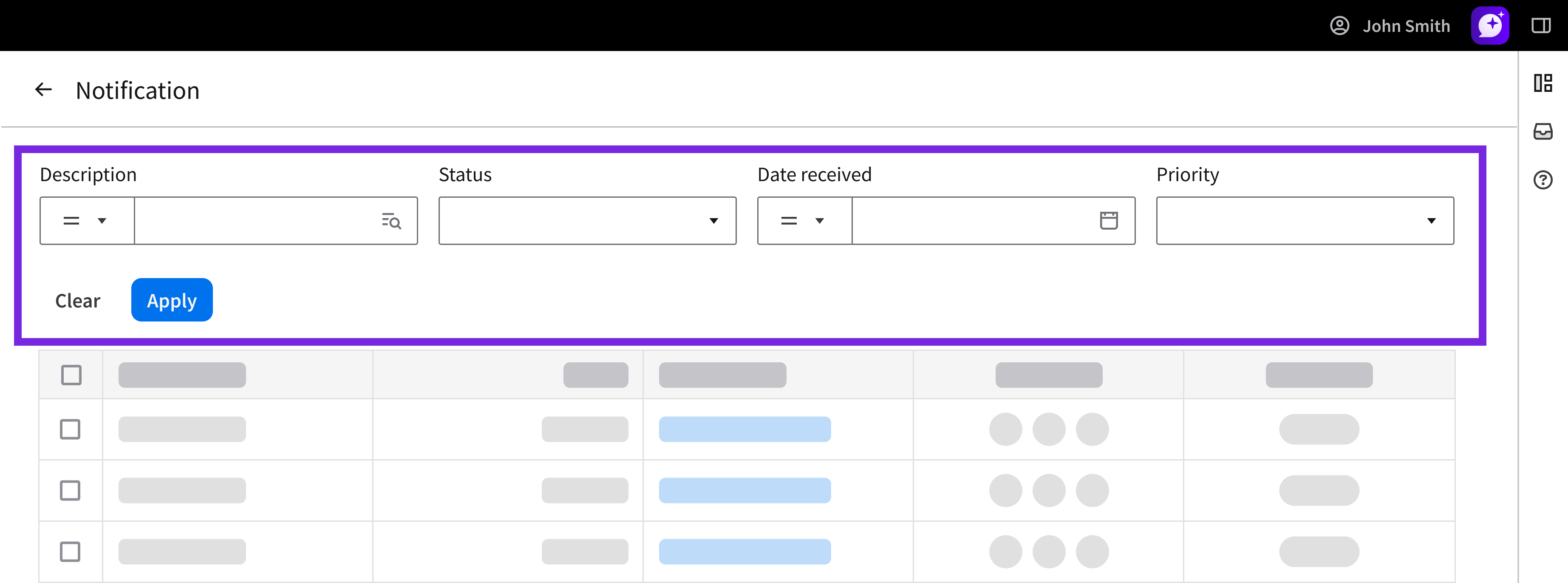
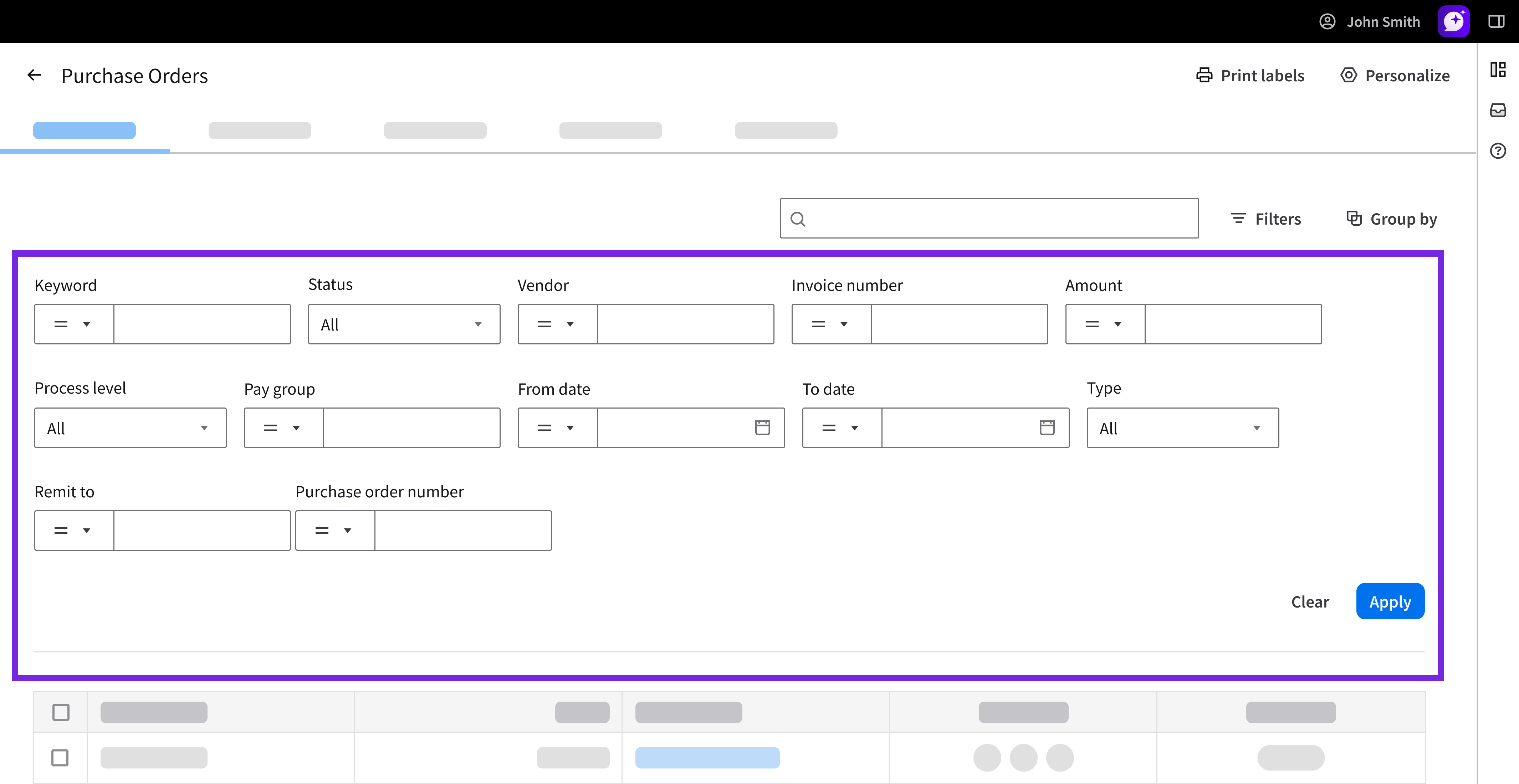
Collapsible Panel
- A collapsible in-page area that is placed above content to reveal additional filters without losing the context of the page.
- Use a collapsible panel when the filter set is too large for inline controls (4+ filters).
- Examples: Using an expandable area above a data grid; using a collapsible top panel across a Workspace to filter multiple widgets simultaneously
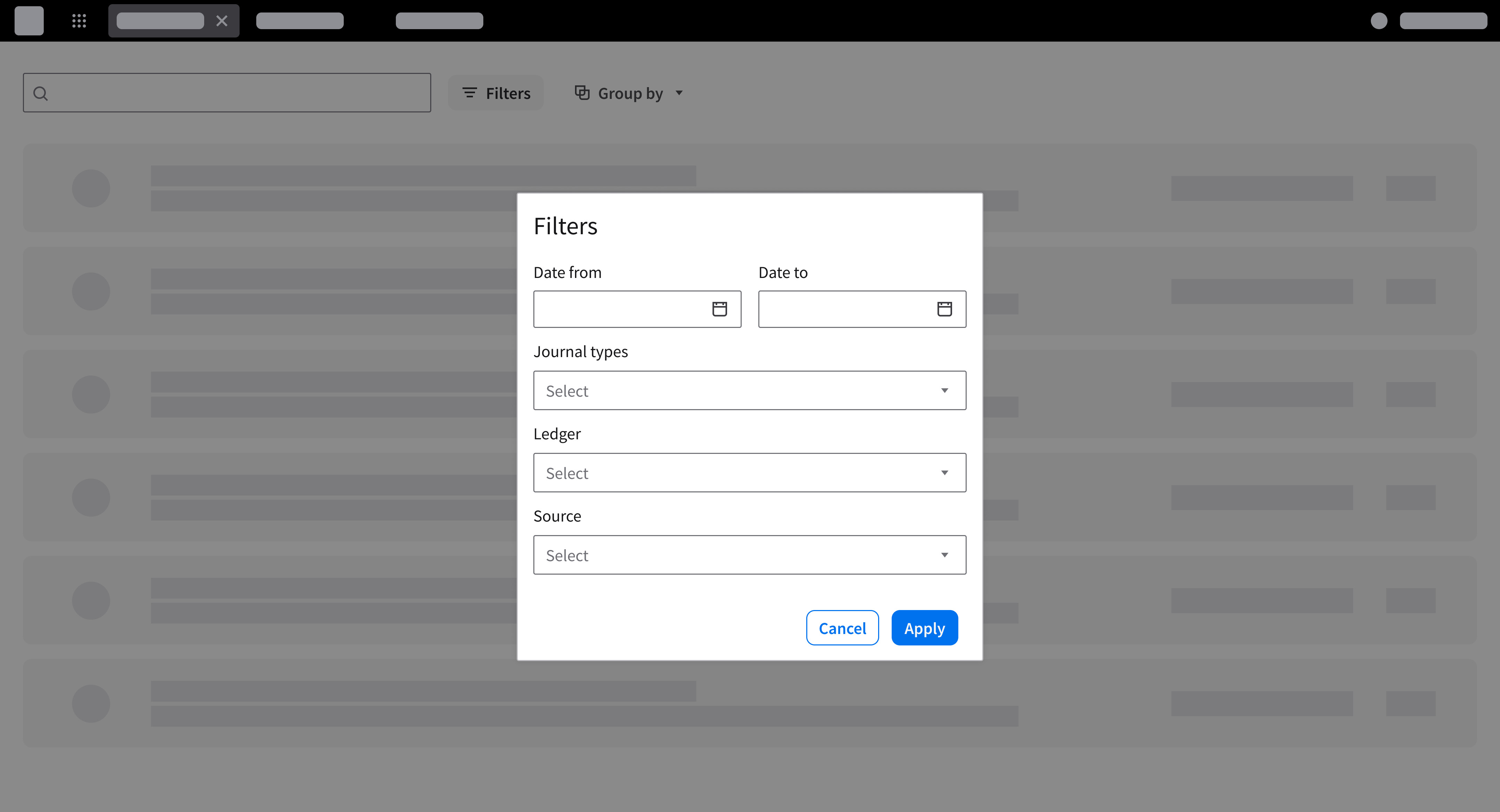
Filter Modal
- An overlay used for complex filters that the user must set up before running a search or a report.
- Use a filter modal for an advanced report where the user selects several required fields—such as date range, status, department, or customer—before selecting “Apply”.
Progressive Disclosure
- Start with the most essential search or filter controls and reveal additional criteria when the user requests it.
- Show only the search field and up to 4 filters by default. Prioritize the criteria that the user applies most often.
- Reveal additional criteria on demand.
- Move secondary filters, complex filters, or less frequently used filters into an expandable area or a modal that can be accessed via a clearly labeled trigger.
- When the user needs to construct a multi-field query before retrieving records, use an expand/collapse button to open a collapsible panel.
- When the user is narrowing a data set that is already visible, use a “Filter” button.
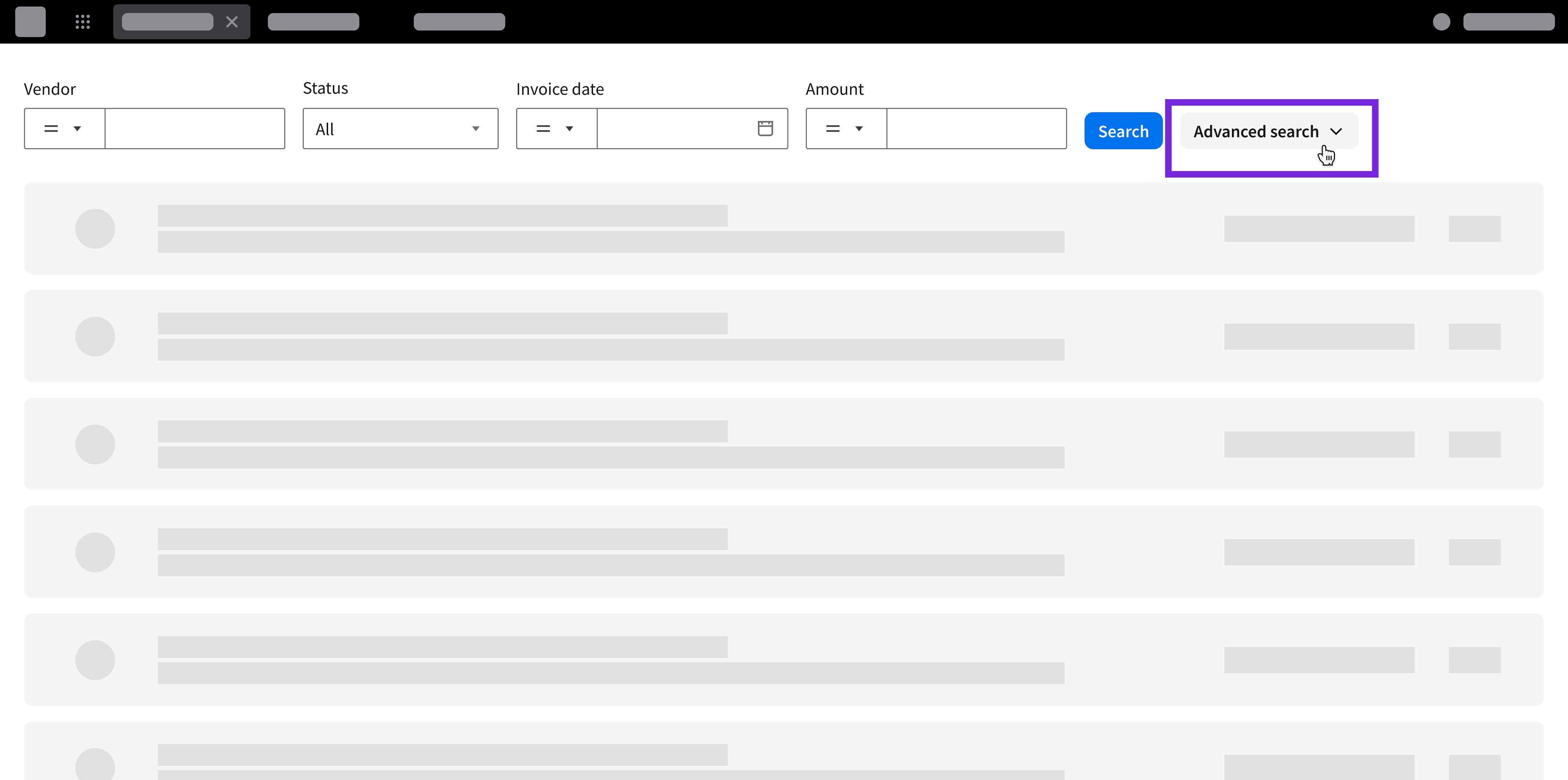
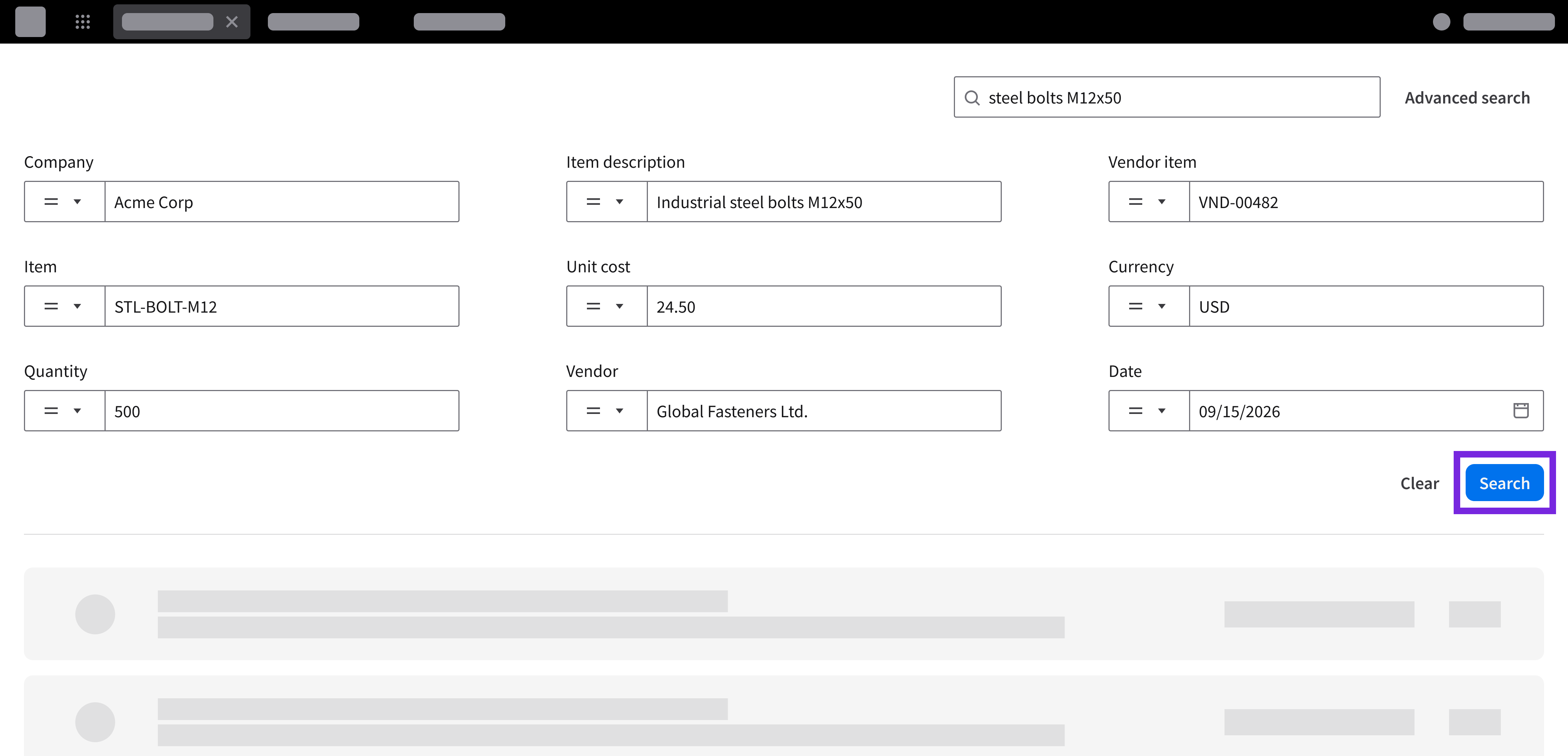
Frequently used criteria are shown alongside search; “Advanced search” provides access to additional criteria.
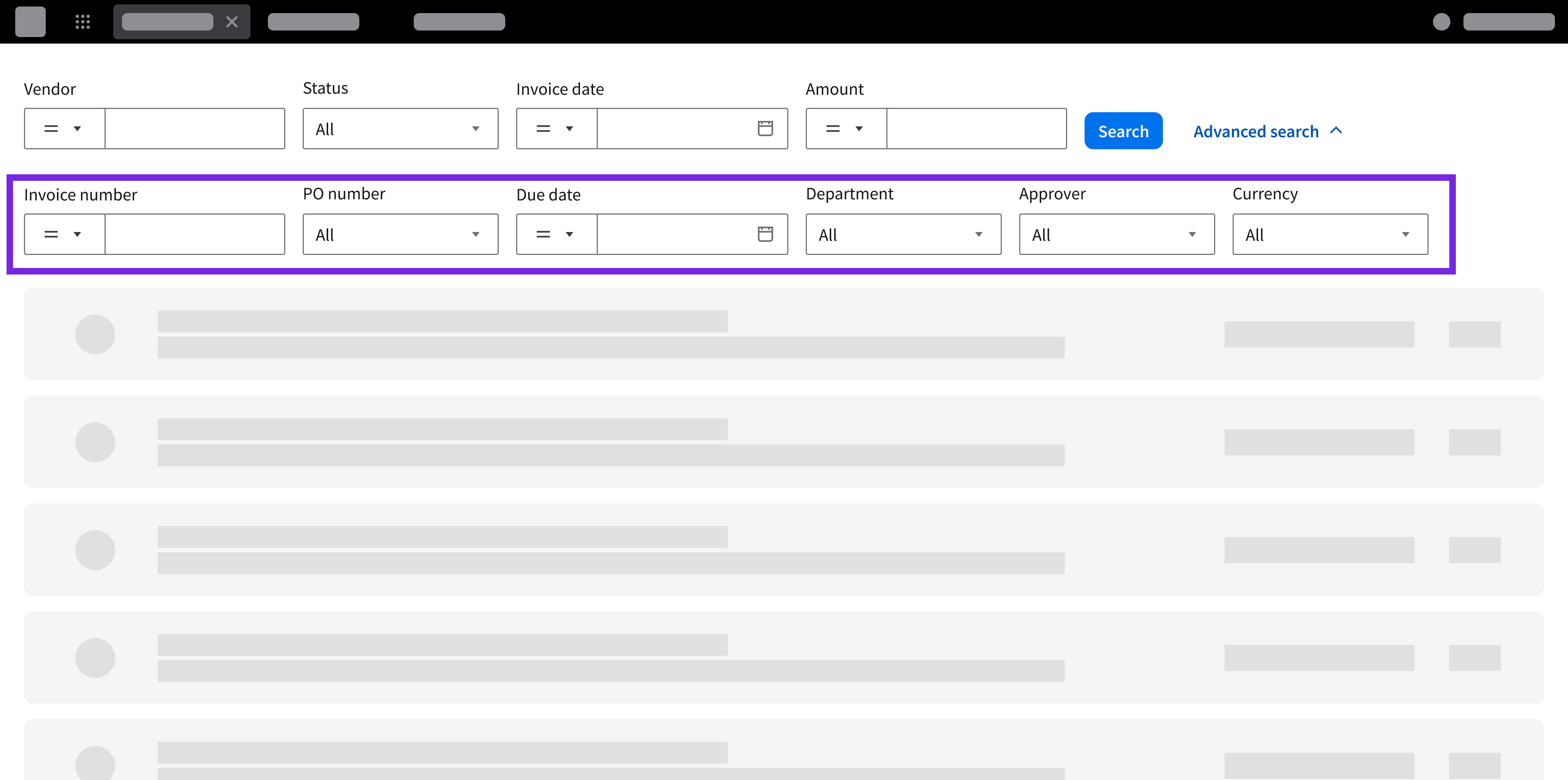
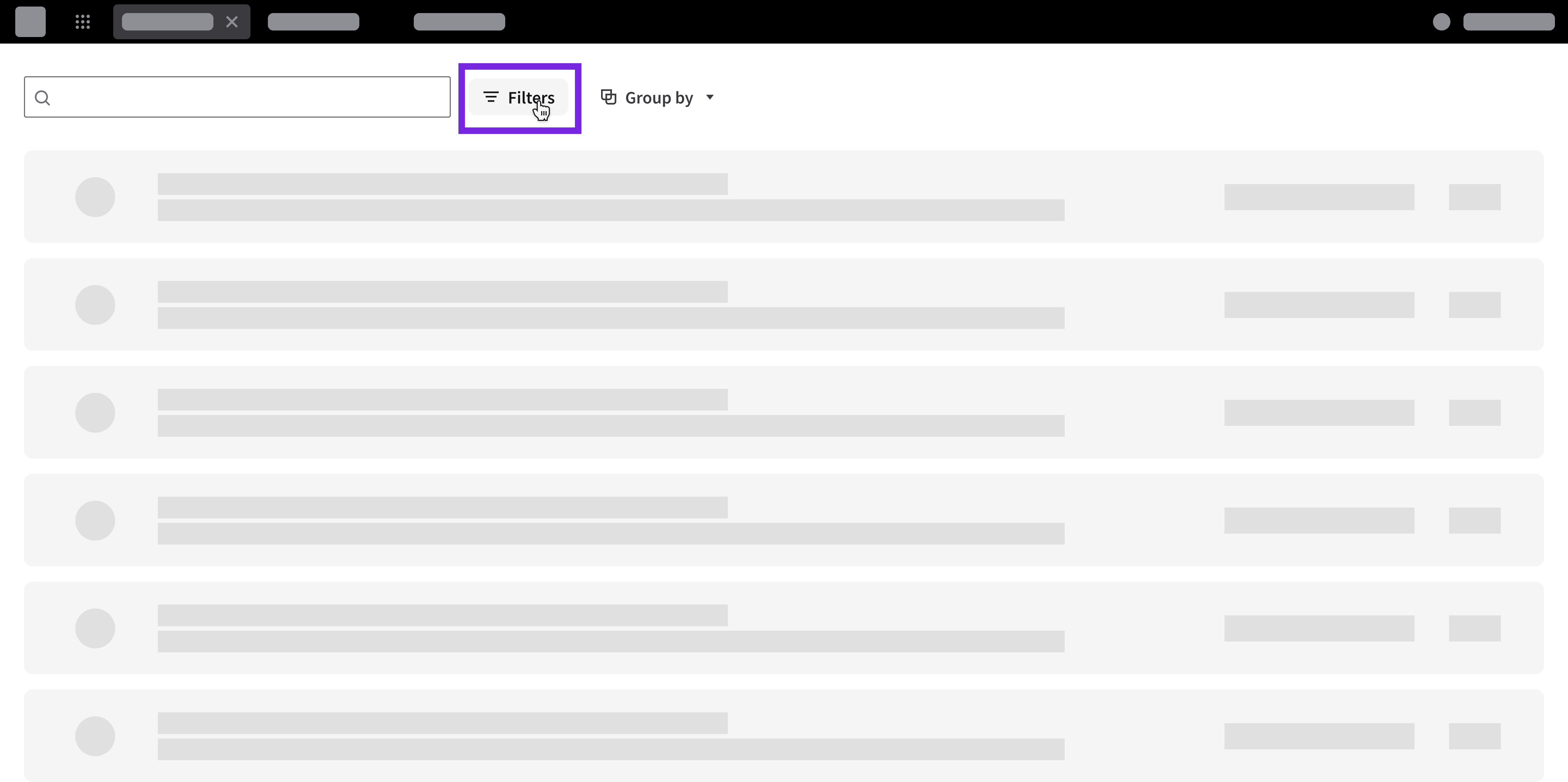
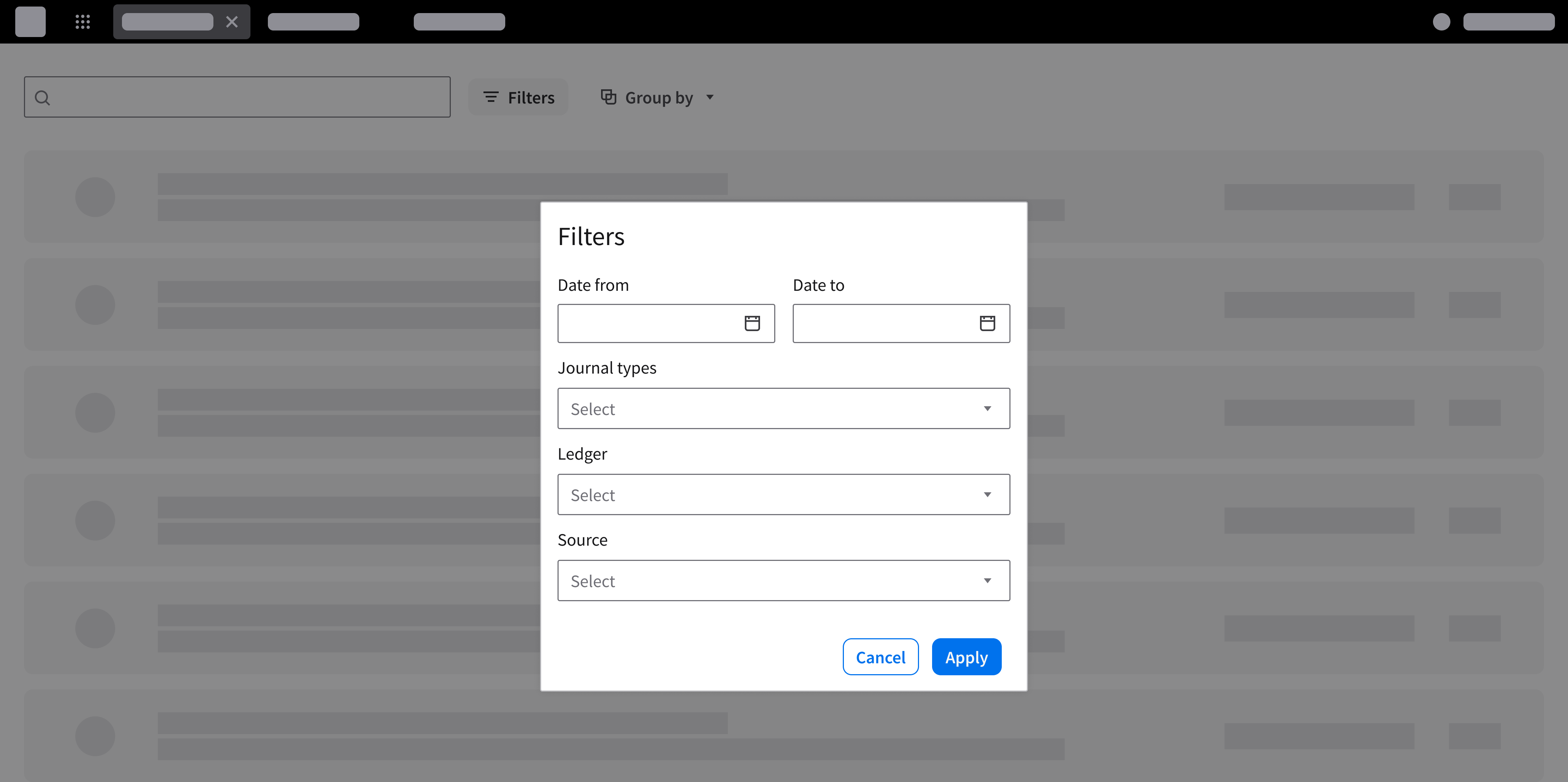
After selecting the “Filters” button, a modal appears with additional filters.
Search Results and Filter Results
How Results Are Updated
Search queries and filter criteria can be instantly updated or manually updated.
Instant Update
- Results update automatically as the user types in a search field or makes a filter selection—without requiring button selection or reloading the page.
- The visible data set reduces in real time and displays only the matching items.
- Use for discrete data sets (cards, listviews, data grids) when the user needs to search through information that is already displayed on the page.
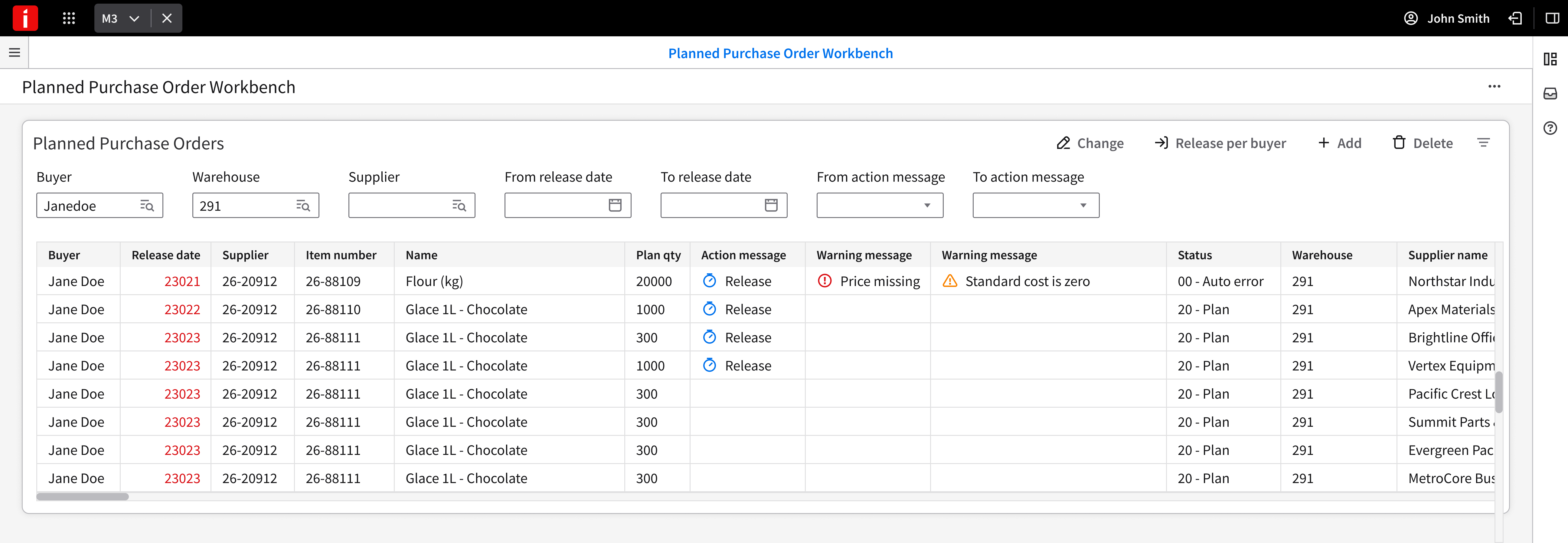
The displayed records update automatically as search or filter criteria are applied to a data grid.
Manual Update
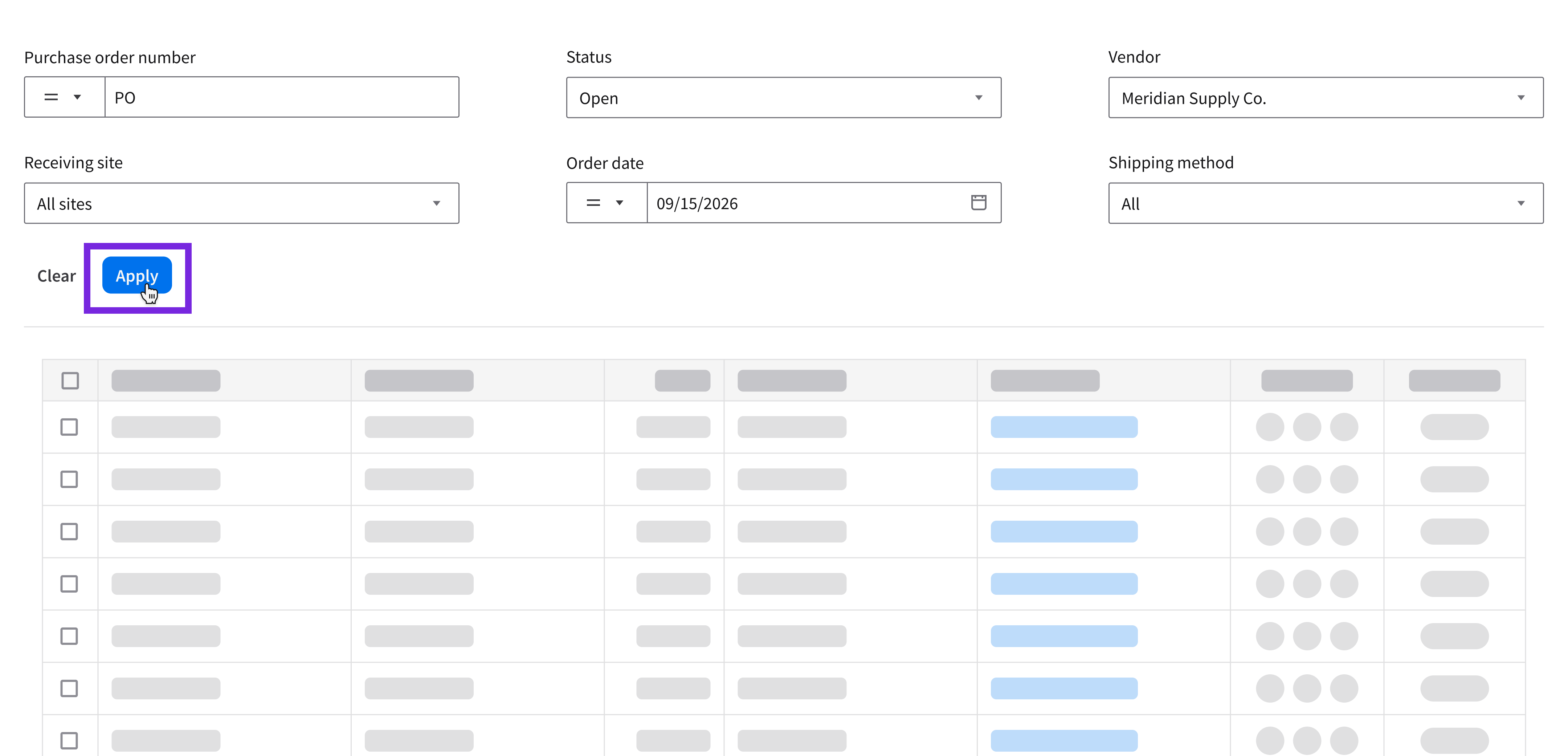
- Changes are configured first. The results update only when explicitly triggered by the user.
- Submit on enter: Press
Enterwithin a single-field search to execute the query. - Submit via action button: Select a button like “Apply” or “Search” to run the combined query.
- Submit on enter: Press
- Use when multiple filter criteria must be configured together before updating results (such as in an expandable area or a modal), for global searches, or when queries require server-side processing.
Results Counts
- Display the number of matching items so the user knows the size of the set of results.
- As the user searches or applies filters, update the count dynamically.
- Apply to global search results, listviews, and data grids.
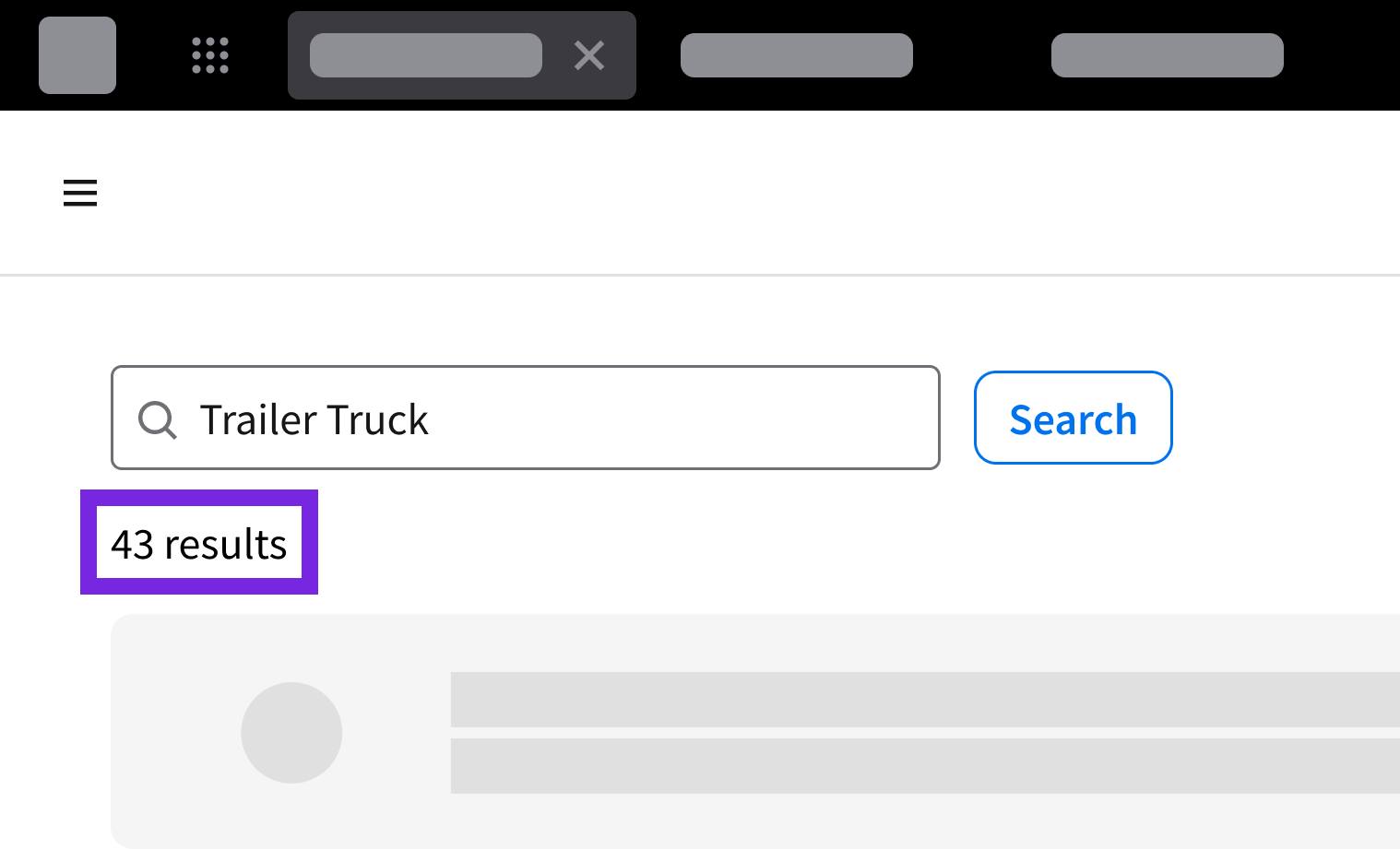
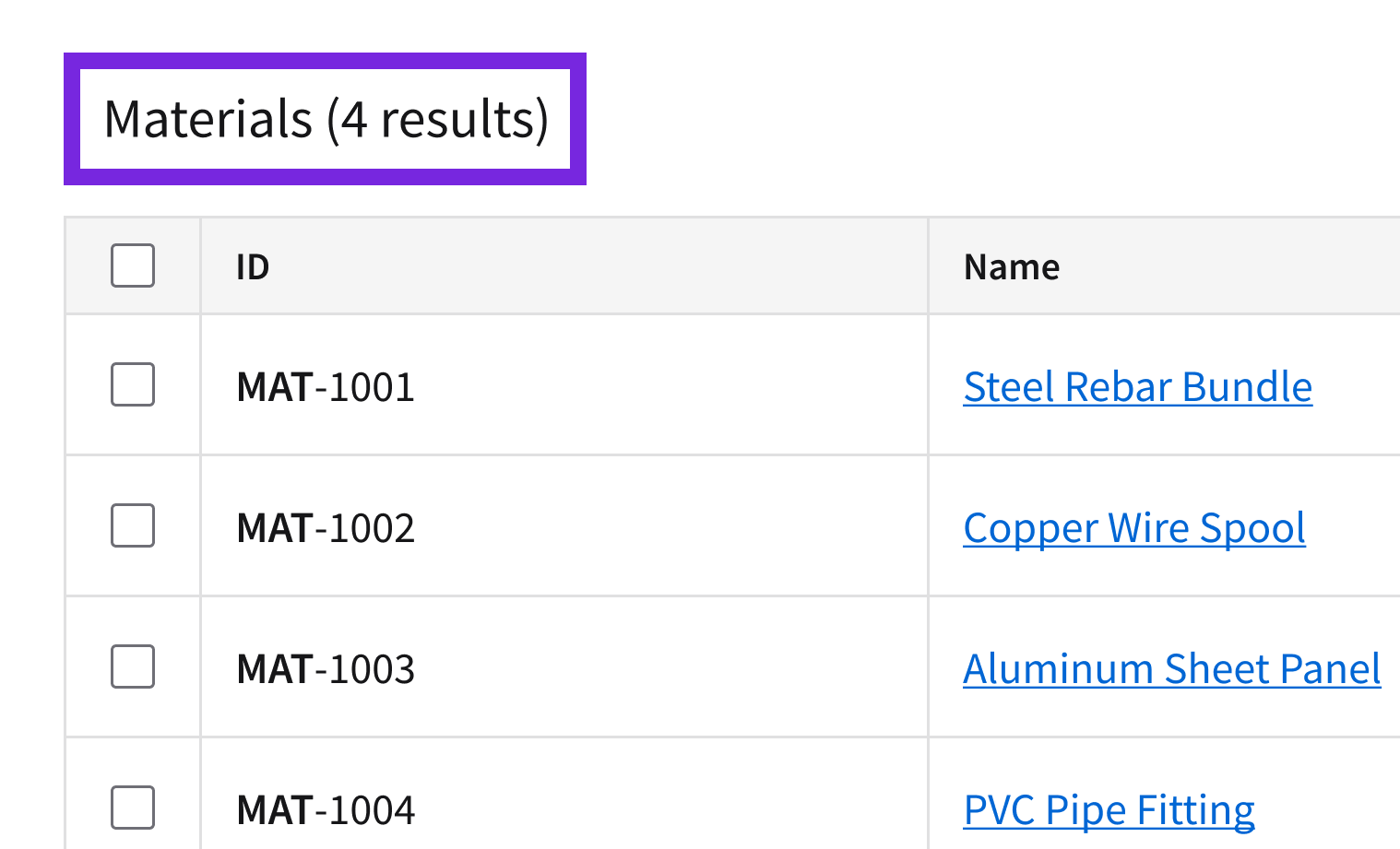
Display the result count in the toolbar above a data grid.
Highlighting Matches
- As the user enters a search term, visible items in listviews, data grids, or cards are reduced to show matching results.
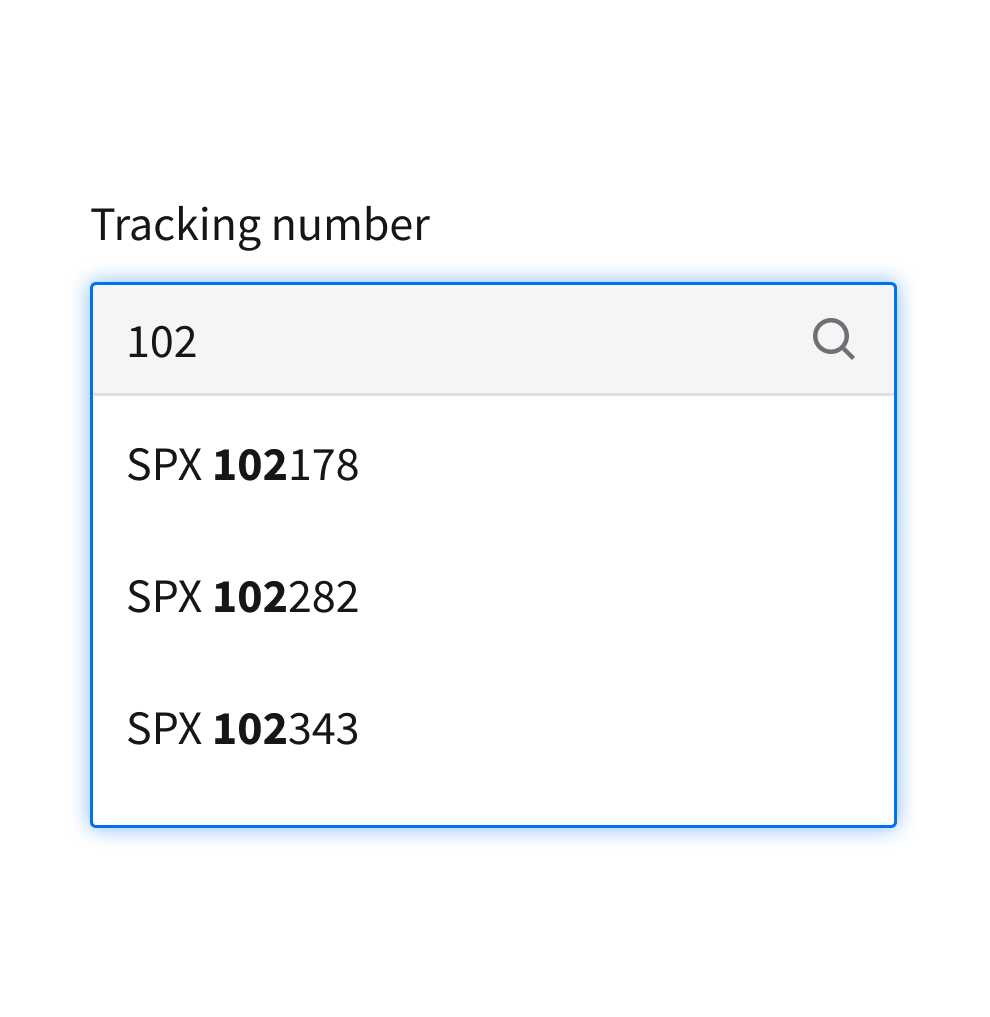
- Matched terms are displayed in bold to help the user identify where the search term appears within the results.
- Verify that the underlying component supports highlighting before applying it.
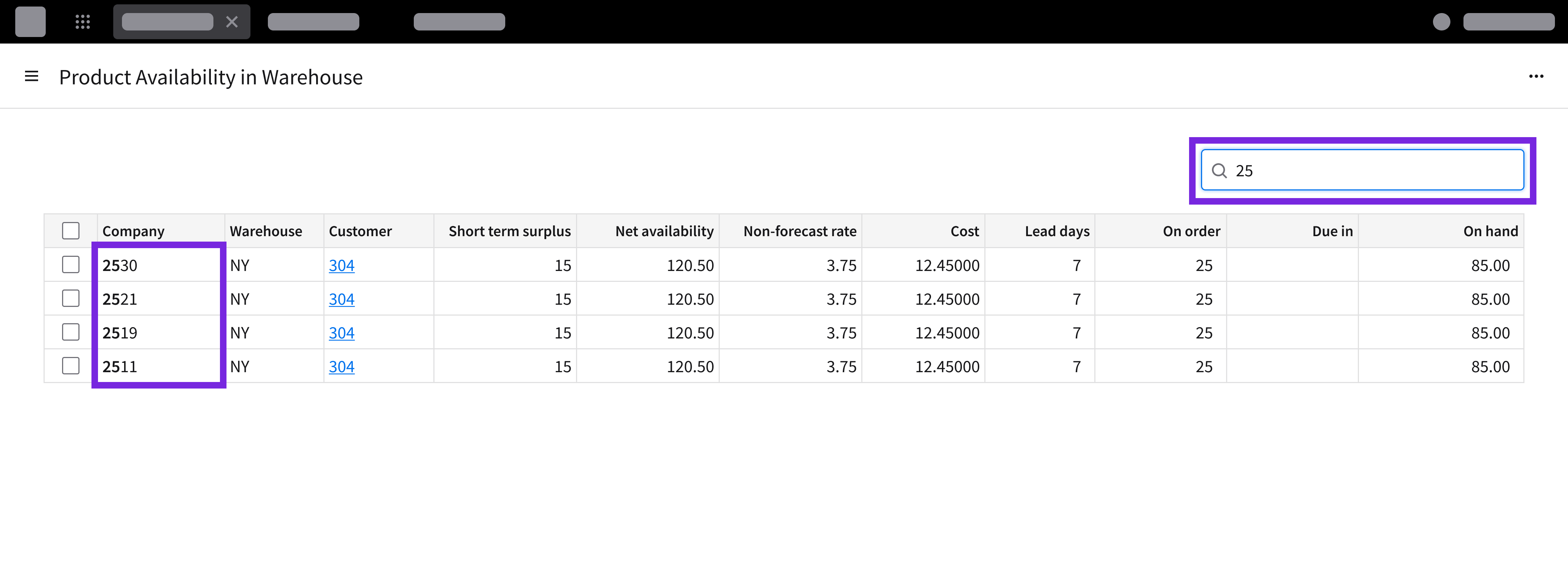
Matching terms are highlighted within the filtered results.
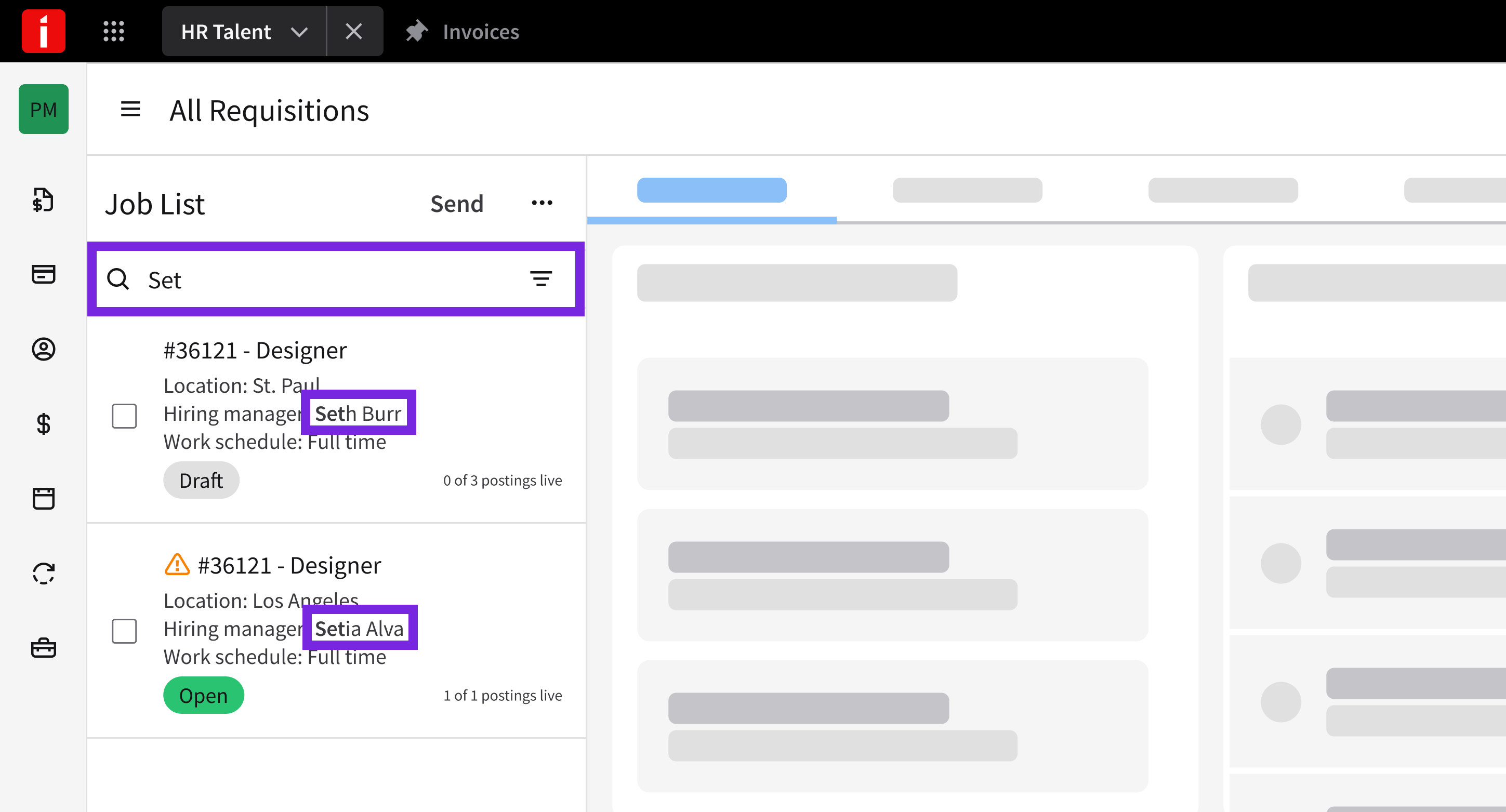
Matching terms are highlighted within the search results.
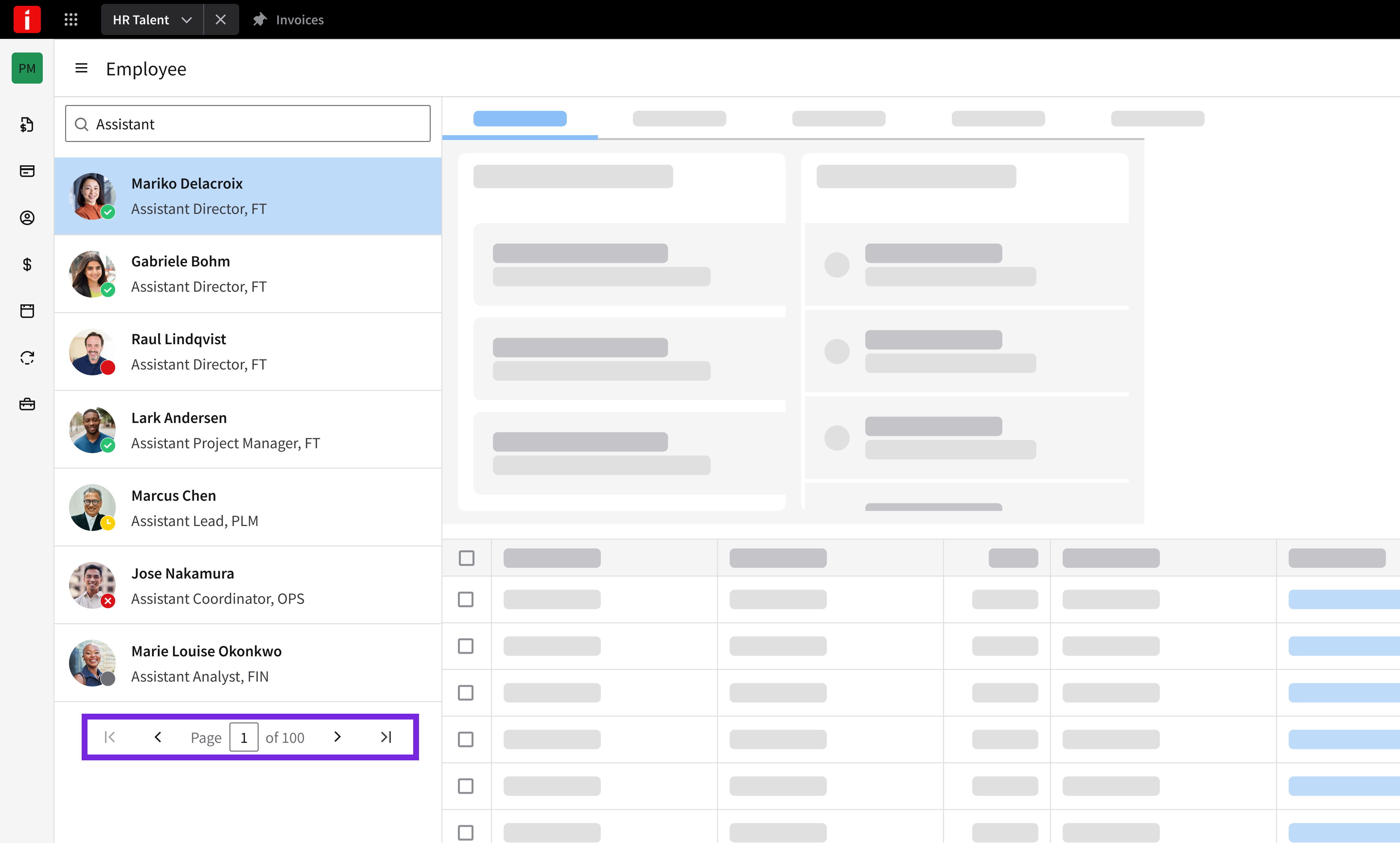
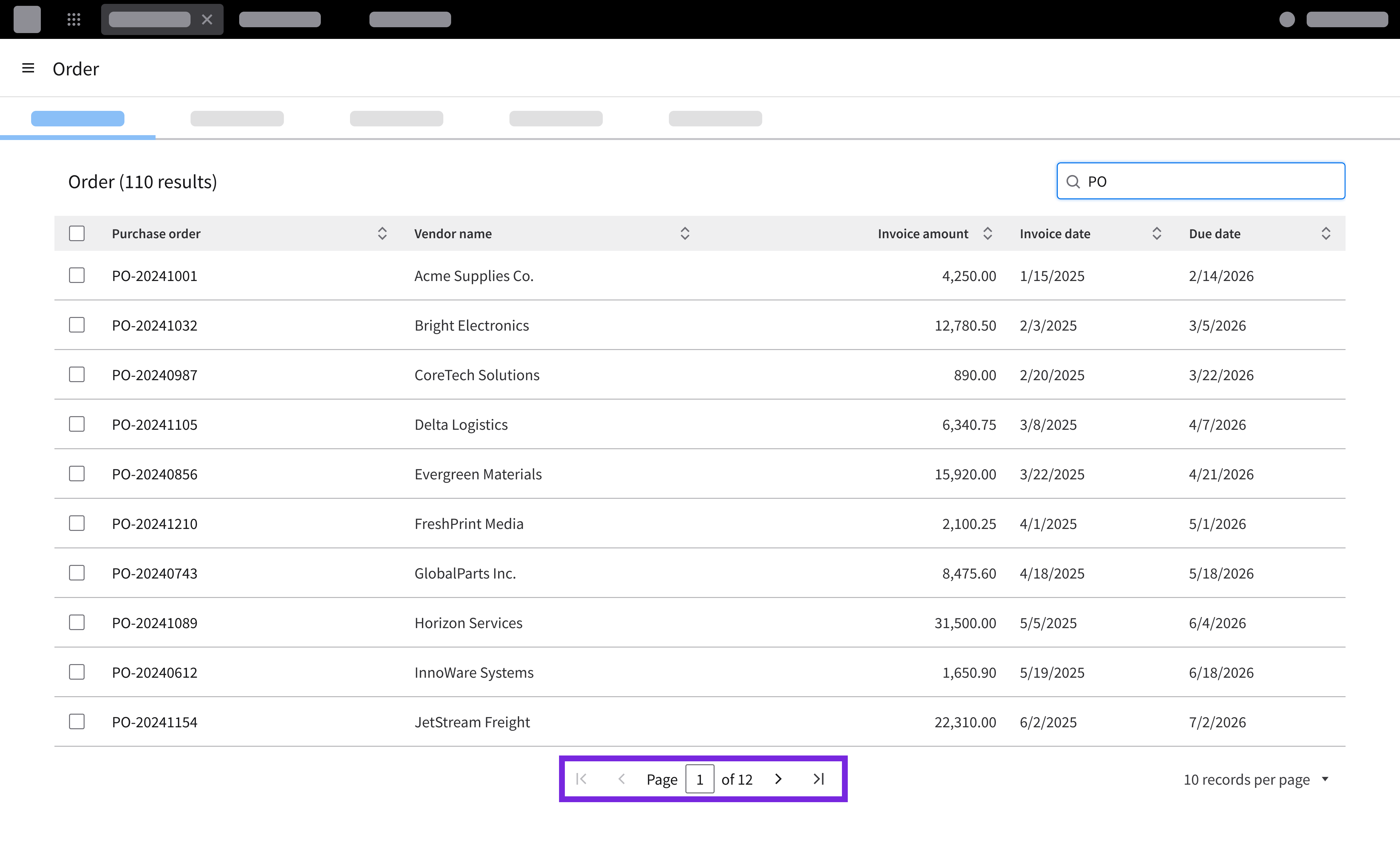
Using Pagination
- When there are so many results that they will span multiple pages, use a pager.
- For more information about when to use pagination or virtual scrolling, refer to the pager, the data grid, and the virtual scroller.
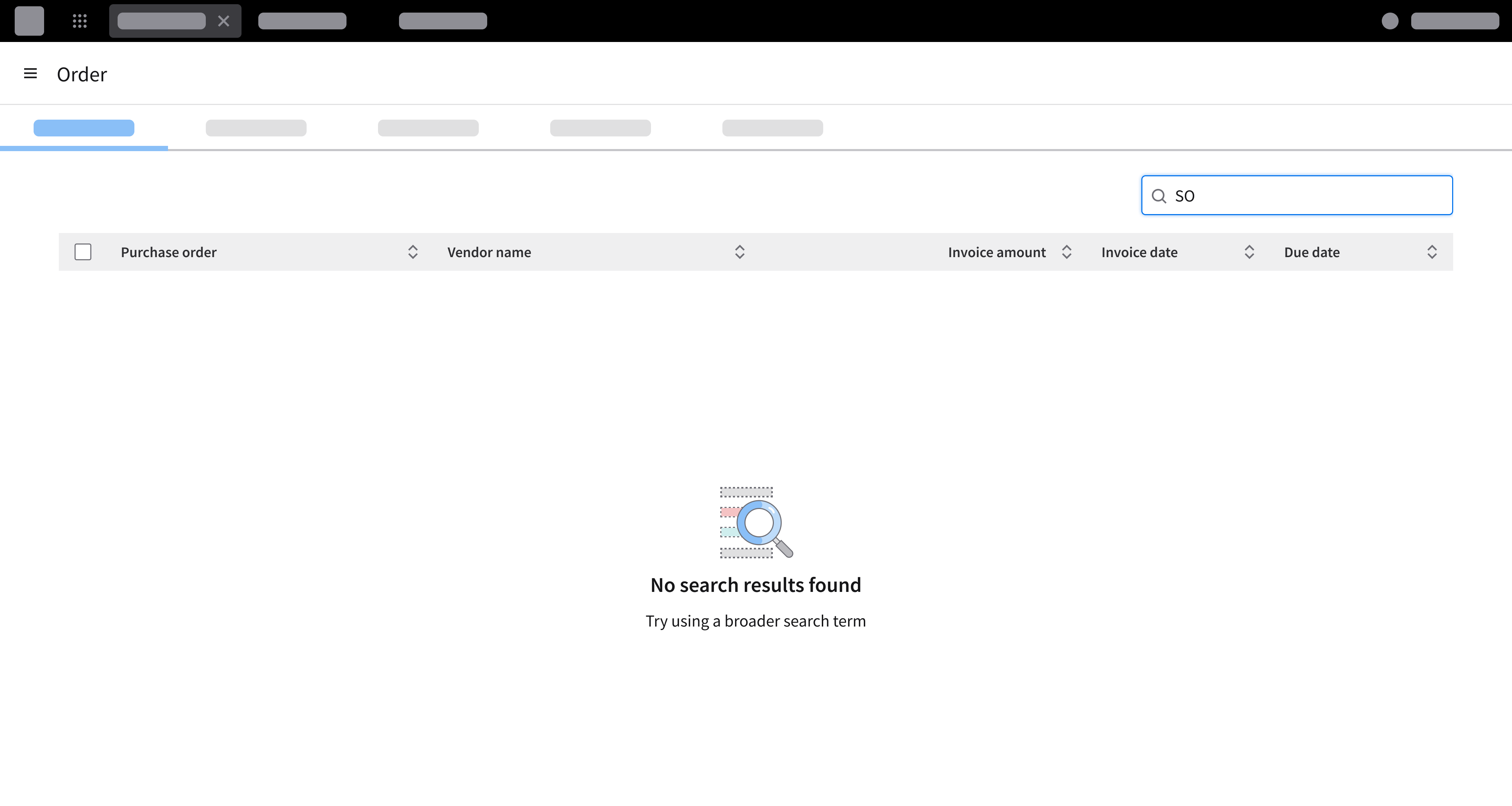
No Results
- When searching or filtering returns nothing, display a clear message stating that no results were found and describe how the user can adjust the query.
- Don’t leave the screen empty.
- Learn more about empty messages.
Best Practices
Clearly Label Triggers
Do
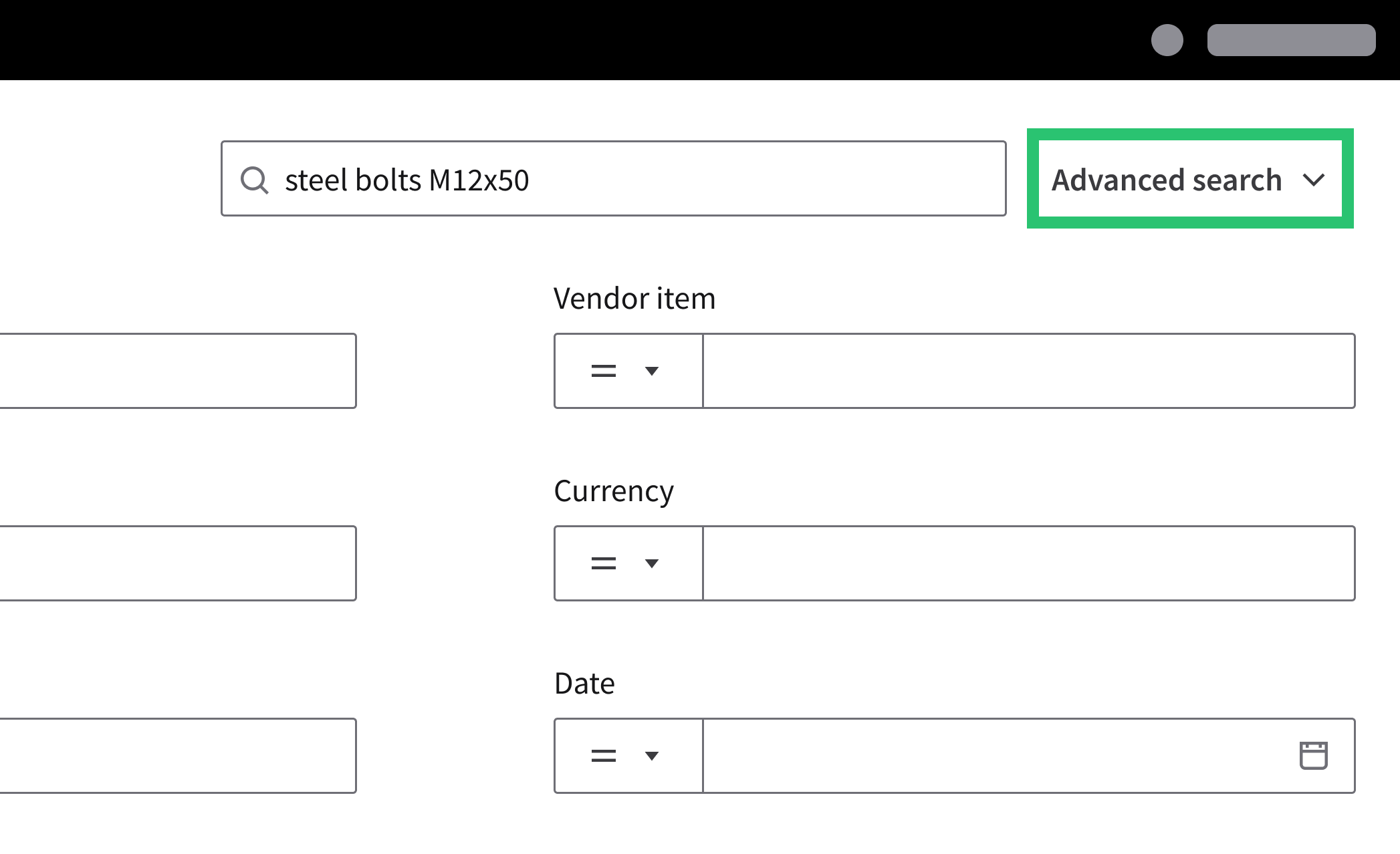
An action button must have a clear label.
Don’t
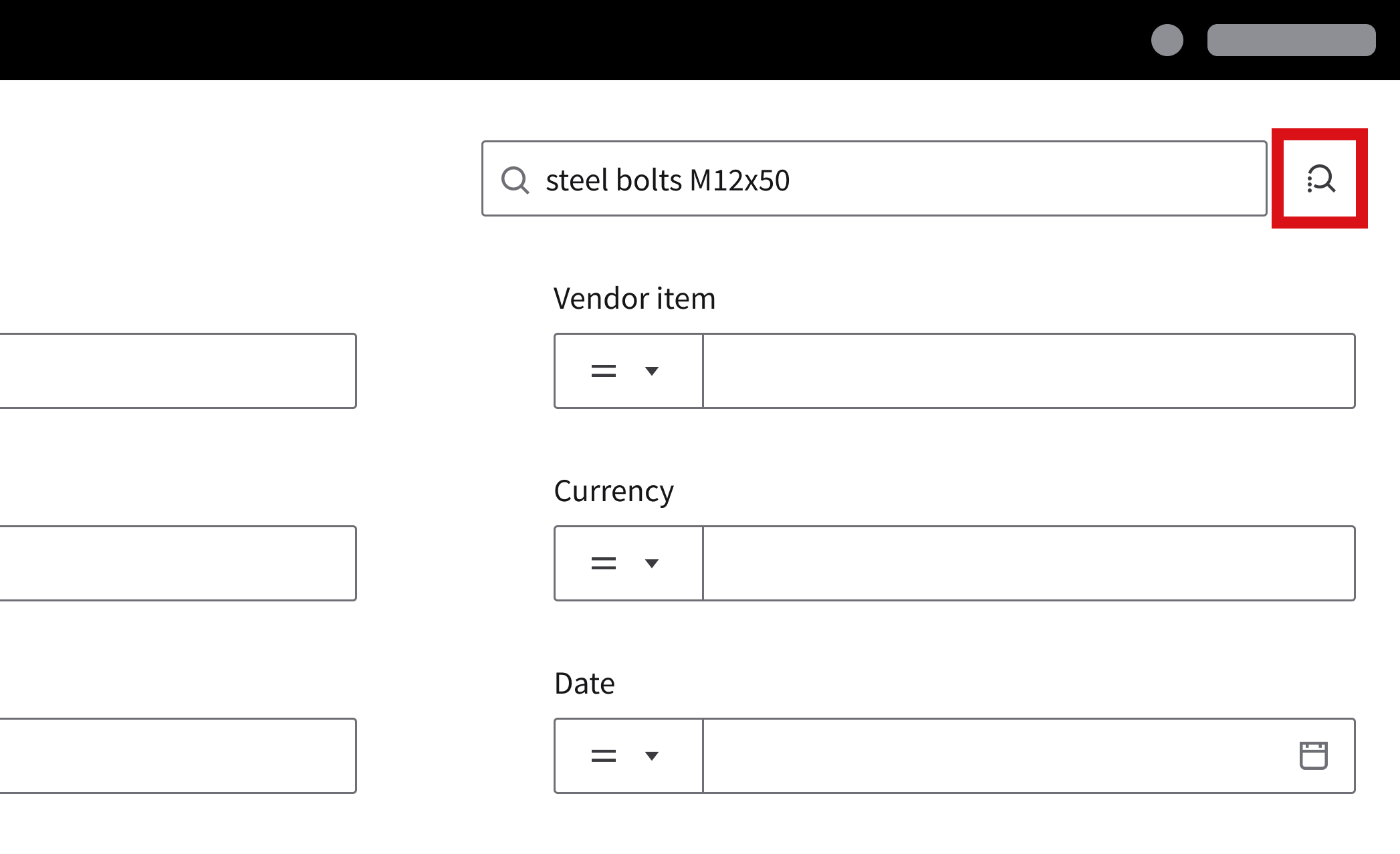
Don’t use icons without labels for search triggers and filter triggers.
Limit Inline Filter Controls
Do
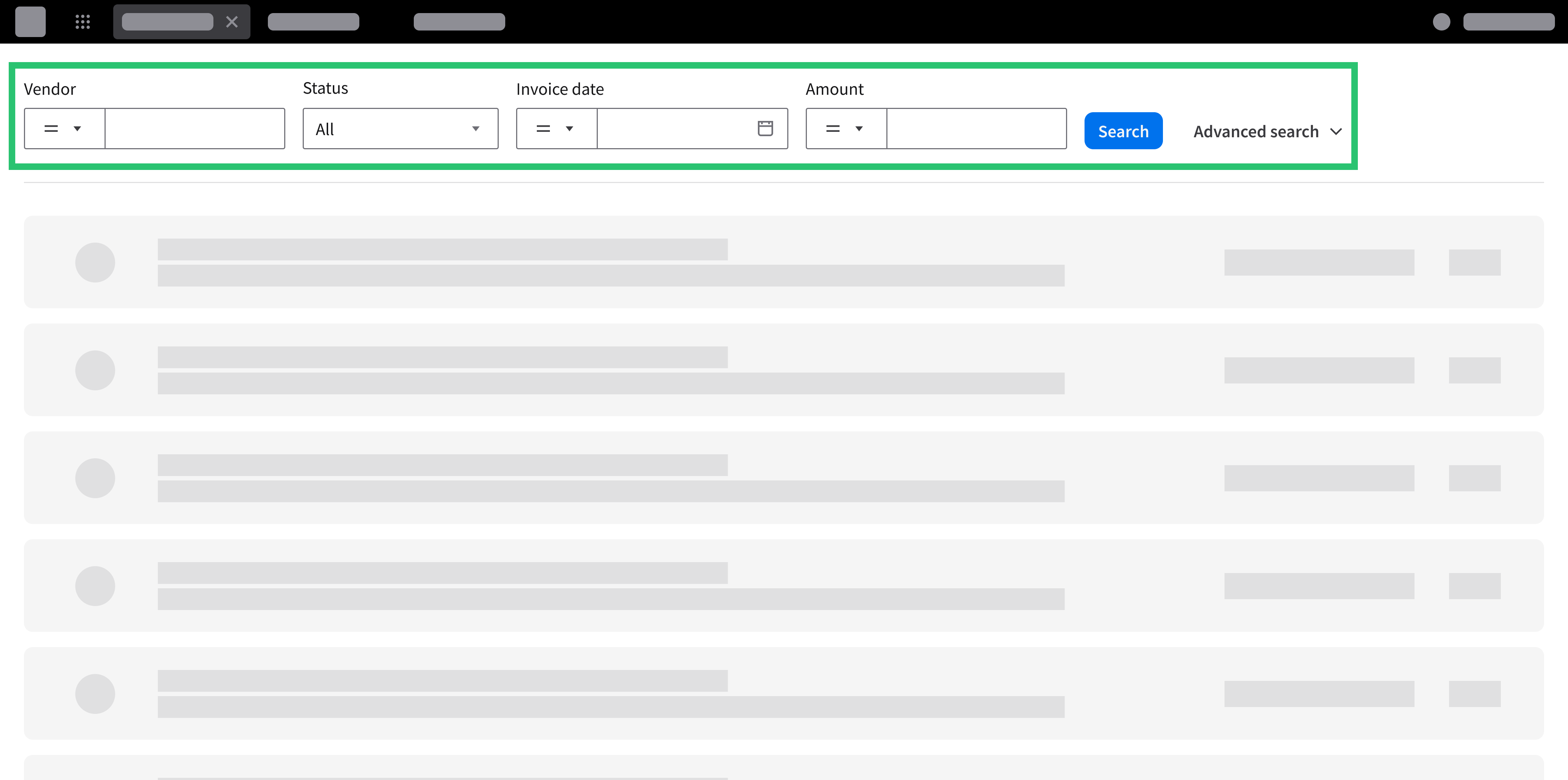
Limit the number of filter dropdowns or inputs displayed directly on the primary toolbar to 4 high-frequency controls. Move secondary criteria into a filter panel or a drawer.
Don’t
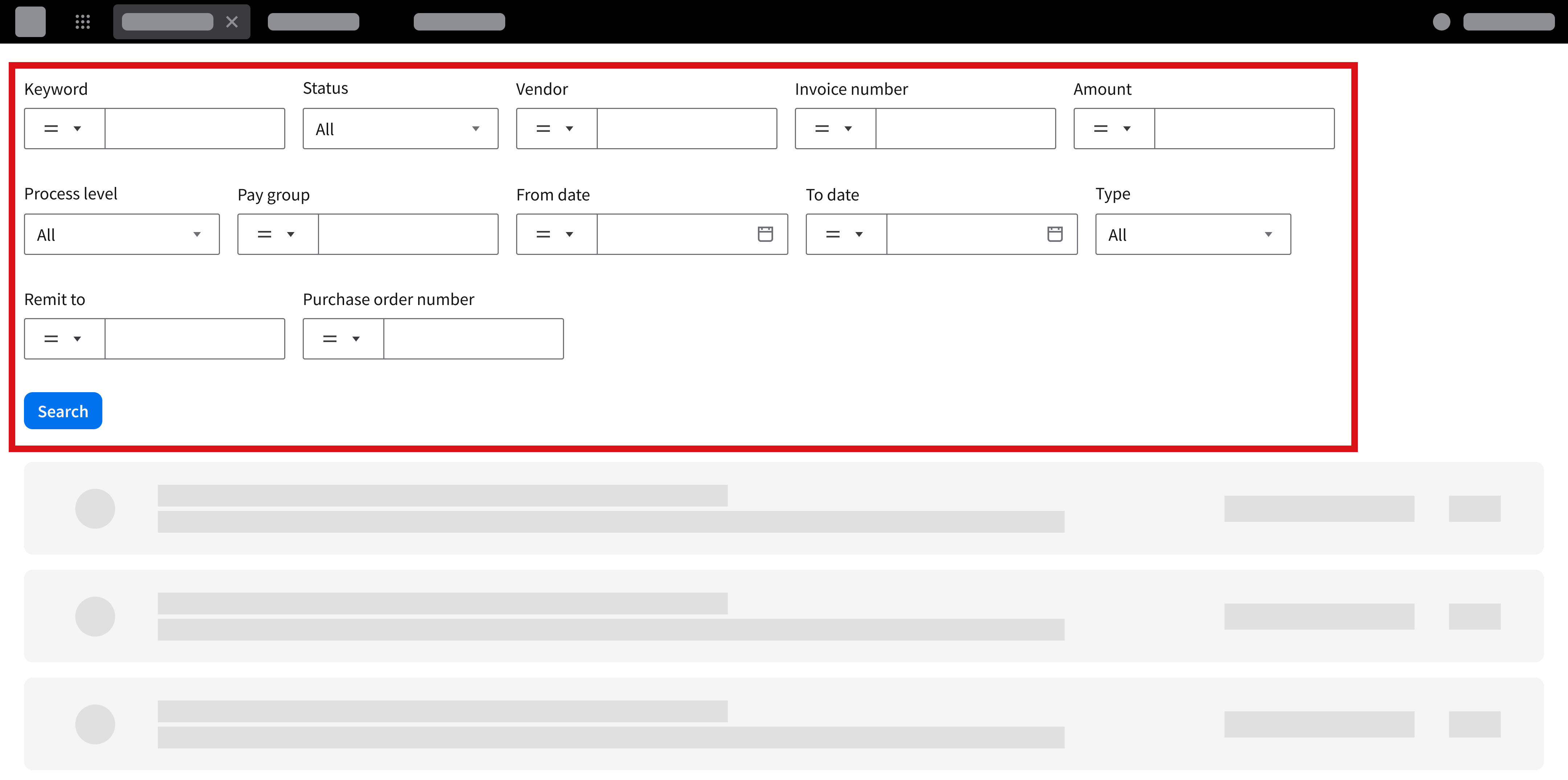
Too many visible filter controls will make the toolbar harder to use.
In Data Grids, Use Toolbar Search and Column Headers
For broad keyword scans across multiple columns, use a single toolbar search. When the user needs field-specific refinement, use column header filters.
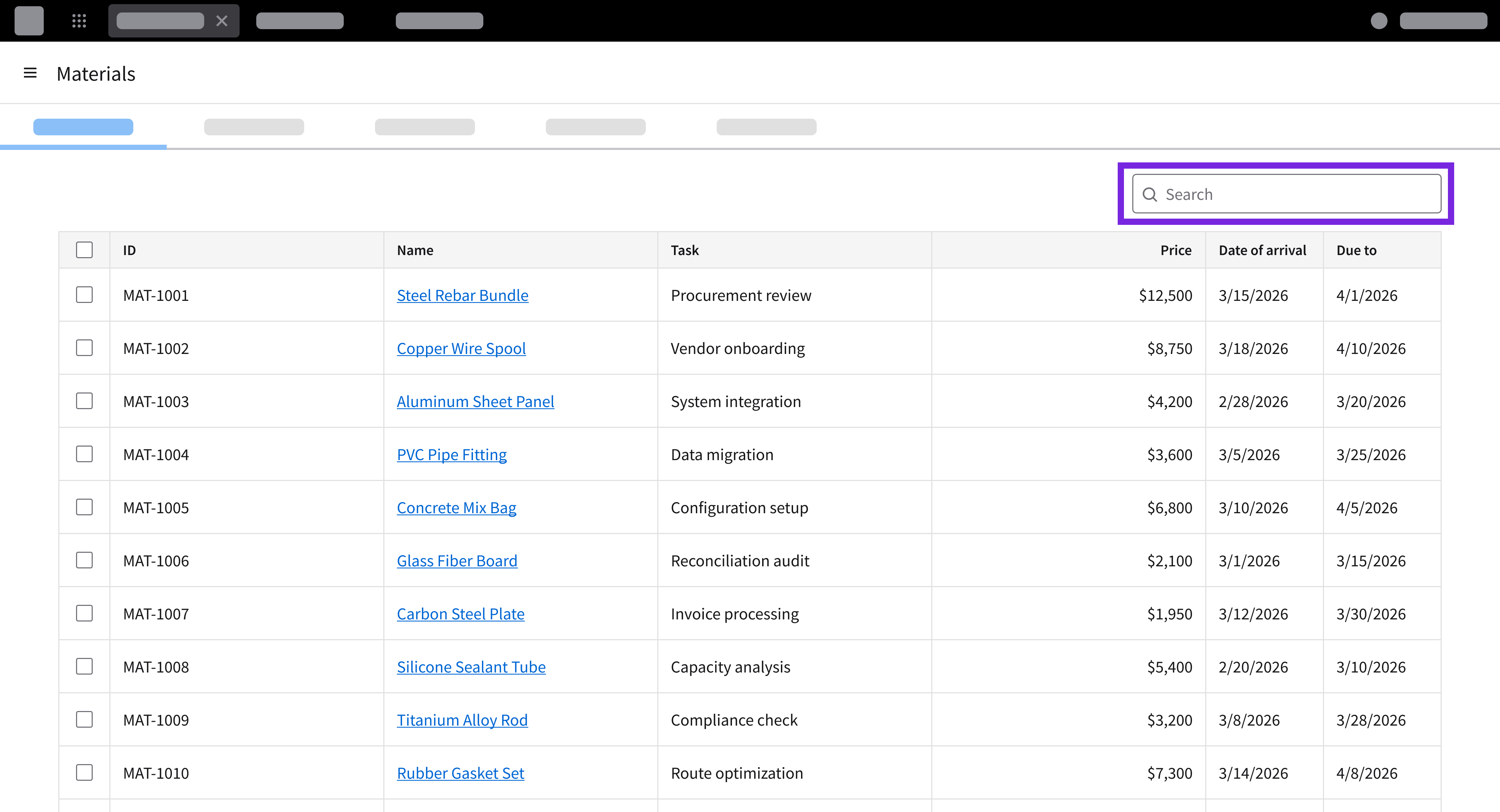
Search across the entire data grid using a single search field.
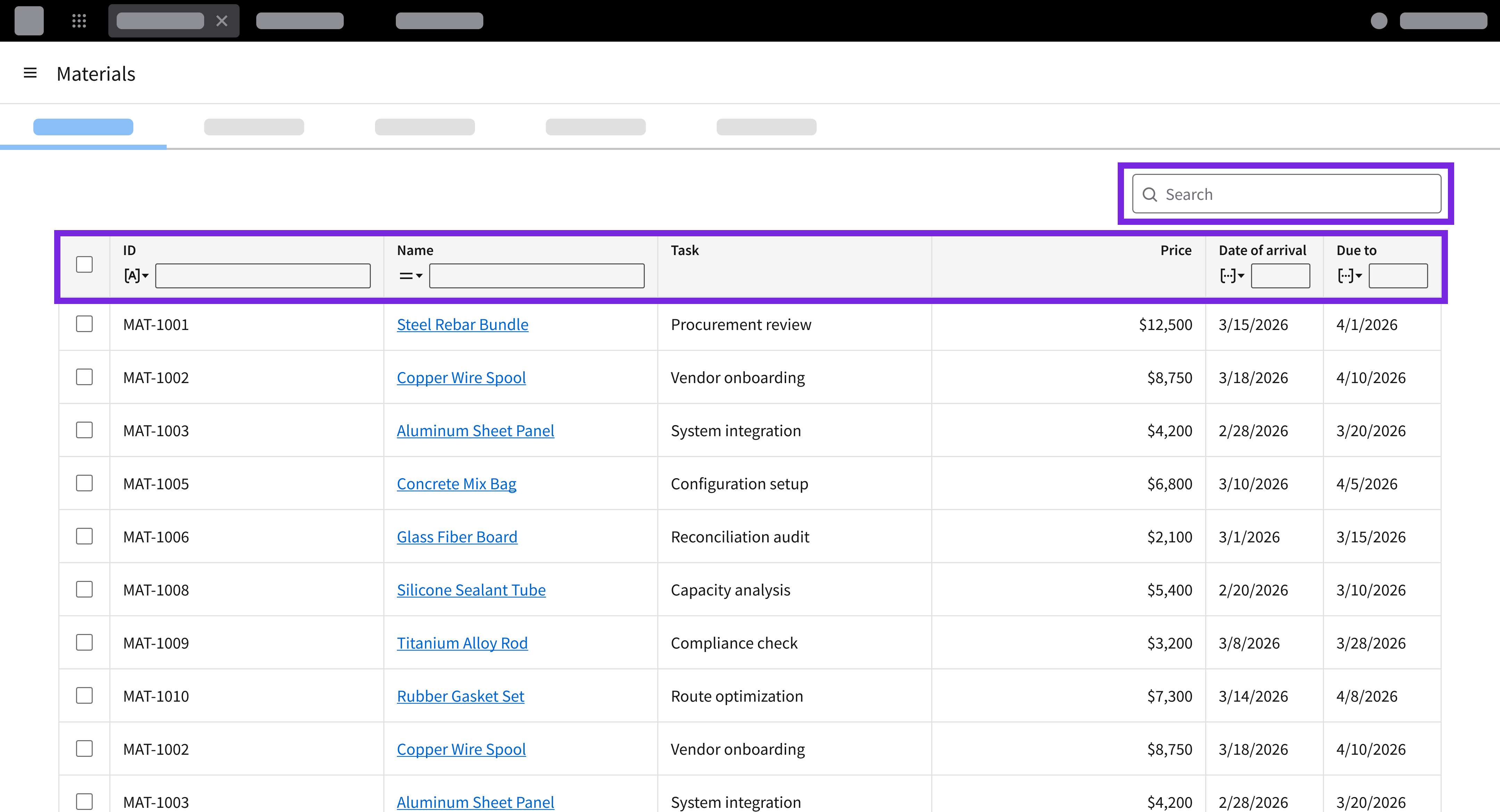
Using a search field and filter columns directly within each column header in a data grid.
Offer Alternatives for Misspelled Searches
To help the user recover easily from typographical errors without retyping, provide actionable query suggestions.
- Example: “Did you mean _______?”

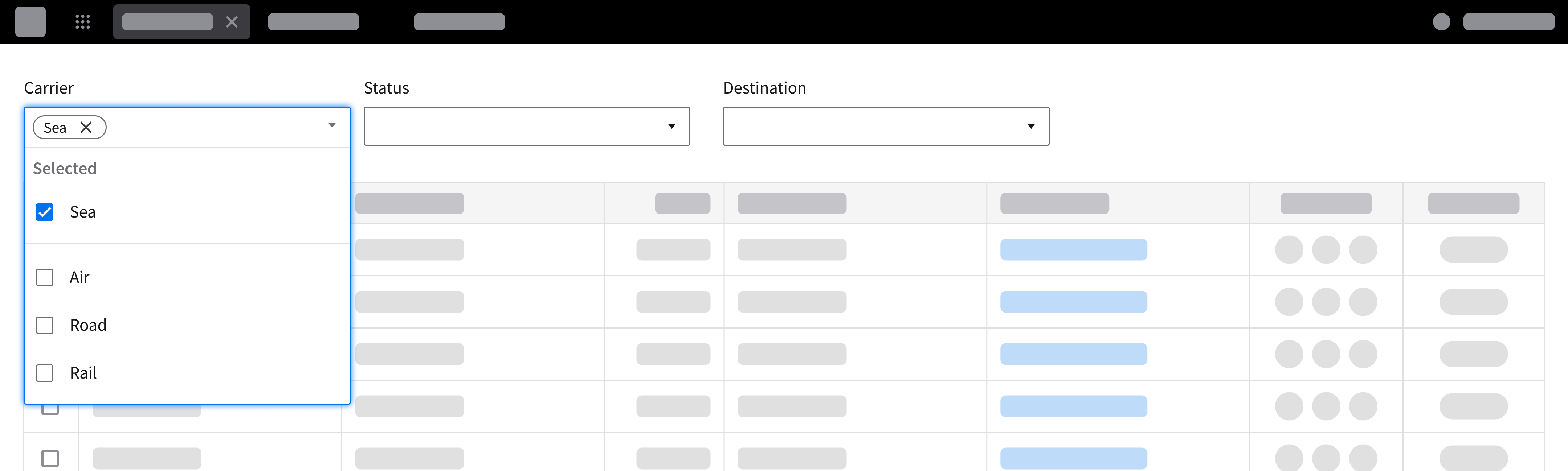
Use Selection Menus for Finite Filter Options
Use a dropdown or a multiselect—rather than freeform search inputs—when filtering by a fixed set of choices.
Use “Clear” Buttons Thoughtfully
- Include a “Clear” button or a “Clear all” button in multi-attribute filter panels, drawers, or modals where the user configures multiple criteria simultaneously. This will allow them to reset all fields back to their default state in a single action.
- Don’t put a “Clear” button on primary toolbars or alongside single-field searches. An inline “clear” button (×) inside the input field or manual backspacing is sufficient to prevent toolbar clutter and accidental resets.
Do
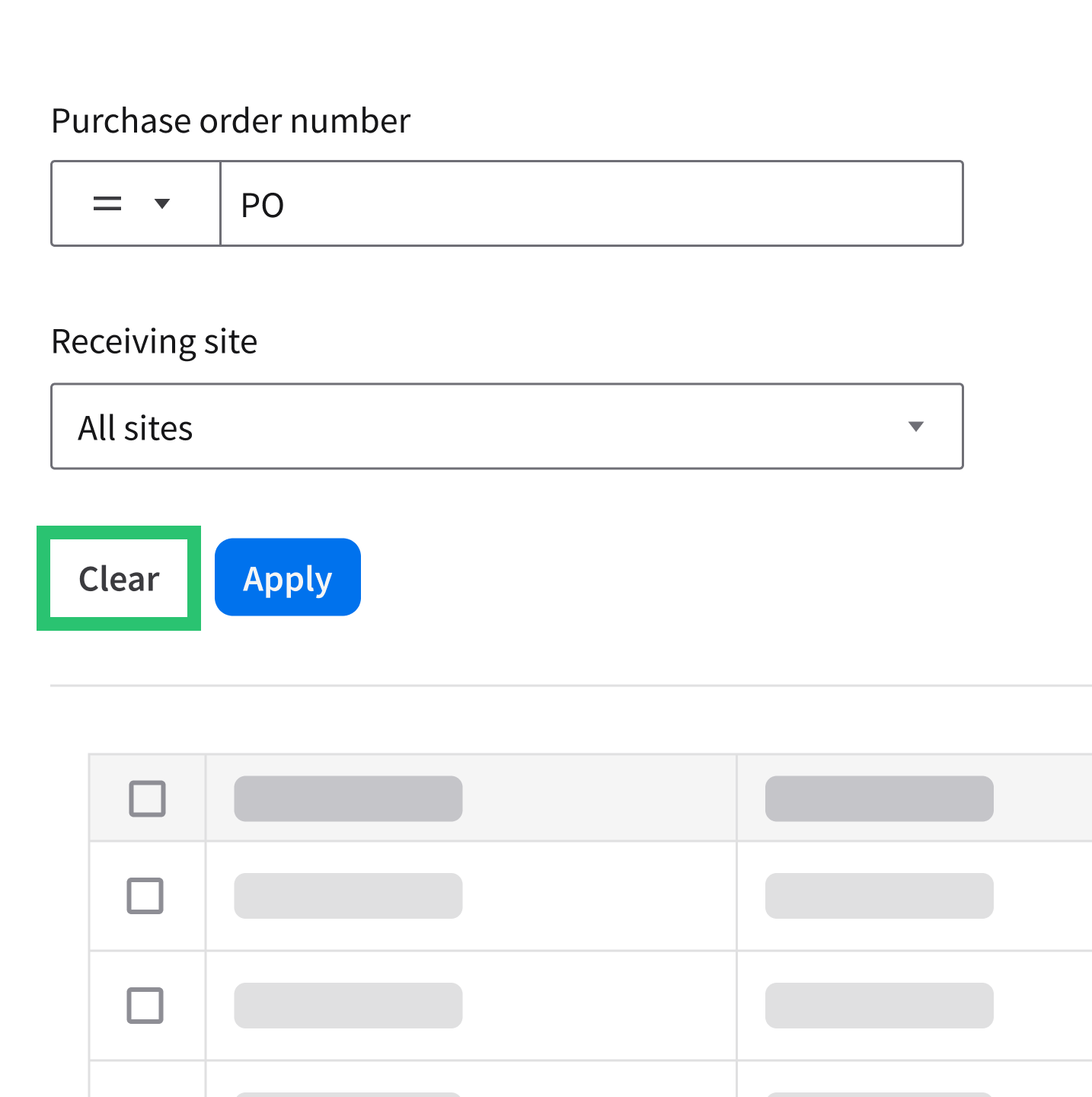
“Clear” is the secondary action; “Apply” is the primary action.
Don’t
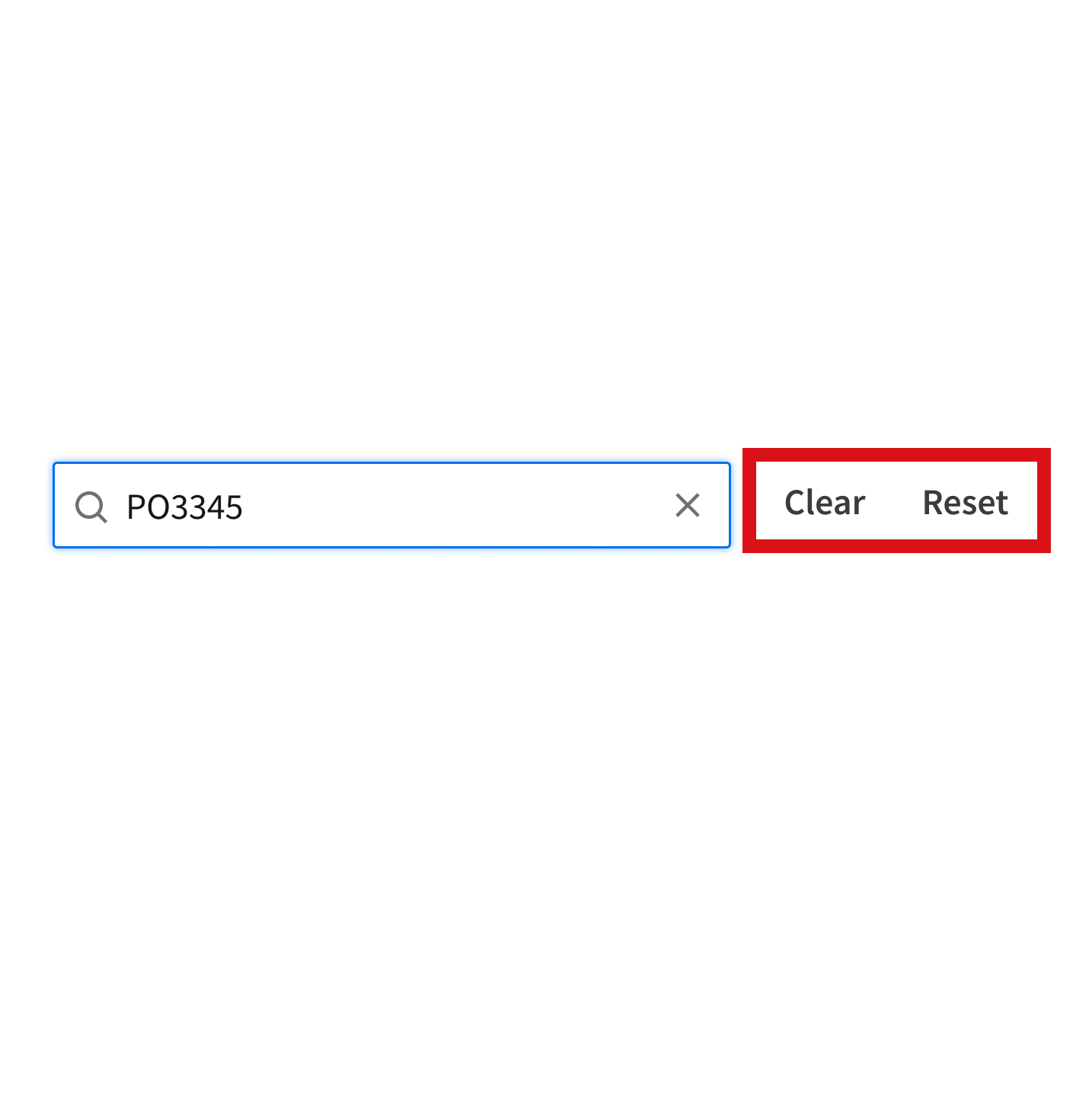
Don’t use a “Clear” button and a “Reset” button when they perform the same function.
Display Active Filters as Dismissible Tags
So the user can review the active criteria and remove individual filters easily, show applied filter criteria as dismissible tags above listviews, cards, or data grids.
Do
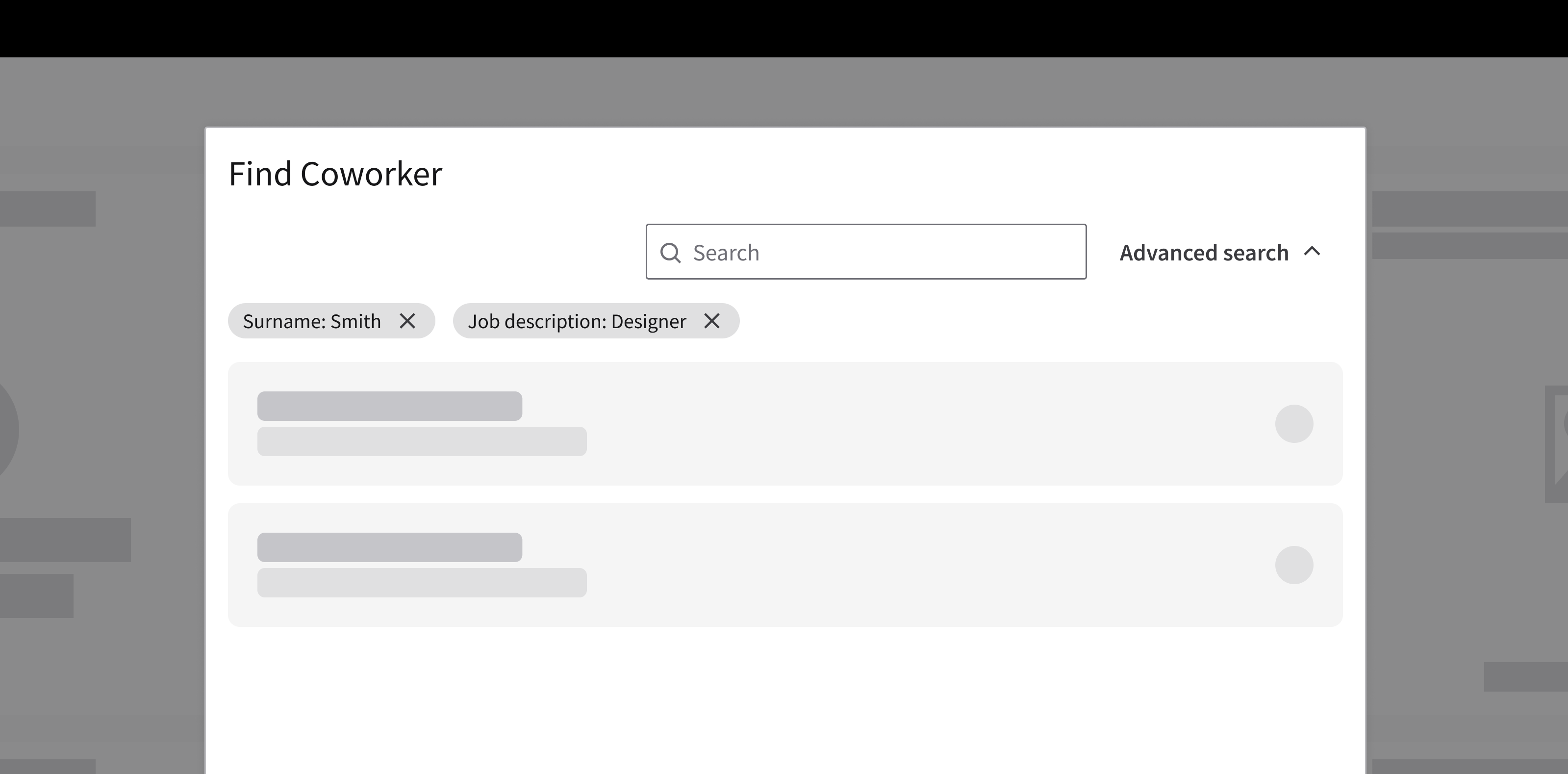
With tags, applied filters are visible while the user views the search results.
Don’t
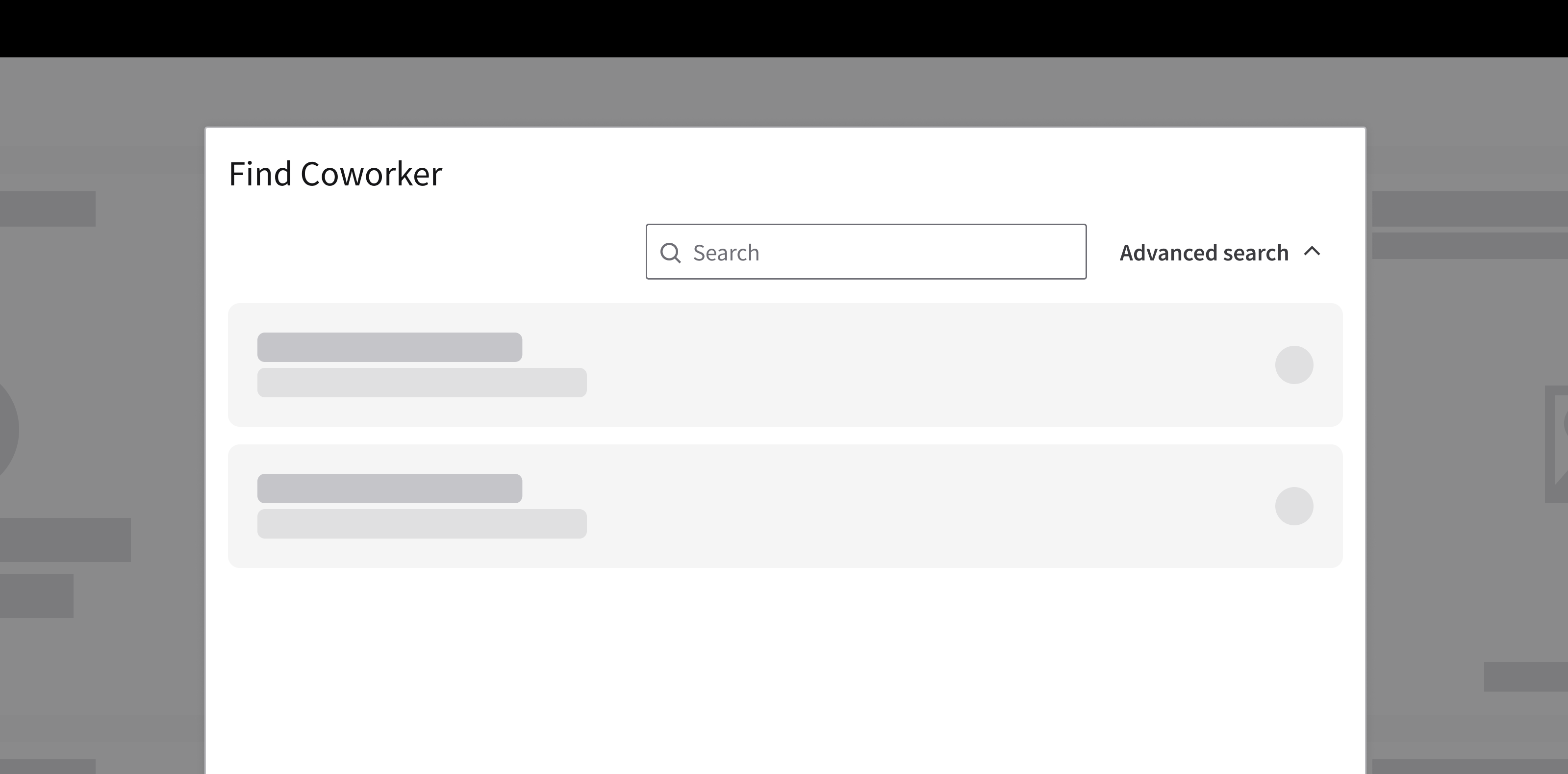
Don’t hide active filter criteria. It makes it harder to understand why specific results are being shown.
Use Icon Badges or Counts to Indicate Active Filters
When active criteria are collapsed or hidden, display a badge or a numeric indicator on the “Filters” button.
Do
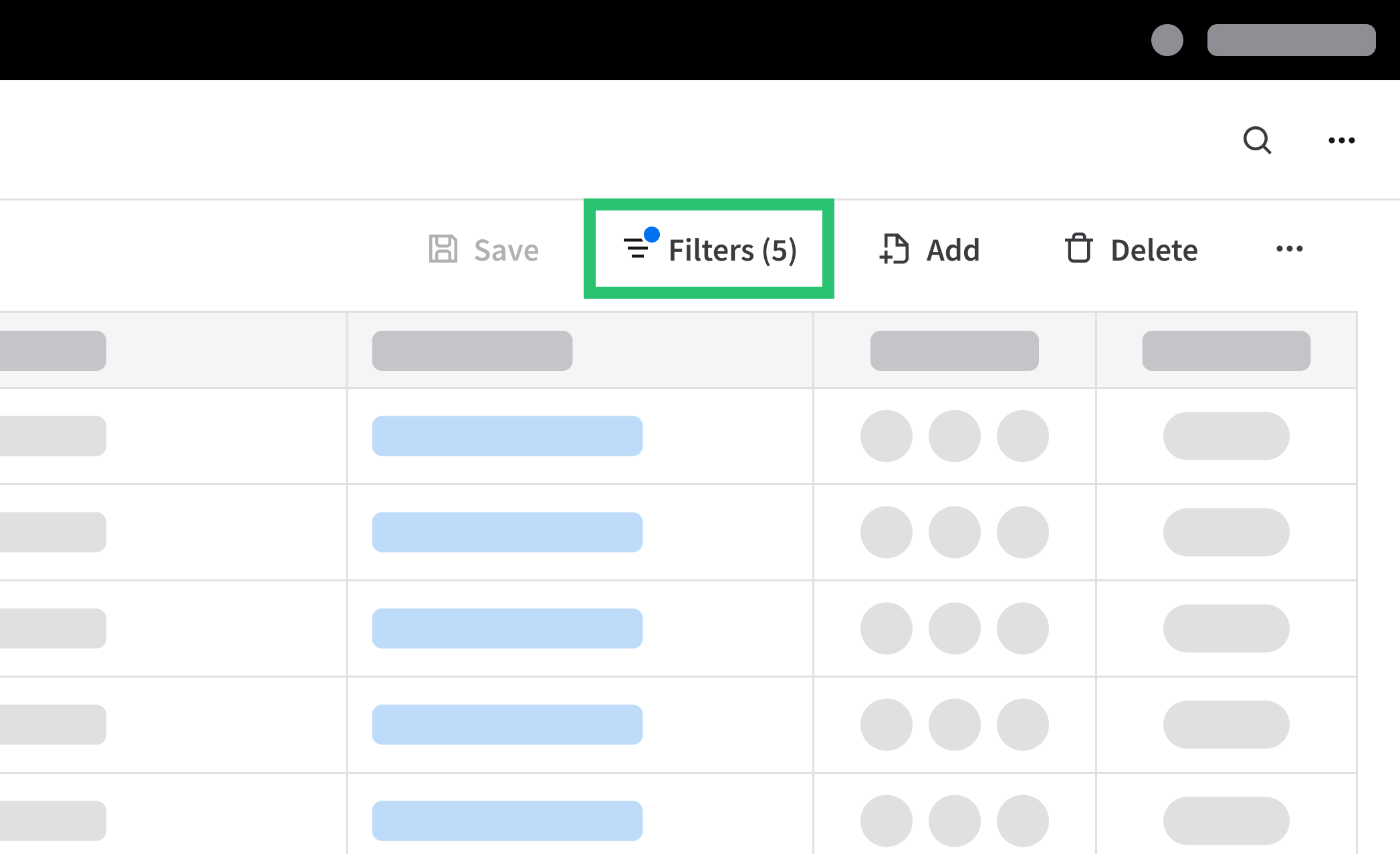
The active filter state is visible even when the filter panel is hidden.
Don’t
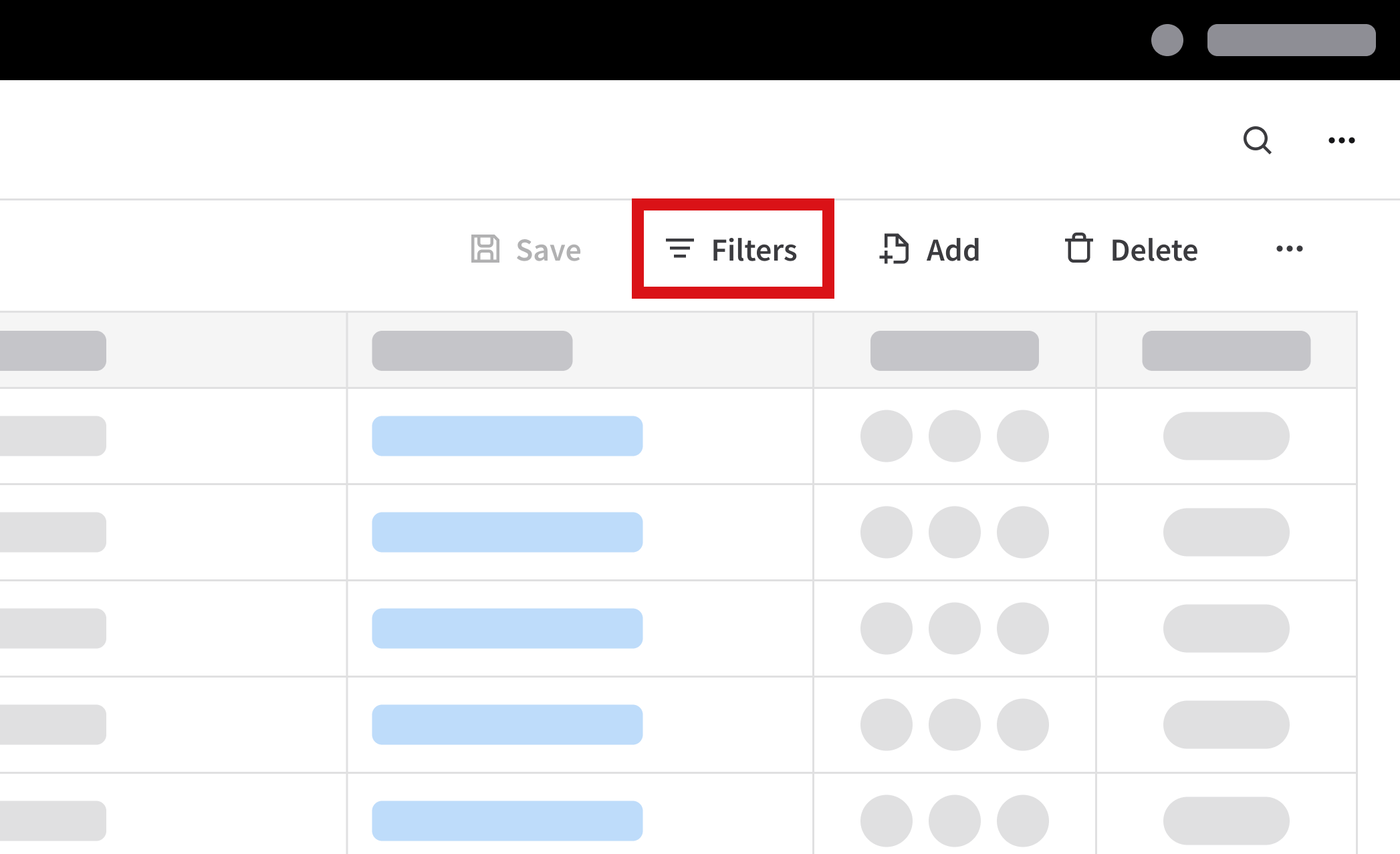
If there’s no indicator, the user won’t know that filters are currently affecting the results.
Ensure That Search Results Are Visible
When a search returns results, ensure that the matching data is visible in the list or in the data grid—not hidden in an unexposed column.
Do
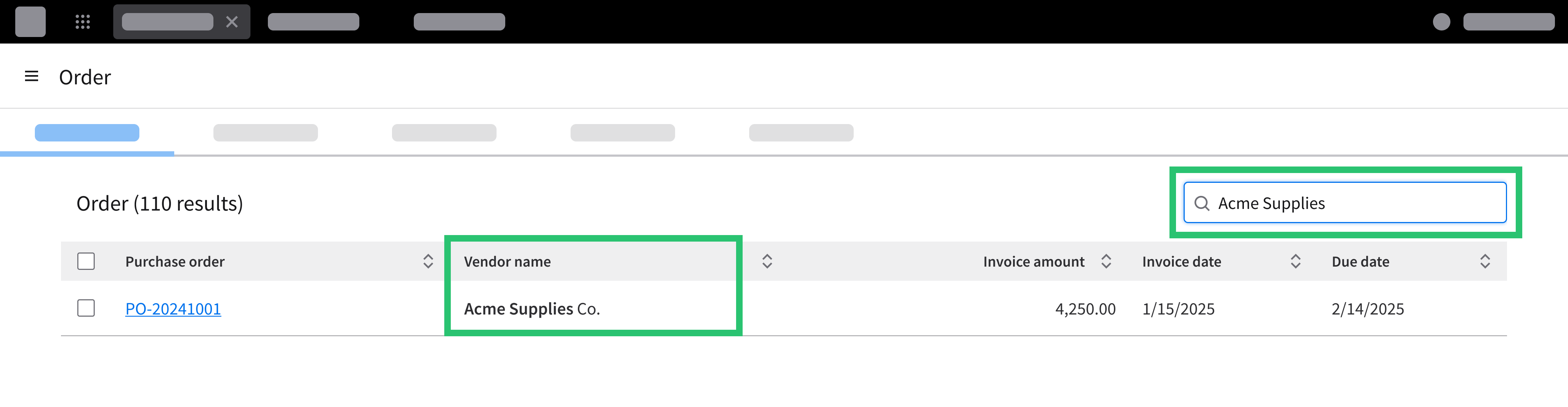
Make it easy to identify what matched the search query.
Don’t
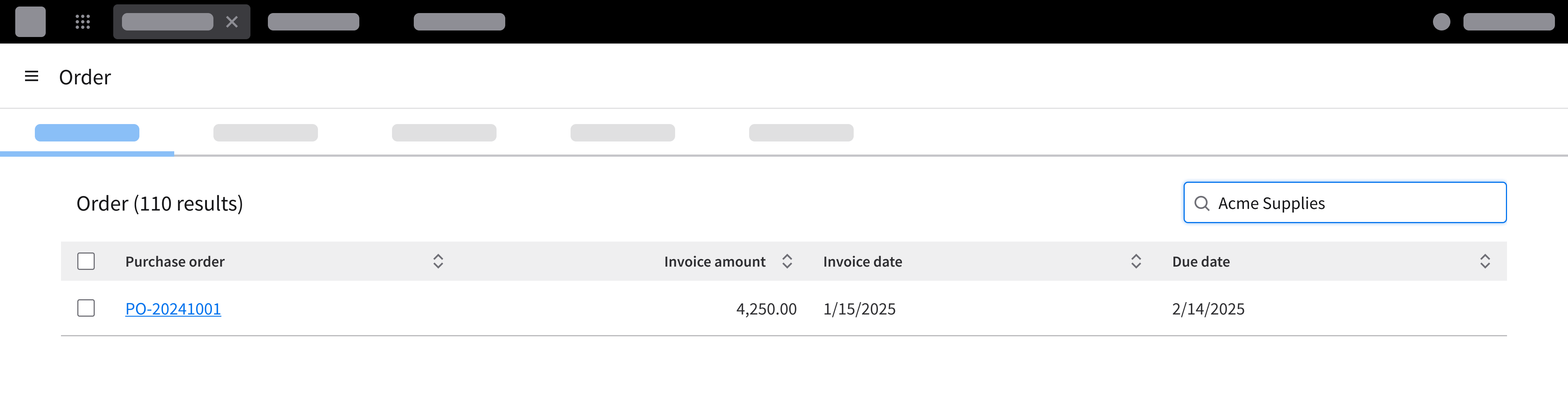
Don’t return results without showing where the match occurred.
Accessibility
- Maintain a logical tabbing sequence and define distinct ARIA landmark regions so keyboard users can navigate predictably.
- The recommended tab order is: Search input → Filter triggers or Tags → Results list
- Provide a visible focus indicator when the input, category selector, “clear” button, filter trigger, or “submit” button receives focus.
- Use
aria-live='polite'regions to announce result updates—including result counts, live filter changes, and “no results found” messages—to assistive technologies as they occur.